Export Fields and Delivery
The Flow builder is designed around the export it will produce.
Use the sections on the page to choose:
- which columns should appear in the file
- which records should be included
- how the rows should be organised
- the file format and delivery destination
Export Fields
The What should the export include? section lists the columns in their output order.
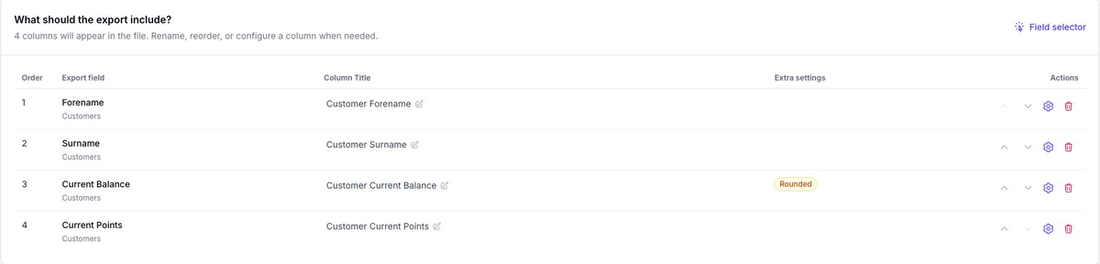
Each row shows:
- the source field
- the column title used in the finished file
- any active extra settings
- controls to move, configure, or remove the field
Rename a Column
Choose the column title on the builder page to edit it in place.
Press Enter or select outside the input to keep the new title. The builder marks the flow as having unsaved changes until you choose Save changes.
Reorder or Remove a Field
Use the up and down controls to change the output order.
Use the delete control to remove a field from the export.
If the flow contains more than eight fields, the builder shows the first eight. Choose Show all fields to review the full list.
Configure a Field
Use Configure to open the field side panel.
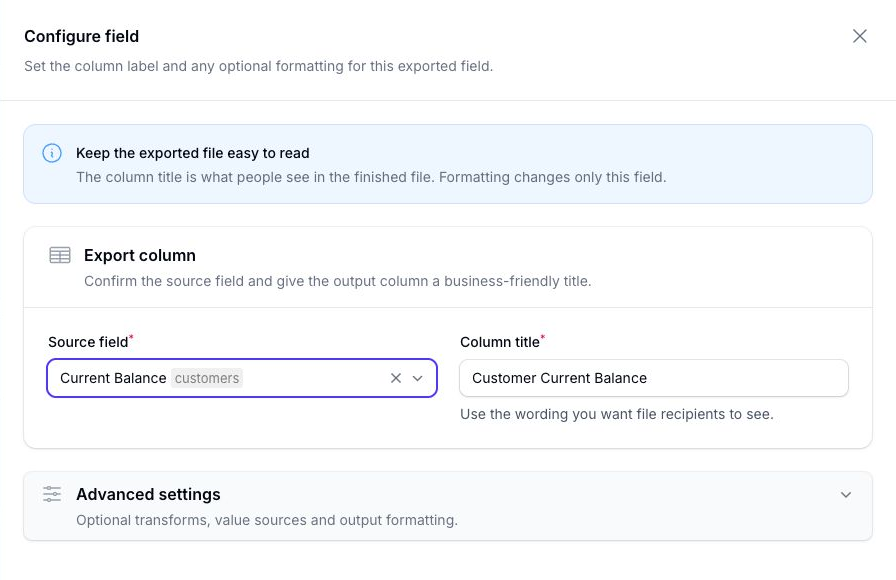
The Export column section lets you change the source field and column title.
Expand Advanced settings when you need to transform or format the output value.
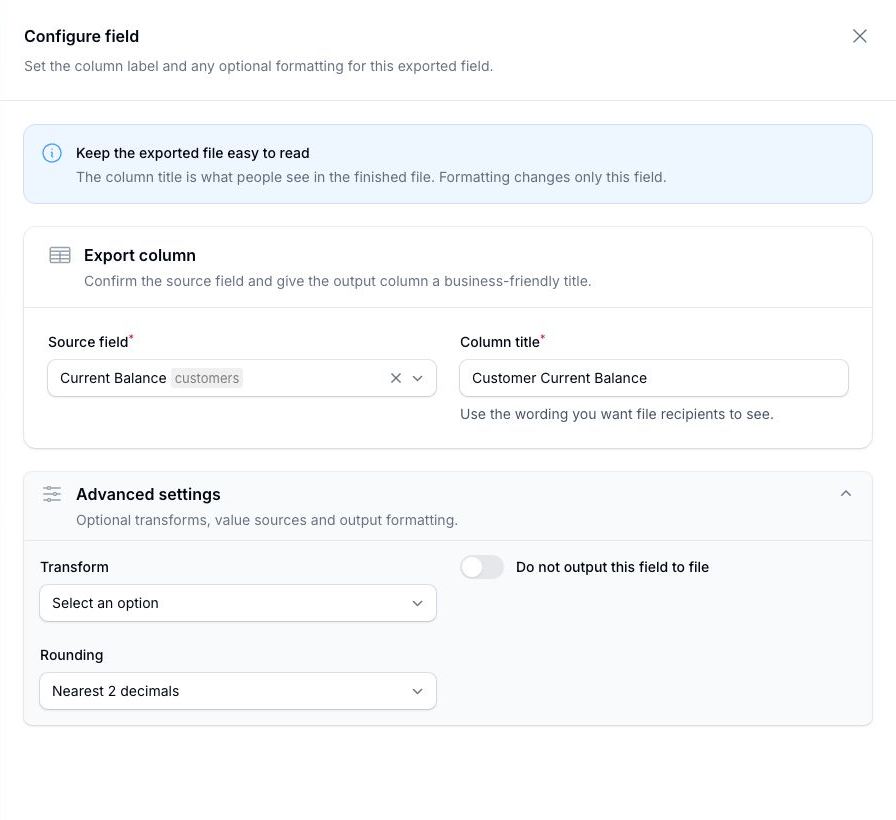
The available settings depend on the selected field. They can include:
- Transform: change text, perform a calculation, or set a value
- Value: enter the value used by the transform
- Use the value from another field: use another field instead of a fixed value
- Replace text: define the text used by the replace transform
- Rounding: control numeric rounding, including price-friendly options
- Format: choose the output format for date and datetime fields
- Do not output this field to file: keep the field available for processing without adding it as a visible column
These changes affect the exported value only. They do not update the source data in your connected POS platform.
Field Selector
Choose Field selector to browse available fields, select several fields, add custom text columns, and preview the output.
For the full walkthrough, see Field Selector.
Row Order and Totals
The How should the rows be organised? card summarises the current row order and whether a totals row will be added.
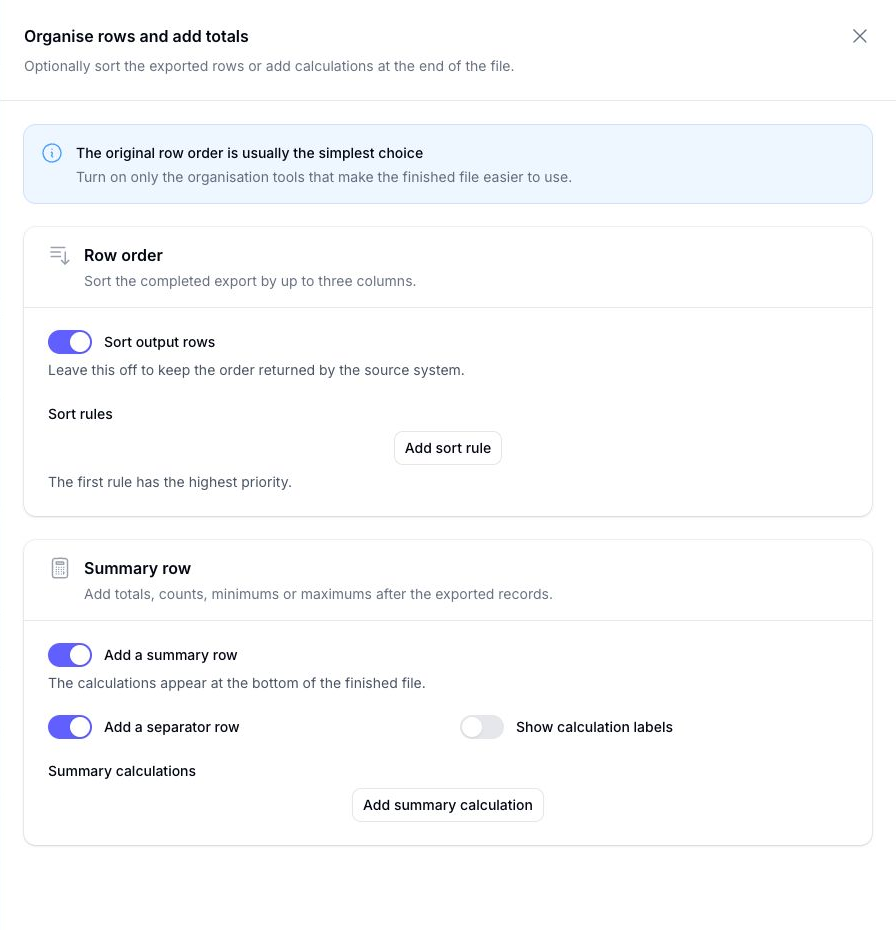
Choose Edit row order and totals to change those settings.
Sort Rules
Enable Sort output rows to sort the finished export by up to three columns.
For each rule, choose:
- Output field: one of the fields already included in the export
- Direction: ascending or descending
Flow applies the rules in the order shown. Later rules break ties from earlier rules.
Summary Row
Enable Add a summary row to add calculations after the exported records.
Optional settings let you:
- add a separator row
- show calculation labels
- add one or more calculations
The calculations available depend on the field type:
| Field type | Available calculations |
|---|---|
| Numeric fields | Sum, Average, Count, Count distinct, Min, Max |
| Date or datetime fields | Count, Count distinct, Min, Max |
| Text and other non-numeric fields | Count, Count distinct |
| Custom text field | Count, Count distinct |
Delivery and File Settings
The Where should the finished file go? card summarises the file format and delivery destination.
Choose Edit delivery and file settings to make changes.
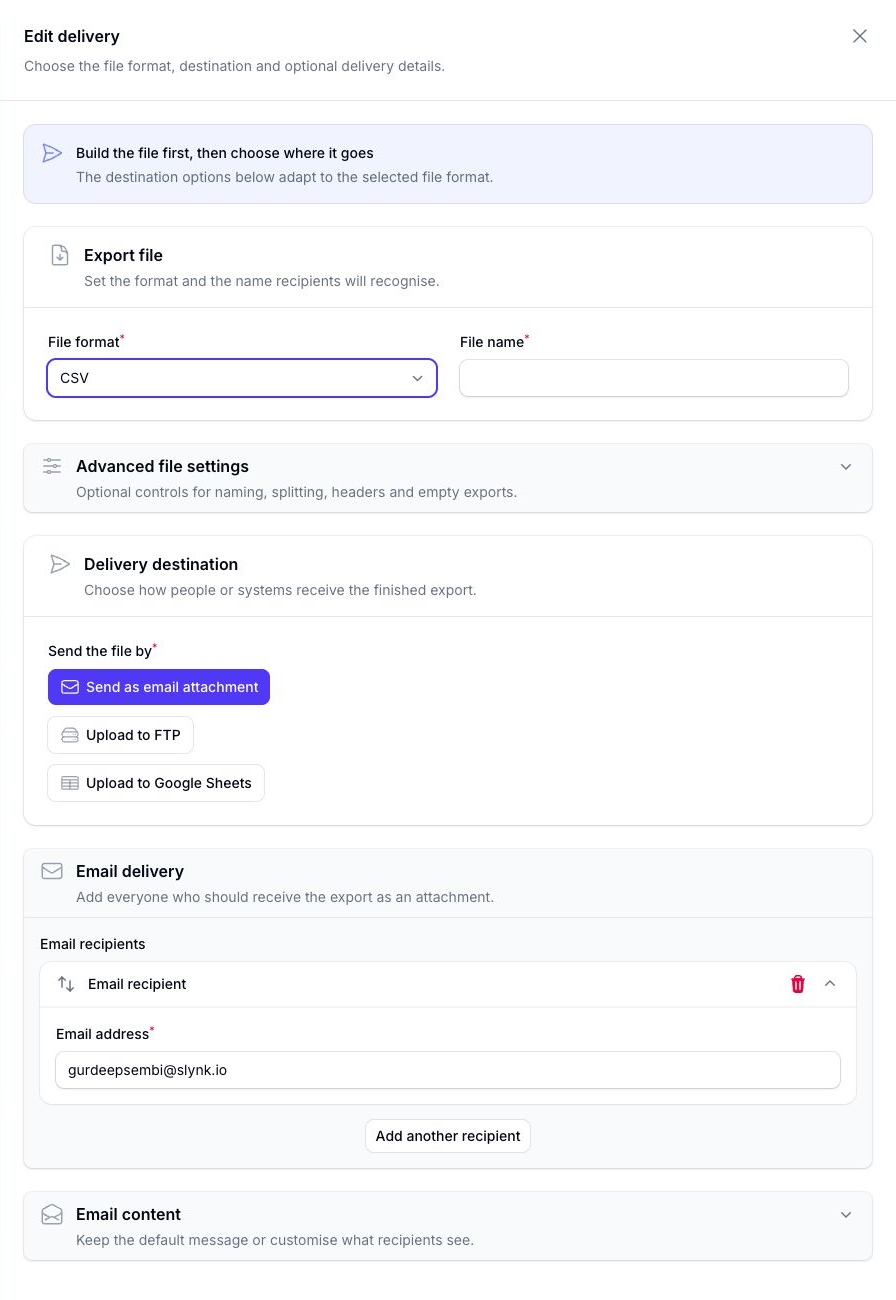
Export File
Choose:
- File format:
CSV,JSON, orXML - File name: the name without the file extension
Advanced File Settings
Expand Advanced file settings for optional controls.
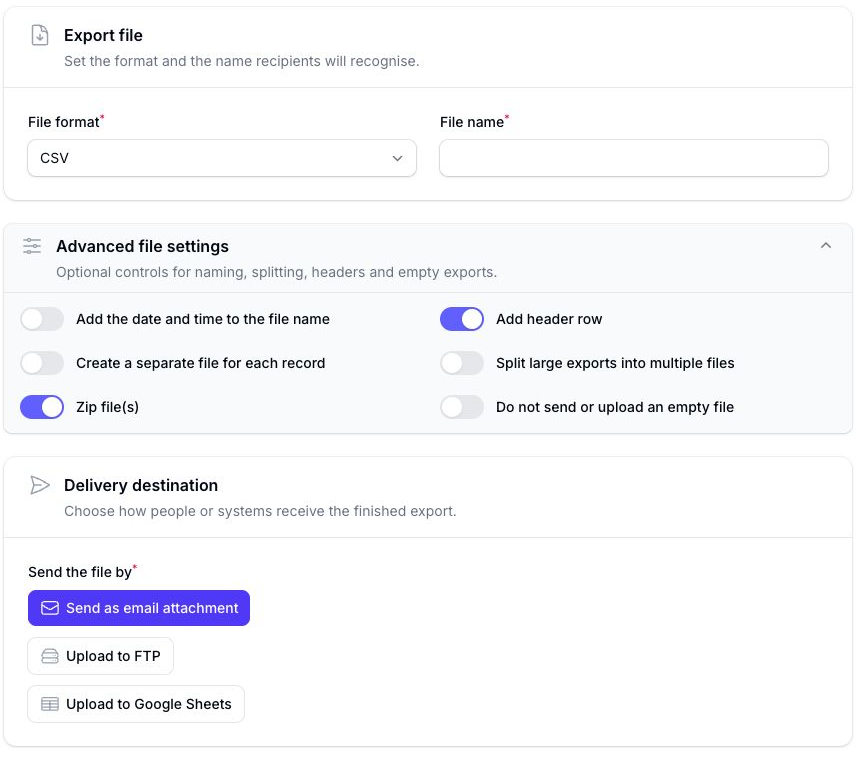
Depending on the format and delivery destination, you can:
- add the date and time to the file name
- choose the datetime format
- add a header row to a CSV file
- create a separate file for each record
- split large exports into multiple files
- zip the output
- skip sending or uploading an empty file
Delivery Destination
The standard delivery methods are:
- Send as email attachment
- Upload to FTP
You can also use Upload to Google Sheets for CSV exports.
The rest of the panel adapts to the selected destination.
Email
Add one or more email recipients in Email delivery.
The Email content section lets you customise the subject, reply-to address, sender name, body, inline table limit, and signature.
For details, see Email Customisation.
FTP
Choose the FTP connection and folder path. You can also:
- test the selected connection
- overwrite existing files
- create a folder using the current datetime
For details, see FTP Connections.
Google Sheets
Choose the Google connection and how the spreadsheet should be updated.
For details, see Google Sheets Exports.
Simulations
We recommend running a simulation to confirm:
- the correct rows are selected
- the field order and titles look right
- the output format is what you expect
For export flows, simulation is a preview to help you validate the setup before activation.
Only the first 10 rows are included in export simulations so that you can review the data. The full list of rows that would have been exported can be seen in the Flow Run Logs.
Next Step
For the full list of field-level transforms and rounding options, see Export Field Transforms.