Edit Flow
After you create a flow from a template, Flow opens the builder so you can review and customise it.
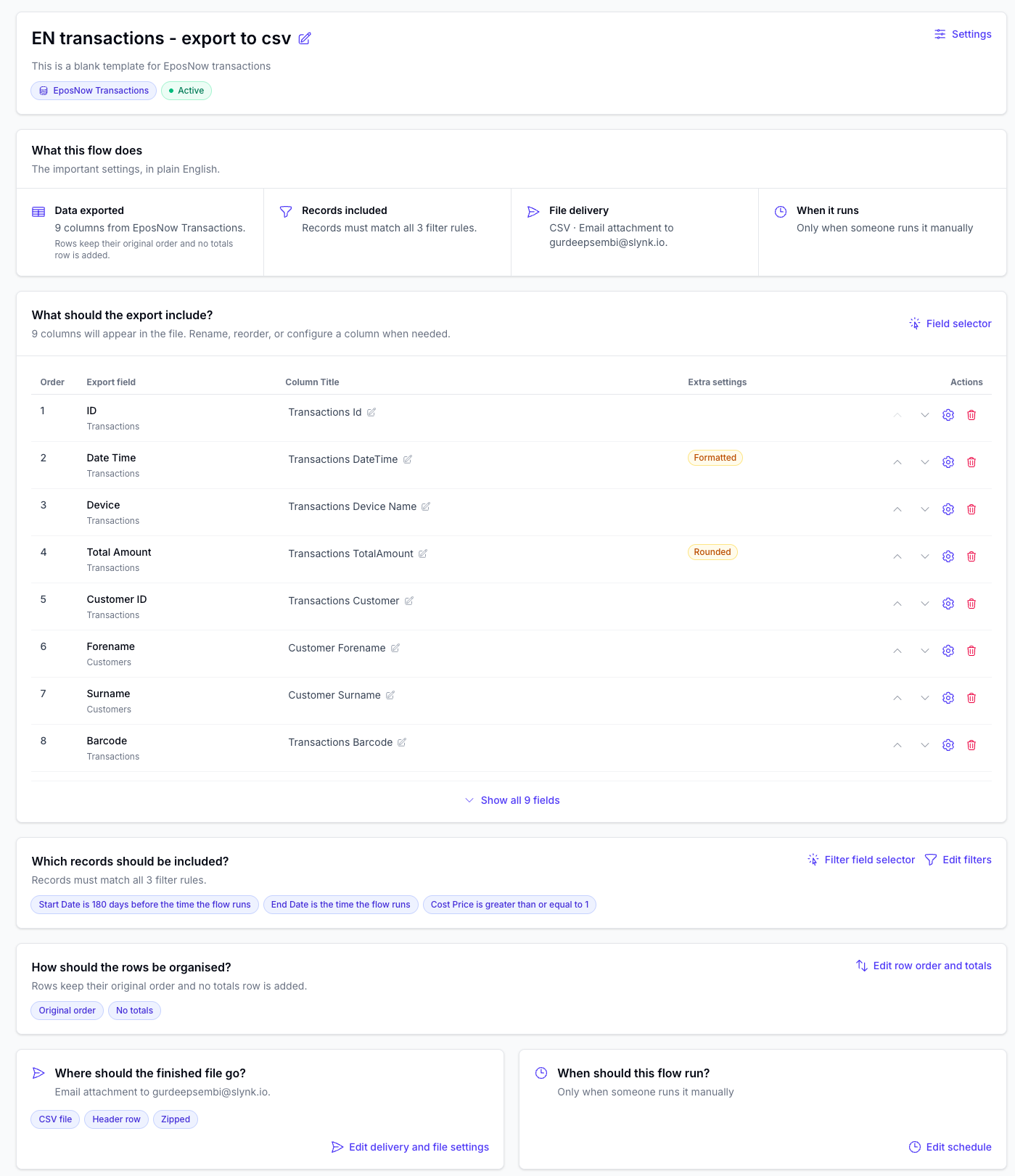
The builder keeps the complete export setup on one page. Read it from top to bottom to understand what the flow will do, then open a section only when you need to change it.
Work Through the Builder
- Flow details show the name, description, primary data type, and whether the flow is active. Use the edit icon or Settings to make changes. See Flow Details and Settings.
- What this flow does summarises the important settings in plain English. Use it for a quick check before opening the detailed sections.
- What should the export include? lists the columns that will appear in the file. Rename or reorder a column directly, or open its settings to transform or format the value. See Export Fields and Delivery.
- Which records should be included? summarises the filter rules. Use Edit filters to change them. See Filters.
- How should the rows be organised? shows the row order and whether the export includes totals or a summary row. These settings are covered in Export Fields and Delivery.
- Where should the finished file go? shows the file format and delivery destination. Open it to change email, FTP, Google Sheets, or advanced file settings. See Export Fields and Delivery.
- When should this flow run? shows whether the flow is manual or scheduled. See Schedule.
- Builder actions at the bottom let you view the summary, run the flow, save changes, simulate, or request a review. See Review, Simulate, and Activate.
Some common changes can be made directly on the page. Detailed settings open in a side panel when you choose the action beside a section.
If you used the previous tabbed editor, see Moving from the Previous Flow Editor to find the equivalent section in the current builder.