Schedule
The When should this flow run? card summarises when the flow is due to run.
Choose Edit schedule to change the run method, timezone, and optional working hours.
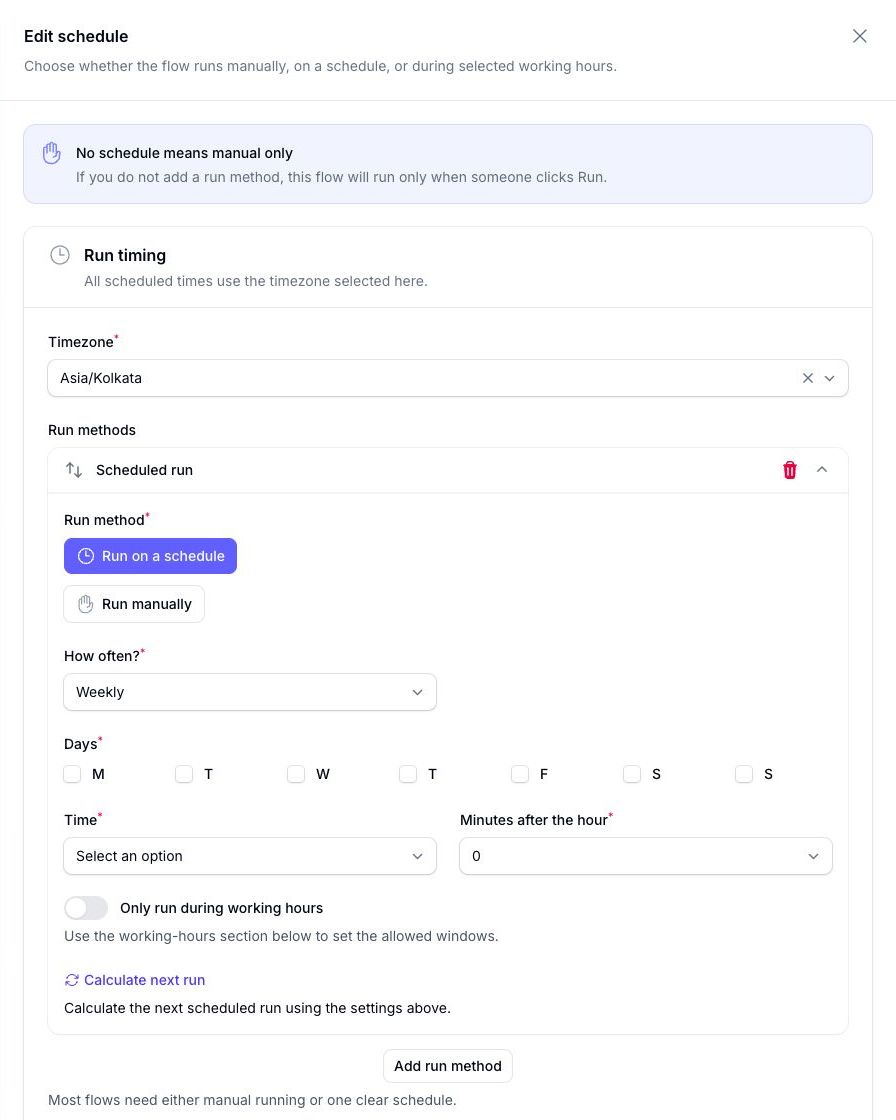
The available run methods are:
- Run manually
- Run on a schedule
Manual Run
Use Run manually when you want the flow to run only when you start it yourself from the dashboard.
This is useful for:
- one-off exports
- testing a flow on demand
- export jobs you do not want to run automatically
Run on a Schedule
Use Run on a schedule when you want Flow to run automatically.
The available schedule types are:
- Hourly
- Daily
- Weekly
- Monthly
Some accounts also show shorter intervals, such as every 5, 10, 15, or 30 minutes.
All scheduled times use the timezone selected at the top of the panel.
Each schedule type controls when the flow should run:
- Hourly: run every hour on the selected days
- Daily: run once every day at a set time
- Weekly: run on selected days of the week at a set time
- Monthly: run once a month on a set day and time
Depending on the schedule you select, additional fields appear.
Hourly
When you choose Hourly, Flow shows:
- Days
- Minutes after the hour
Use Days to choose which days the hourly schedule is active.
Use Minutes after the hour to choose how many minutes past the hour the flow should run.
For example, if you select Monday and Tuesday with Minutes after the hour set to 30, the flow runs every hour at :30 on those days.
Daily
When you choose Daily, Flow shows:
- Time
- Minutes after the hour
Use Time to choose the base hour, then use Minutes after the hour to add minutes to that hour.
For example, if Time is 09:00 and Minutes after the hour is 30, the flow runs every day at 09:30.
Weekly
When you choose Weekly, Flow shows:
- Days
- Time
- Minutes after the hour
For example, if you select Monday and Tuesday, set Time to 09:00, and set Minutes after the hour to 30, the flow runs every week on Monday and Tuesday at 09:30.
Monthly
When you choose Monthly, Flow shows:
- Day of the month
- Time
- Minutes after the hour
For example, if Day of the month is 1, Time is 09:00, and Minutes after the hour is 30, the flow runs on the first day of each month at 09:30.
Working Hours
Enable Only run during working hours when a scheduled flow should only run during allowed time windows.
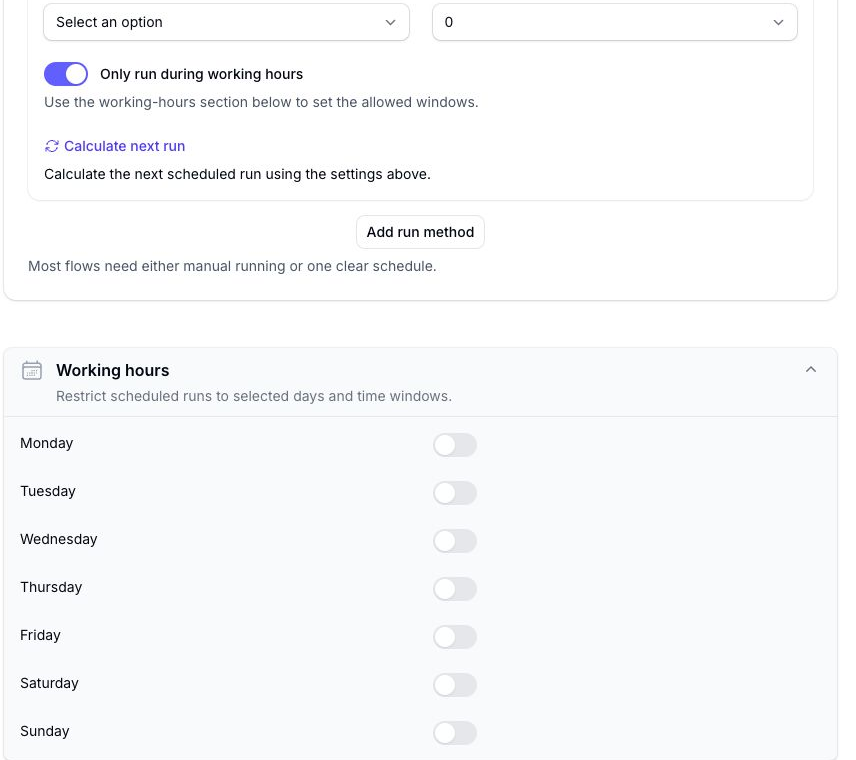
Flow checks the schedule first, then checks whether that scheduled run is inside the working hours for that day.
- If the scheduled run is inside working hours, the flow can run.
- If the scheduled run is outside working hours, that run is skipped.
- If the day is disabled in working hours, scheduled runs on that day are skipped.
Skipped runs are not moved to the next working-hours window. Flow waits until the next scheduled run time, then checks working hours again.
All working-hours checks use the timezone set in the panel.
You can enable or disable each weekday and add one or more time windows per day.
If the schedule conflicts with the configured working hours, Flow shows a Schedule vs working hours warning so you can review the setup before activating the flow.
Next Run Time
When you are using a schedule, choose Calculate next run to check when the flow is due to run next.
This is a useful final check after changing the timezone, schedule, days, time, or minutes after the hour.