Manage Flows
Open My Flows from the left-hand navigation to see all of the flows on your account.
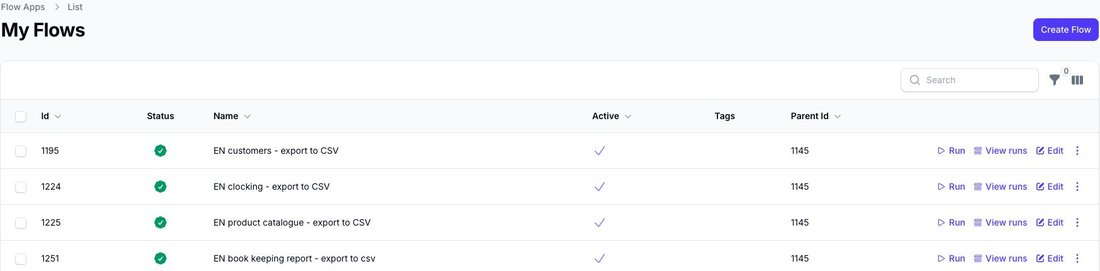
This page is the main control area for your existing flows.
What You Can See in My Flows
The My Flows list helps you review:
- the flow ID
- the latest run status
- the flow name
- whether the flow is active
- any tags added to the flow
If you have not created a flow yet, this page also gives you a shortcut to create your first one from a template.
Organise Flows with Tags
You can add tags in the flow settings to help organise your flows.
Those tags can then be used to filter the My Flows list, which is useful once you have multiple flows for different teams, locations, or use cases.
Actions Available from the List
From My Flows, you can:
- Run a flow manually
- View Runs for that flow
- Edit the flow
- Simulate the flow without applying live changes
- Clone the flow to use as a starting point for another variation
- Delete the flow if it is no longer needed
Run a Flow
Use Run when you want the flow to perform its live action immediately.
If the flow has saved filters, Flow may show a run modal before the flow starts.
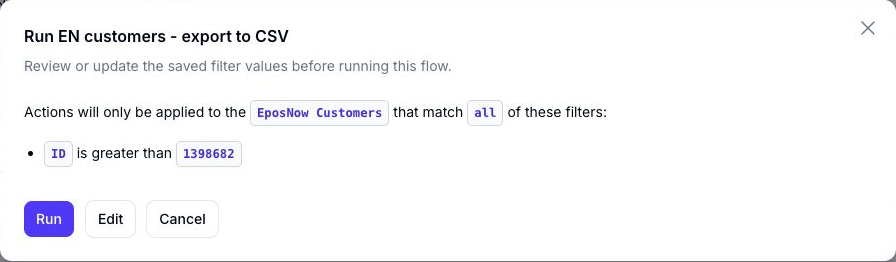
The modal lets you review the filter values that will be used for this run. This is useful for flows that export date-based data, such as transaction exports for a specific month.
From the modal, you can:
- choose Run to run the flow with its currently saved filters
- choose Edit to update the filter values before running
- choose Cancel to close the modal without running the flow
When you choose Edit, Flow shows the editable filter values.
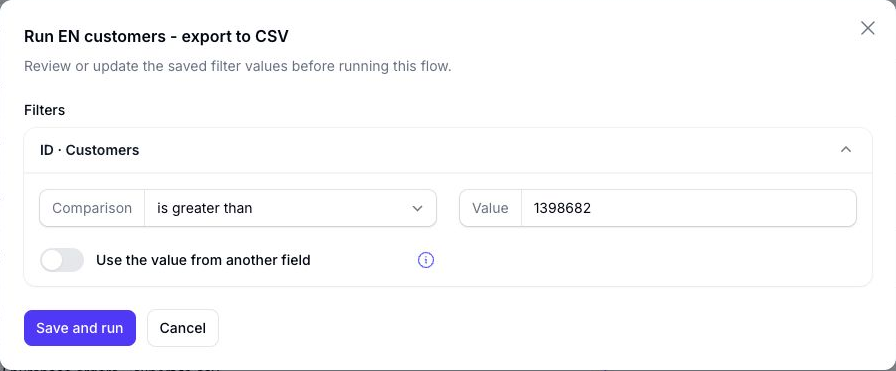
Choose Save and run to save the updated filter values and run the flow in one step.
Save and run updates the flow's saved filters. The next time the flow runs, it will use those updated filter values unless you change them again.
If you do not want the filter review modal to appear for a flow, open the flow builder and choose Settings. Enable Run immediately without reviewing filters.
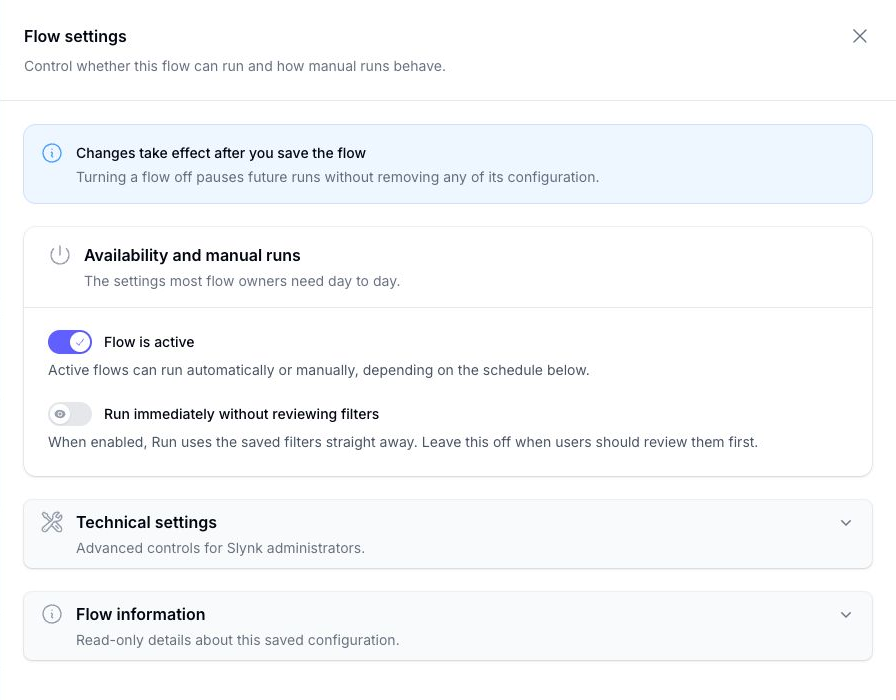
When this setting is enabled, clicking Run starts the flow immediately using the saved filters.
Simulate a Flow
Use Simulate when you want to preview the flow against live data without creating a live export. This is useful when you are still checking filters and export output. Simulations do not count toward your row or run usage.
Open a Flow to Edit It
Use Edit to open the flow builder and review: