Filters
The Which records should be included? card summarises the filters applied to the export.

Choose Edit filters to change the rules.
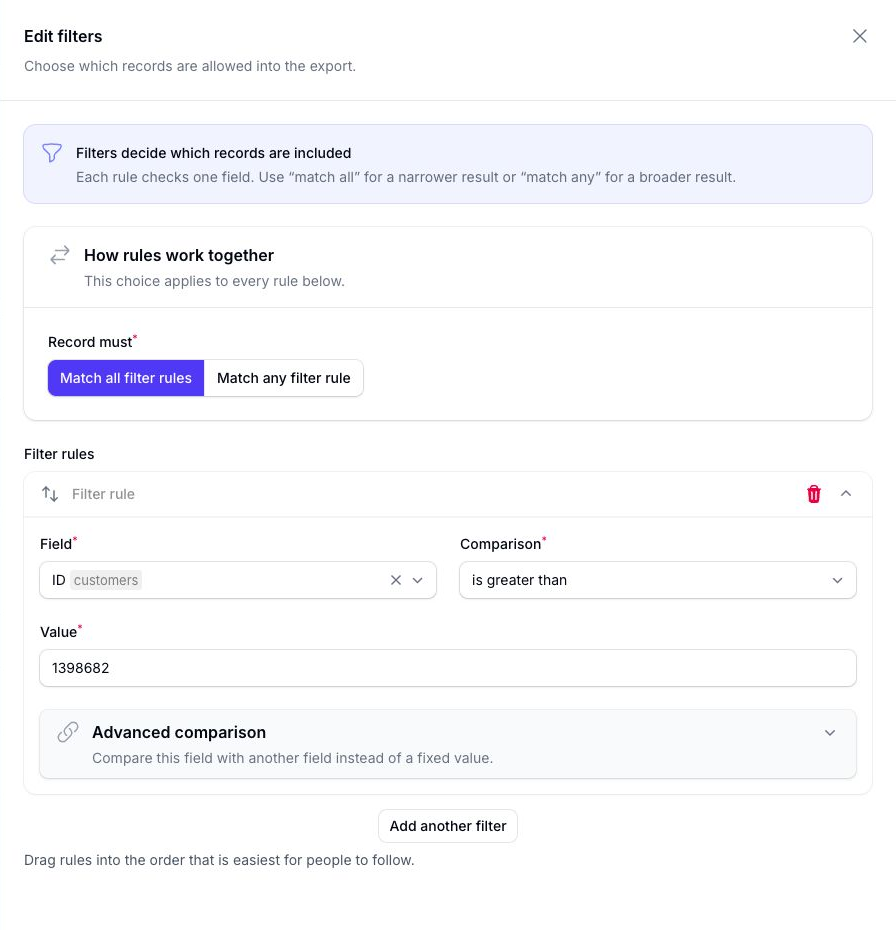
How Rules Work Together
Use How rules work together to control how multiple filters behave:
- Match all filter rules means every rule must match
- Match any filter rule means any matching rule can include the record
Add Filters
You can leave the filters section blank, or add as many filters as your flow needs.
It is also possible to apply multiple filters to the same field if you need a more precise result.
Choose the Field and Comparison
For each filter, select:
- the field you want to check
- the comparison to use
- the value to compare against
You can select the field from the searchable Field list.
The data type is shown with the selected field so you can see where the data comes from. Flow understands how the data types are related, so fields from connected data are also available.
You can also use Filter field selector on the builder page to browse fields by data type, search across related data, and add several filter fields at once. For details, see Field Selector.
The value input changes to match the selected field and comparison. It may be a text box, number input, date picker, toggle, or searchable list.
For the full list of comparison options available by field type, see Filter Reference.
Compare One Field with Another
For supported comparisons, expand Advanced comparison inside the filter rule.
Enable Compare with the value from another field, then choose the field to compare against.
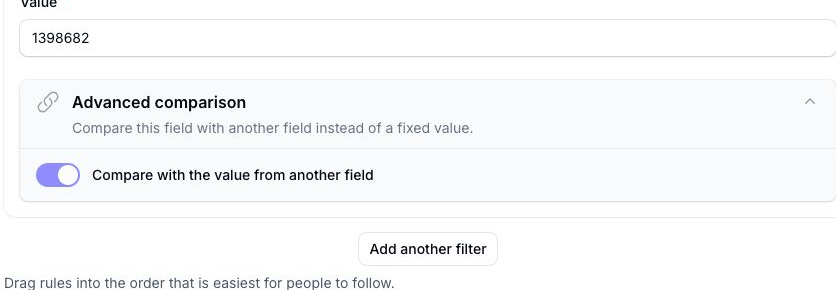
This is useful when you want to compare two values on the same record. For example, you could identify products where the sale price is less than or equal to the cost price.
Filter by Empty Fields
Flow supports empty-field checks such as is empty or is not set and is not empty.
This is useful when you want to target records that need attention because a value has not been filled in yet.
For example, you could identify stock records where the minimum or maximum stock level has not been set.
Date and Time Examples
Date and time comparisons are useful for more precise time-based rules.
Examples include:
- the first or last day of this month or next month
- a specific day such as the 10th day of this month or next month
- records from the last few hours
- records from the last few minutes
Keep Filters Focused
When possible, keep the filters aligned to the exact outcome you want.
For example, export flows usually focus on selecting the right records for the output file.