Actions
The Actions tab controls what happens to records that pass the filters.
The action type is set by the morph template. Depending on the template, this tab will show one of these action types:
- Update via API
- Delete Via API
Update via API
Use Update via API when the morph should change data in Epos Now after the filters have been applied.
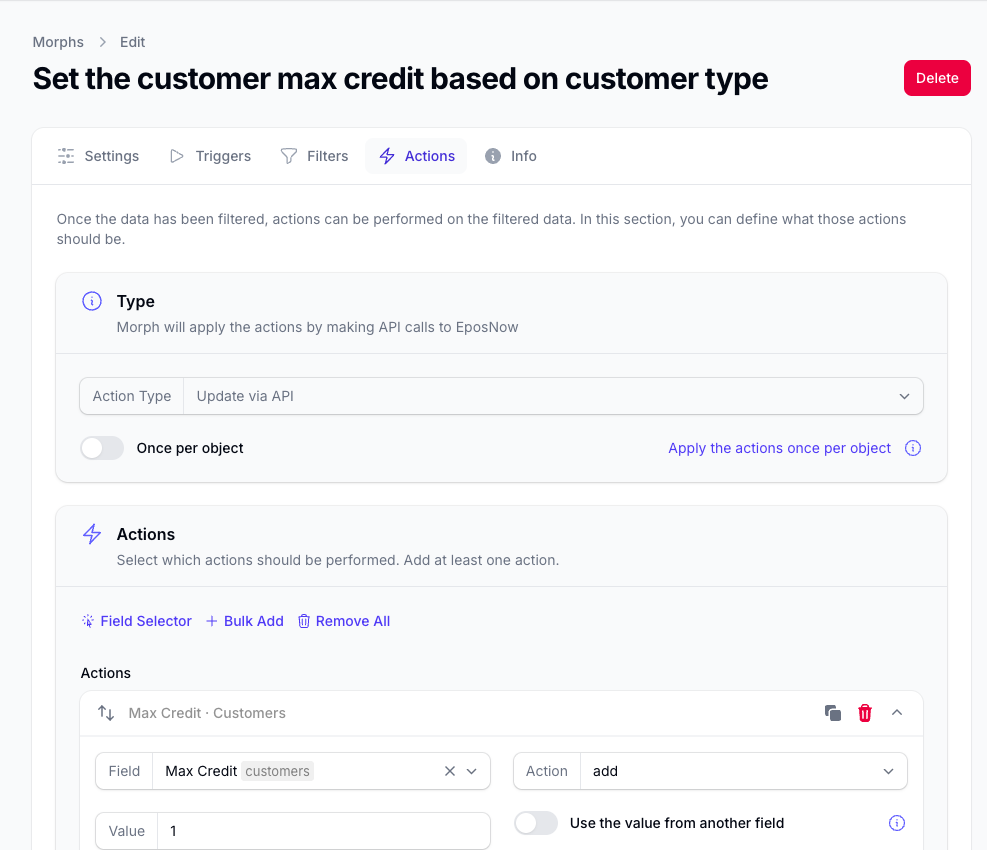
The main settings are:
- Action Type: shows that this morph updates records through the API - set by the template
- Once per object: applies the actions once per target object instead of repeating the same update multiple times
- Actions: the list of fields and changes you want the morph to apply
Once Per Object
Use Once per object when the same underlying object could appear more than once in the fetched data.
For example, if the morph fetches transactions but updates the linked customer record, the same customer may appear on several matching transactions. When Once per object is enabled, Morph applies the update once to that customer instead of repeating the same change for every matching transaction.
This can help avoid duplicate updates and reduce the number of successful actions used.
Delete Via API
Use Delete Via API when the morph should delete records after the filters have been applied.
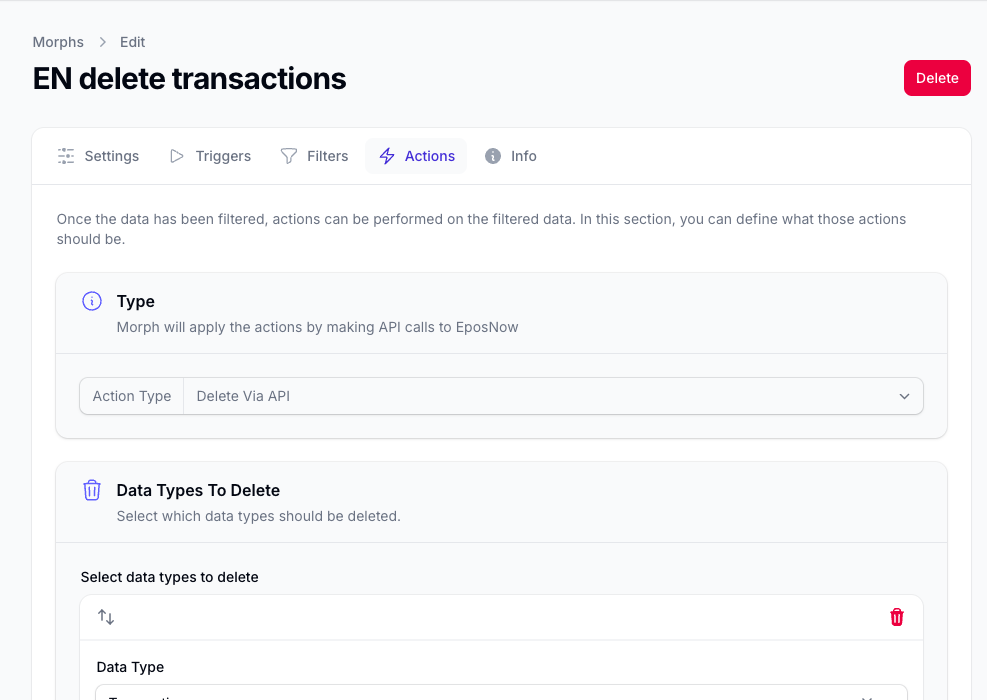
The main settings are:
- Action Type: shows that this morph deletes data through the API
- Data Types To Delete: choose which data types the morph should delete
Use Add Data Type if the template allows more than one target data type.
Because delete actions are high impact, review the filters and summary carefully before activating the morph. We recommend running a simulation of the Morph first to ensure the right data is being targeted.
Field Rows
Update via API lets you add multiple field actions.
You can:
- use Field Selector to browse fields by data type, select multiple fields, and apply them to the editor
- use Bulk Add to add fields from available data types more quickly
- use Remove All to clear the current list
- add rows one at a time with Add action
- clone, collapse, expand, reorder, or remove individual rows
Collapse all the rows to make it easier to drag and drop the fields for sorting without extra scrolling
For details on browsing fields and applying them to the editor, see Field Selector.
Per-Row Settings
Each row can show different controls depending on the selected field and action type.
Field
Use Field to choose the field the row should work with. You can select the field to update from a searchable dropdown.
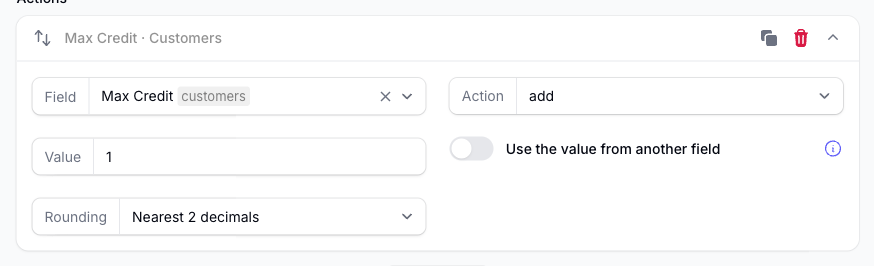
The data type for the field is shown as a tag so you can easily see where the data for that field comes from. Morph understands how the data types are related to each other so you will see a full list of all available fields here.
Action
In update morphs, Action defines what change should be applied to the selected field.
Examples include:
setaddorsubtractadd percentageorsubtract percentagemultiply byordivide by- text case changes
add prefixoradd suffixreplace text- date and datetime shifts such as adding days, months, hours, or minutes
The actions shown depend on the selected field type.
Value
After choosing a field and action, Morph shows the matching value input.
This can include:
- a text box
- a textarea
- a number input
- a toggle for true or false values
- a select or multiselect input
- a date picker
- a datetime picker
For some select and multiselect fields, the available options may need to be refreshed before they can be chosen.
Replace Text
If you choose replace text, an additional Replace field appears so you can define the replacement text.
Use the Value from Another Field
Some actions show Use the value from another field.
Enable this when you want the row to use the value from another field instead of entering a fixed value yourself.
This is useful when you want to:
- copy a value directly from one field to another
- use one field as the basis for a calculation
- build output values from existing data
Numeric Rounding
Numeric rows can also show Rounding.
Use this to control how the final numeric result should be rounded after the action has been applied.
This is especially useful for prices, totals, percentages, and other calculated values.
For price fields, we have options for charm pricing to round up/down to the nearest .99 for example.
Simulations
We recommend running simulations to make sure the correct records are being targeted and the actions are as you would expect.
Simulation for Update and Delete Morphs
These will not apply the updates to Epos Now, but will show you what action would have been taken and you can see that in the Morph Run Logs.
Next Step
For the full list of field-level actions and rounding options, see Action Reference.