Manage Morphs
Open My Morphs from the left-hand navigation to see all of the morphs on your account.
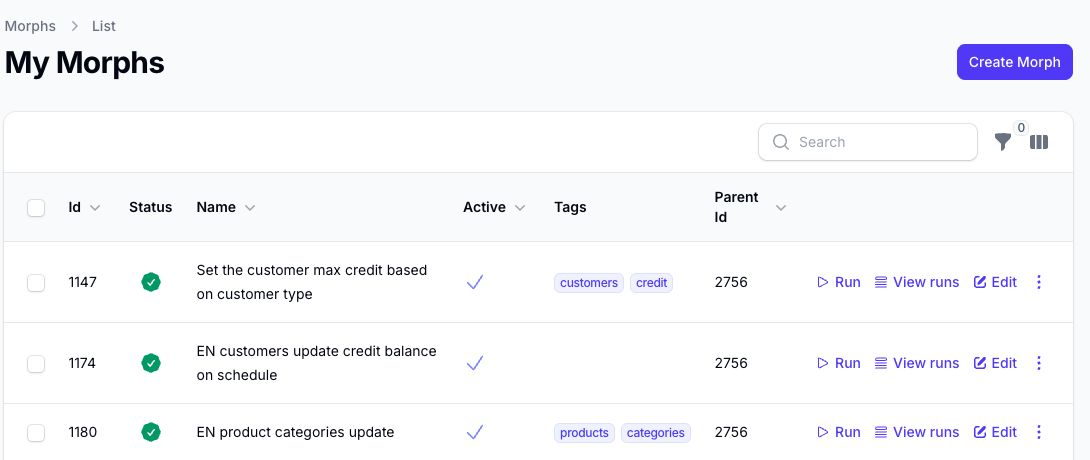
This page is the main control area for your existing morphs.
What You Can See in My Morphs
The My Morphs table helps you review:
- the morph ID
- the latest run status
- the morph name
- whether the morph is active
- any tags added to the morph
- the parent app ID
Use the search box, filter control, column sorting, and pagination to find the morph you need.
If you have not created a morph yet, this page also gives you a shortcut to create your first one from a template.
Organise Morphs with Tags
You can add tags in the morph settings to help organise your morphs.
Those tags can then be used to filter the My Morphs list, which is useful once you have multiple morphs for different teams, locations, or use cases.
Actions Available from the List
From My Morphs, you can:
- Run a morph manually
- View Runs for that morph
- Edit the morph
- open the row's Actions menu to Simulate the morph without applying live changes
Run a Morph
Use Run when you want the morph to perform its live action immediately.
If the morph has saved filters, Morph may show a run modal before the morph starts.
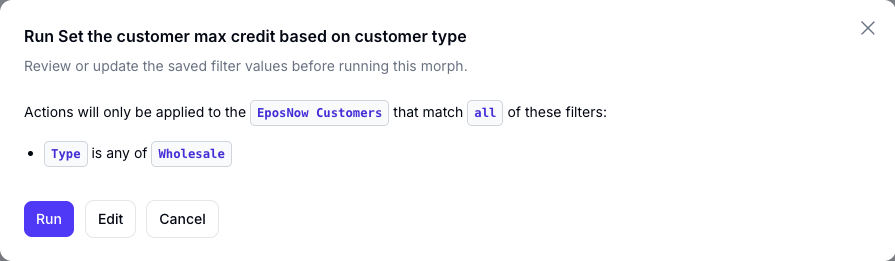
The modal lets you review the filter values that will be used for this run. This is useful for morphs that update date-based data, such as bulk changes for a specific month.
From the modal, you can:
- choose Run to run the morph with its currently saved filters
- choose Edit to update the filter values before running
- choose Cancel to close the modal without running the morph
When you choose Edit, Morph shows the editable filter values.
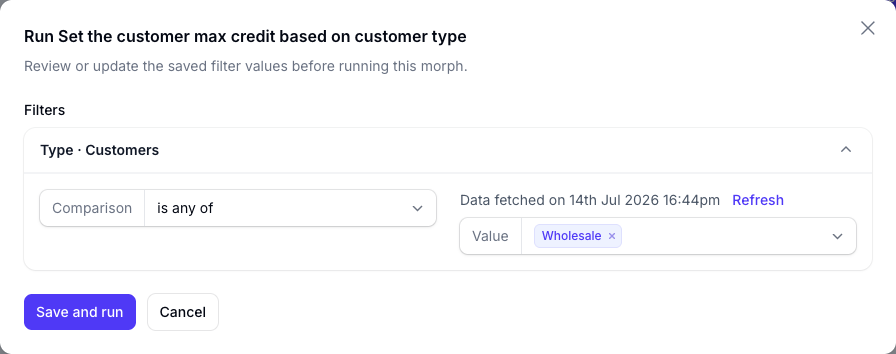
Choose Save and run to save the updated filter values and run the morph in one step.
Save and run updates the morph's saved filters. The next time the morph runs, it will use those updated filter values unless you change them again.
If you do not want the filter review modal to appear for a morph, open the morph editor and go to Settings. Enable Do not show filter review before manual run.

When this setting is enabled, clicking Run starts the morph immediately using the saved filters.
Simulate a Morph
Use Simulate when you want to test the morph against live data without applying changes. This is useful when you are still checking filters and actions. Simulations do not count toward billed action or run usage.
Open a Morph to Edit It
Use Edit to open the full morph editor and review: