Settings and Notifications
The Settings tab is where you name the morph and control the core information around it.
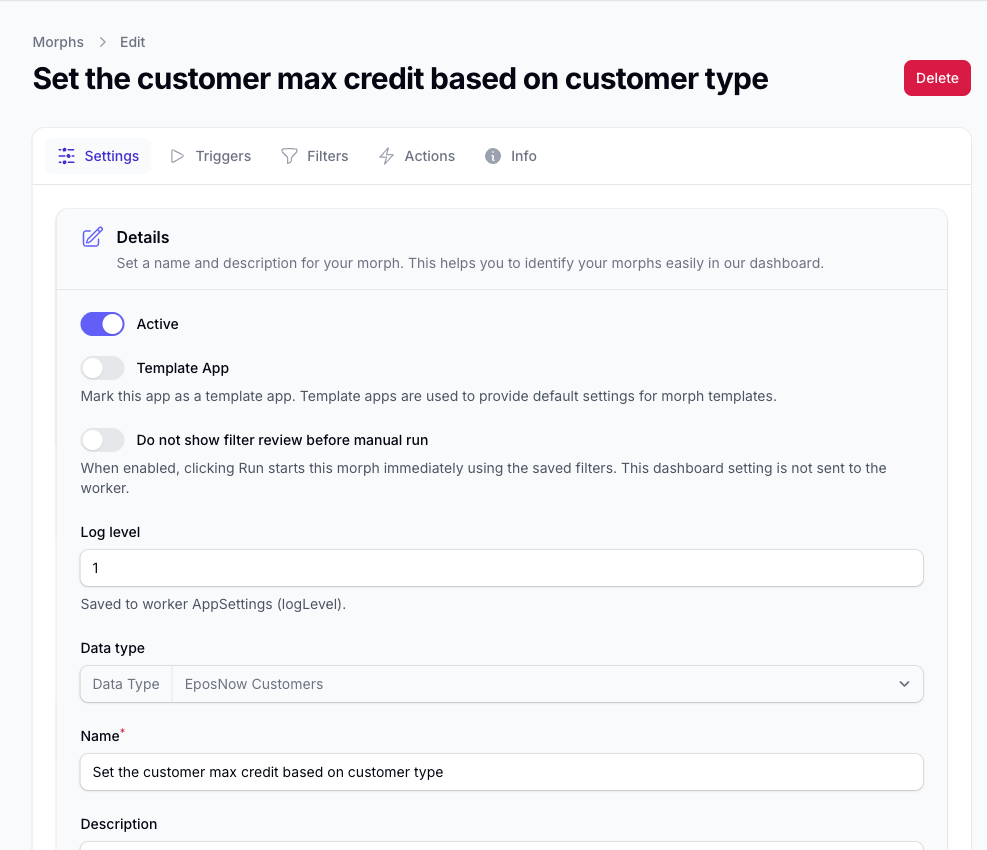
Details
In the details section, you can set:
- whether the morph is active
- the morph name
- the description
- tags
- the timezone
The data type is fixed by the template you selected when the morph was created.
Active
The active toggle is used to determine if the Morph is available to run or not. When you set a morph to active, you will be prompted to review the Morph Summary which explains what the Morph will do in plain English.
Name and Description
Use the name and description so the purpose of the morph is obvious when you come back to it later.
This is especially useful if you have several morphs for different teams, locations, or tasks.
Tags
Tags help you organise and find morphs more easily from the My Morphs page.
Once tags are added, you can use them to filter your morph list.
Timezone
Set the timezone that the morph should use.
This matters because scheduled runs are calculated using the timezone set on the morph.
If you do not change it, Morph defaults to the timezone set in your user profile.
Notifications
The Notifications section is where you add the email addresses that should receive essential emails related to the morph.
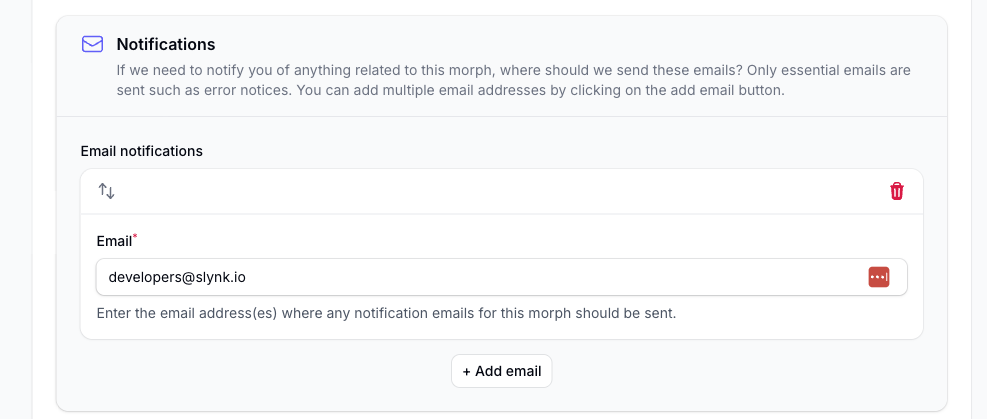
You can add multiple email addresses.
These emails are used for important notifications such as error notices.