How to check the queue status
If something has not synced yet, the queue pages are the best place to check what is happening.
Start with the Sync Overview cards on the app dashboard.
They show how many live items are currently sitting in the main queues and whether any of them are stuck.
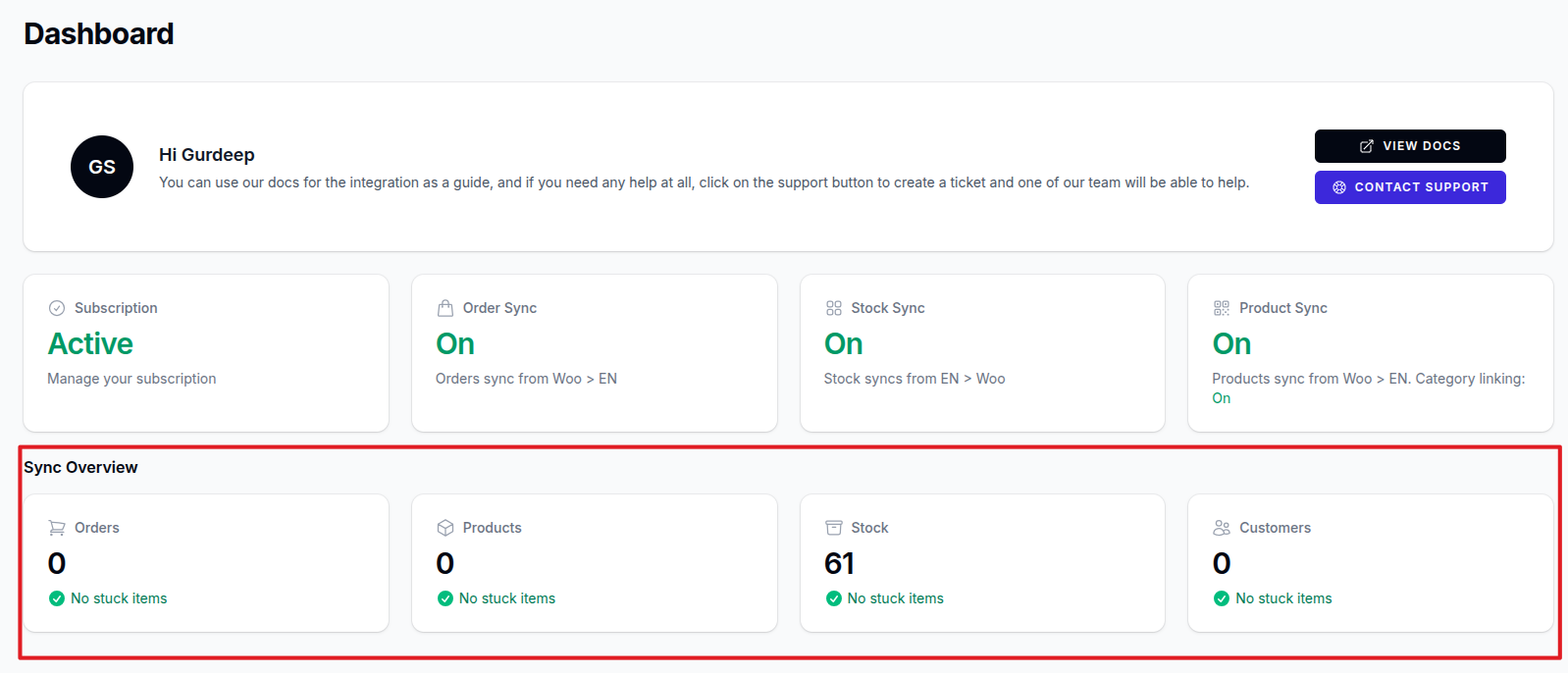
If you need more detail, open the full queue page for that sync type.
This is where you can see whether an item is:
- waiting in the queue
- currently being processed
- processed successfully
- stuck with an error
If anything is stuck, you will usually also receive an email notification.
Where to find the queues
Log in to the Slynk Dashboard, open your Epos Now WooCommerce app, and look at the Queues section in the left hand menu.
If you want a longer-term view of queue activity, also check the Usage page.
The available queue pages are:
EN Products QueueWoo Products QueueCustomers QueueOrders QueueOrder Print QueueStock Queue
Live queue, archive queue, and filters
Each queue page now gives you several ways to narrow what you are looking at.
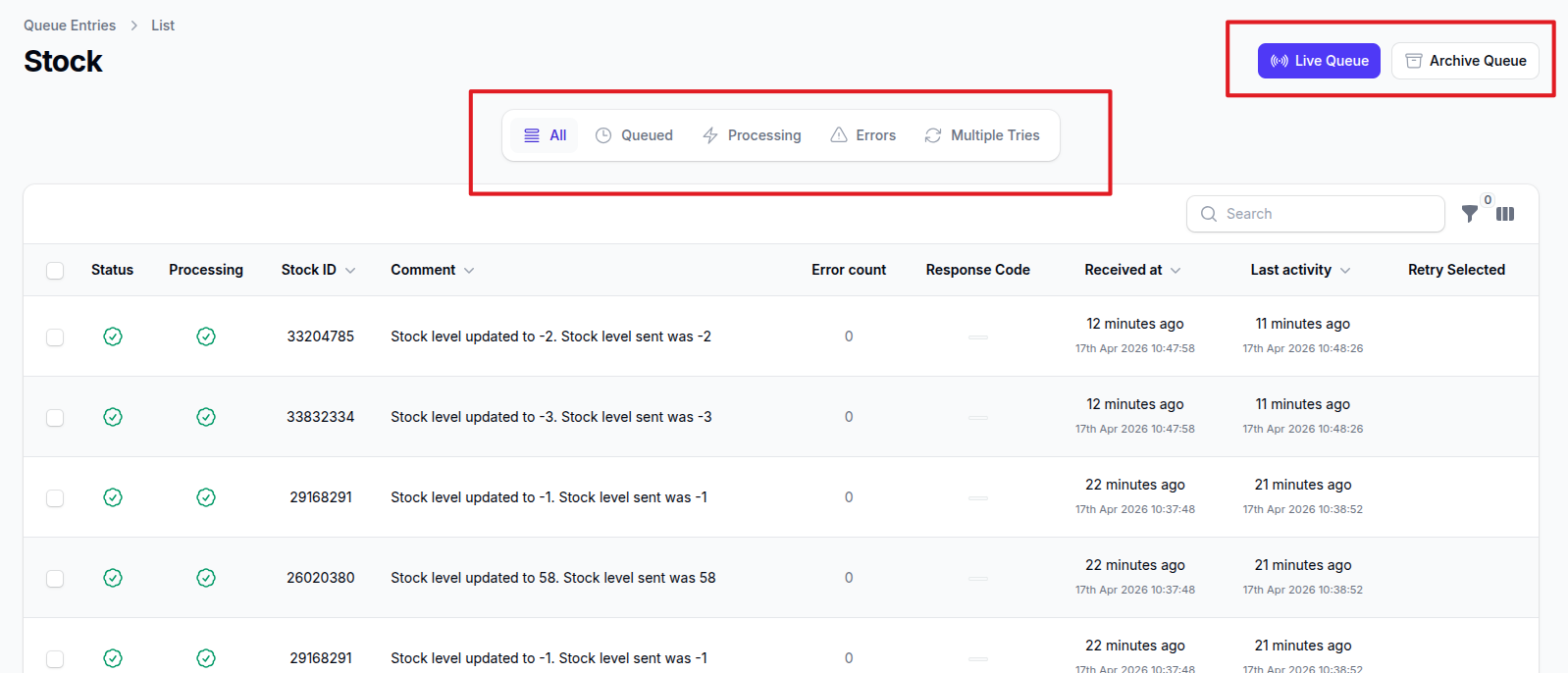
You can use:
Live Queueto review current active queue entriesArchive Queueto review completed items and older stuck items that have already been archived- the
All,Queued,Processing,Errors, andMultiple Triestabs to focus on a specific queue state - the search box and filters to narrow the list by status, processing state, error count, or date
Completed items and old stuck items are archived automatically every day, so the live queue stays focused on current activity.
What each queue is for
EN Products Queue
This shows product updates received from Epos Now to sync to WooCommerce.
Woo Products Queue
This shows product updates received from WooCommerce to sync to Epos Now.
Customers Queue
This shows WooCommerce customers to sync to Epos Now. Only available when EposNow is the master for stock.
Orders Queue
This shows order and refund sync activity.
This page can be used in both sync directions depending on how your account is configured.
Order Print Queue
This shows online order print jobs waiting to be processed. This is used when online order printing is enabled on Epos Now Android tills.
Stock Queue
This shows stock updates waiting to be synced.
What the columns mean
The queue pages all work in a very similar way.
The main columns to check are:
Status
This shows whether the queue item has:
- just been received in the queue
- processed successfully
- failed with an error
Processing
This shows whether the item is currently being worked on by the queue worker or not.
The queues are processed in batches, so it is normal for items to wait briefly before they are processed.
Comment
This usually gives the most useful plain-English explanation of what happened.
If the item processed successfully, this often tells you what action was taken.
If the item failed, this may help explain why.
Error count
This shows how many times the system has already tried to process the item.
If an item errors, it retries automatically.
The time between retries gets longer as the error count increases, until eventually it retries once per day.
Response Code
This can help confirm whether the request was successful.
For example, successful entries often show codes like 200 or 201.
Received at / Last activity
These show when the item entered the queue and when something last happened with it.
This is useful when checking whether the item is still actively moving through the queue.
What a healthy queue looks like
In most cases, a healthy queue item will show:
- a successful status
ProcessingcompletedError countof0- a recent
Last activitytime
If you are checking an older item and cannot see it in the live queue, switch to Archive Queue before assuming it has disappeared.
What to look for if something is stuck
If something has not synced, check:
- the matching card in
Sync Overview - the queue that matches the type of sync you are expecting
- the
ErrorsorMultiple Triestab - the
Commentcolumn - the
Error count - the
Response Code - the
Last activitytime Archive Queueif the item is older and no longer in the live list
If there is an error, compare the error message with the most relevant reference page:
- Customer sync error messages
- Order sync error messages
- Product sync error messages
- Stock sync error messages
If you are not sure what the message means or what action to take, contact support.
Orders queue actions
On the Orders Queue page, you will also see these buttons:
Fetch Woo OrdersFetch Woo Refunds
These are useful if WooCommerce webhooks did not fire as expected.
They queue up any unsynced WooCommerce orders or refunds so they can be picked up and processed again.