How to check WooCommerce webhooks and Scheduled Actions
If an order, refund, or product update is not appearing in the Slynk queue yet, the issue is often on the WooCommerce side.
The two best places to check are:
- WooCommerce webhooks
- WooCommerce Scheduled Actions
Check whether the webhooks are enabled
In WooCommerce, go to WooCommerce > Settings > Advanced > Webhooks.
You should see the Slynk webhooks listed here.
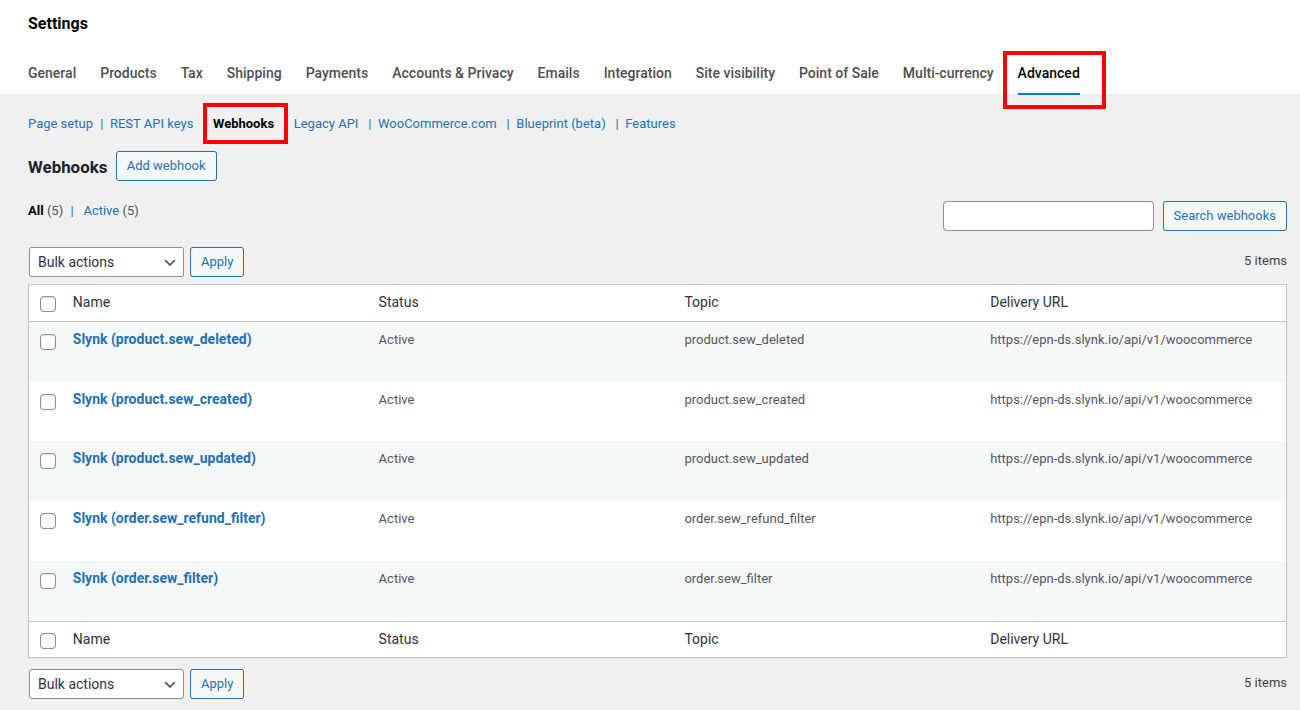
The important thing to check is the Status column.
If the Slynk webhooks are Active, WooCommerce is allowed to send webhook events.
If any of them are disabled, then WooCommerce may not be handing new events over correctly.
WooCommerce can disable webhooks automatically if it hits errors while trying to send them, either internally or externally.
Check whether Scheduled Actions are running
WooCommerce delivers webhooks through Scheduled Actions.
Go to WooCommerce > Status > Scheduled Actions, then search for the hook:
woocommerce_deliver_webhook_async
This shows the webhook delivery actions for WooCommerce.
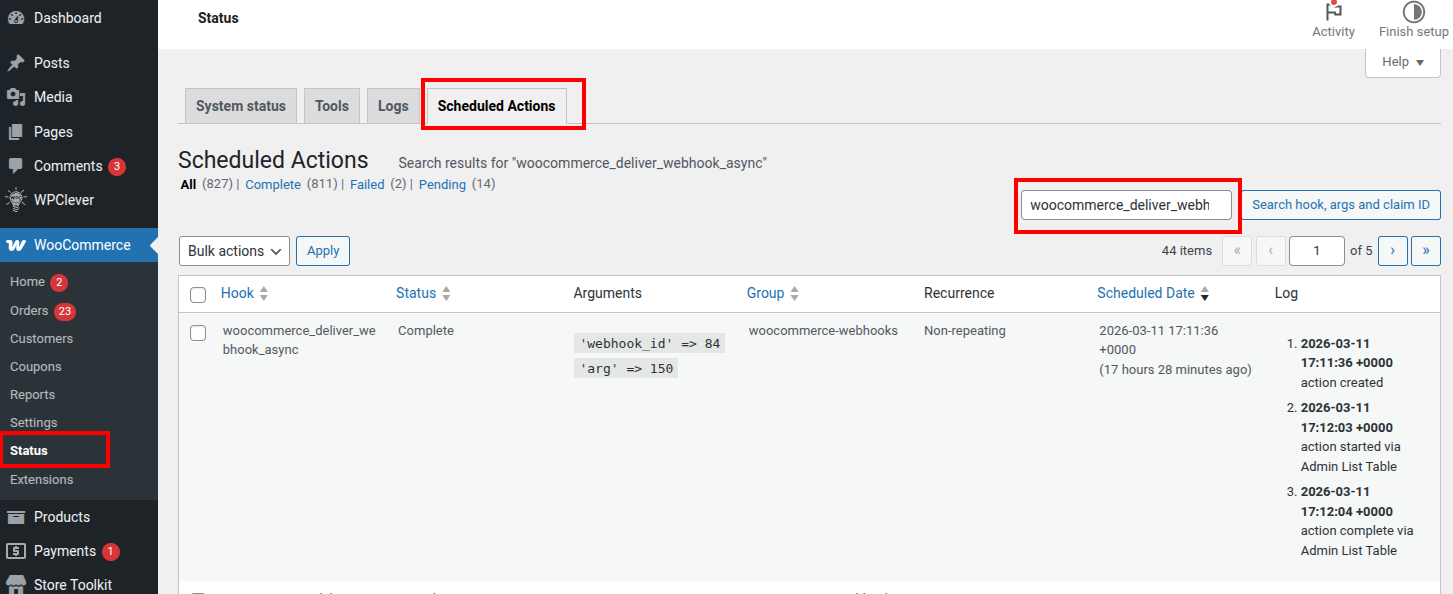
If Scheduled Actions are running normally, you should see recent actions being processed.
If there is a large backlog, then webhook deliveries may be delayed, which means new orders, refunds, or product changes may take longer to appear in Slynk.
What to look for
Healthy
- Slynk webhooks are
Active woocommerce_deliver_webhook_asyncactions are being processed- there is no obvious backlog building up
Needs attention
- one or more Slynk webhooks are disabled
woocommerce_deliver_webhook_asyncactions are not processing- Scheduled Actions are heavily delayed or backlogged
- items are not appearing in the Slynk queue at all
If the webhooks are disabled
In many cases, the Slynk auto-heal cron will re-enable disabled webhooks automatically. This runs every hour.
If the webhooks stay disabled, or if they have lost permissions, the safest fix is:
- Delete the Slynk webhooks from
WooCommerce > Settings > Advanced > Webhooks - Go to the
EposNowmenu item in the left hand WooCommerce admin menu - Open the plugin settings
- Save the settings again without changing anything
This recreates the Slynk webhooks using the currently logged in user.
This is especially useful if the admin user who originally set up the integration has since been deleted, as WooCommerce webhooks are tied to the user that created them.
What to check next
If the webhook looks healthy but the item still has not synced:
- Check the relevant WooCommerce screen first
- Check whether the item appears in the Slynk queue
- Check the error message in the queue if it is there
These guides may help next: