How to check WooCommerce order sync status
If a WooCommerce order has not synced yet, there are a couple of places in WooCommerce where you can quickly check its current status.
This guide focuses on the WooCommerce admin side. If you need more detail about what is happening after the order reaches Slynk, also check the queue pages on the dashboard.
Check the order list
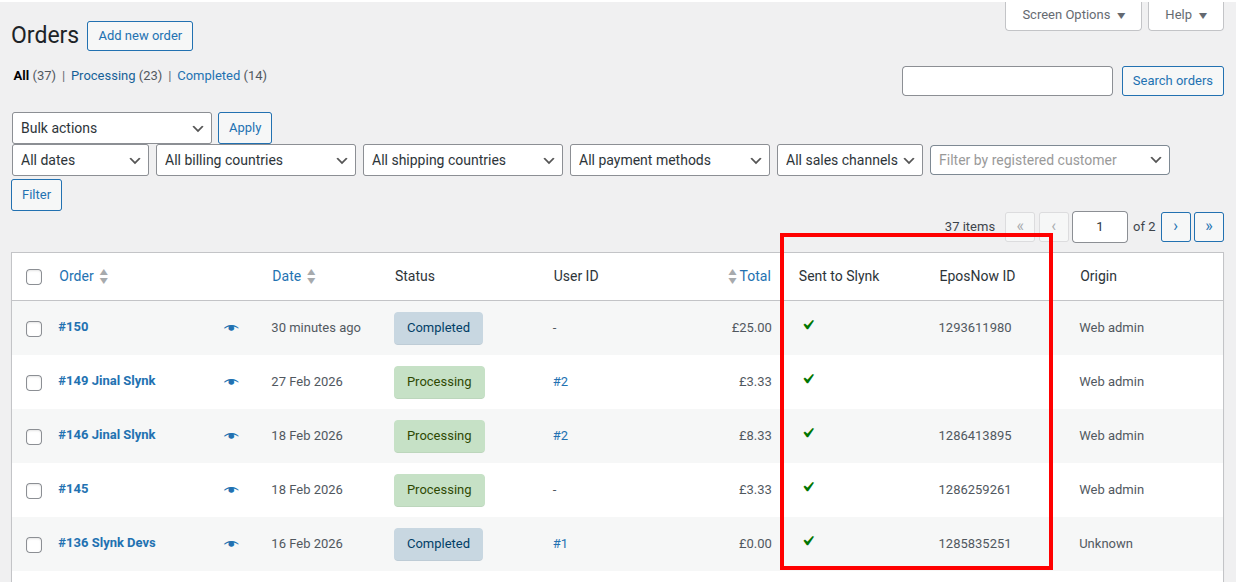
On the WooCommerce order list, our plugin adds two useful columns:
Sent to SlynkEposNow ID
What these columns mean
Sent to Slynk
This shows whether the order has been sent from WooCommerce to Slynk yet.
If this is yes, then WooCommerce has already handed the order over to Slynk for processing.
If this is no, then the order has not yet been sent.
This can happen for a few reasons, for example:
- the order status is not currently valid to sync
- there is an issue with the WooCommerce webhook
- there is a backlog in WooCommerce Scheduled Actions
EposNow ID
This shows the Epos Now transaction ID once the order has synced successfully into Epos Now.
If this field is blank, then the order has not completed sync into Epos Now yet.
Check the order page
If you open the order, you will see a Slynk box on the right hand side of the order page, unless it has been manually moved.

This box shows:
- whether the order has synced with Slynk
- when it was last updated
- the Epos Now transaction ID once available
You can also check the WooCommerce order notes for additional sync information.
How to interpret what you see
Sent to Slynk = yes and EposNow ID is filled in
This usually means the order has synced successfully into Epos Now.
Sent to Slynk = yes but EposNow ID is blank
This usually means the order has been handed to Slynk, but has not fully completed sync into Epos Now yet.
At this point, the best place to check next is the queue pages on the dashboard.
Sent to Slynk = no
This means the order has not yet been handed to Slynk.
Common reasons for this are:
- the order status is not one of the statuses configured to sync
- the WooCommerce webhook did not fire correctly
- WooCommerce Scheduled Actions are delayed or backlogged
What to check next
If the order has not synced, we recommend this order:
- Check the
Sent to SlynkandEposNow IDcolumns on the order list - Open the order and check the Slynk box
- Check the WooCommerce order notes for any extra detail
- Check the queue pages on the Slynk dashboard
If the order is not appearing in the Slynk queue yet, then the problem is usually on the WooCommerce side rather than the Slynk side.
When to use the queue pages
If WooCommerce shows that the order was sent to Slynk, but you still do not see an Epos Now transaction ID, the queue pages are usually the best next step.
For more details, have a look at: How to check the queue status