Lightspeed Retail (X-Series) Connection
Use the Lightspeed Retail (X-Series) connection to authorize Flow to read the POS data needed by your flows.
This connection supports Lightspeed Retail (X-Series) only. Lightspeed Restaurant, eCom, and other Lightspeed products use different APIs and are not supported here.
When you connect Lightspeed
If you sign up through the Flow pricing page with Lightspeed selected, completing checkout returns you to the Slynk dashboard and starts Lightspeed authorization.
If you leave before connecting, you can start the process later:
- Open Flow in the Slynk dashboard.
- Choose Connections from the left-hand navigation.
- Find Lightspeed Retail (X-Series).
- Choose Connect.
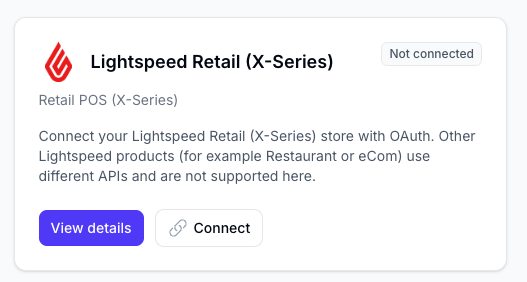
You can also choose View details, followed by Connect Lightspeed Retail (X-Series).
Authorize Flow in Lightspeed
1. Select your Lightspeed store
Enter the prefix from your Lightspeed Retail store URL, then choose Next.
For example, if the full store URL is your-store.retail.lightspeed.app, enter your-store.
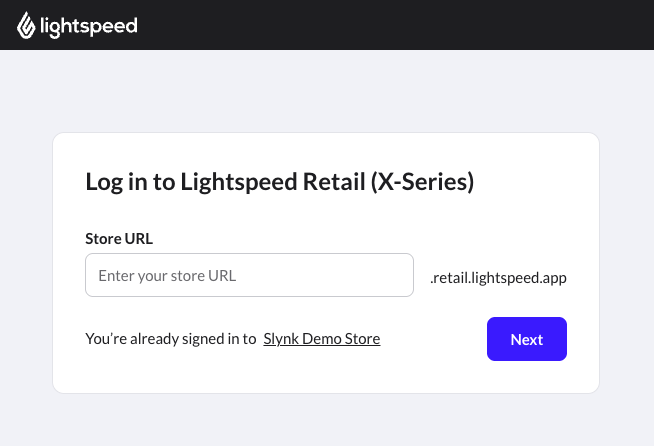
Lightspeed may ask you to sign in between selecting the store and reviewing access if you are not already signed in.
2. Review and approve access
Lightspeed shows the data areas requested by Flow by Slynk. Review the request and choose Approve installation.
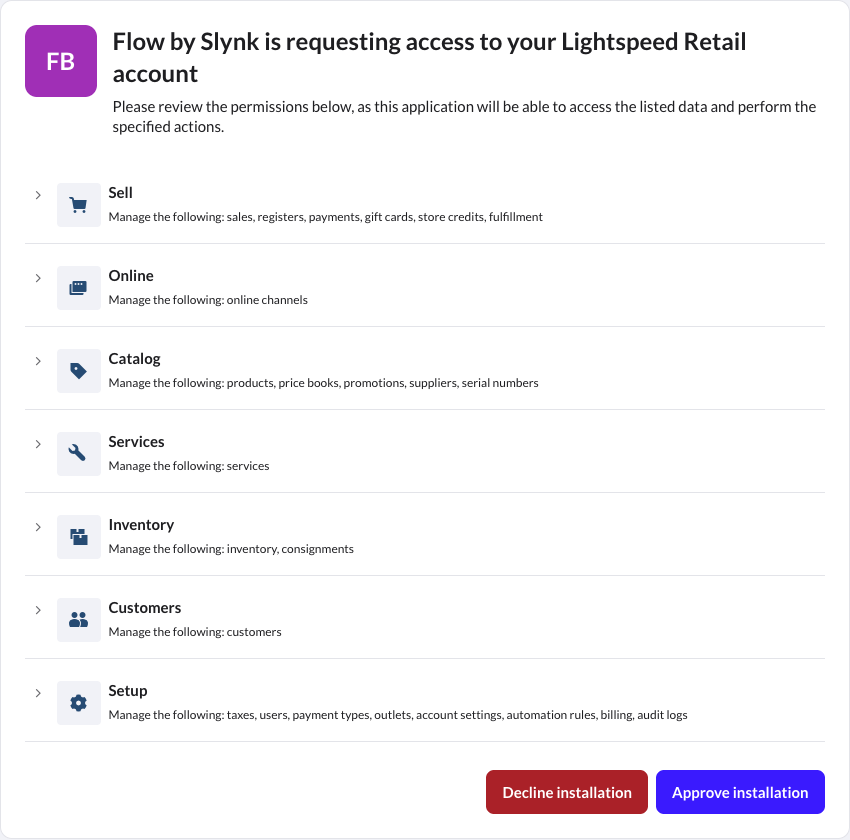
Flow only reads Lightspeed data and does not create, update, or delete products, stock, sales, customers, or other records in Lightspeed. Most requested OAuth scopes end in :read.
Lightspeed requires one exception, the inventory:write OAuth scope, for the stock-level access used by Flow. The approval page can therefore use Manage wording even though Flow does not perform write operations.
You sign in and approve access on Lightspeed. Slynk does not receive your Lightspeed password.
3. Confirm the connection
After approval, Lightspeed returns you to Flow. The connection page should show Connected and display the store domain, API version, token expiry, and granted scopes.
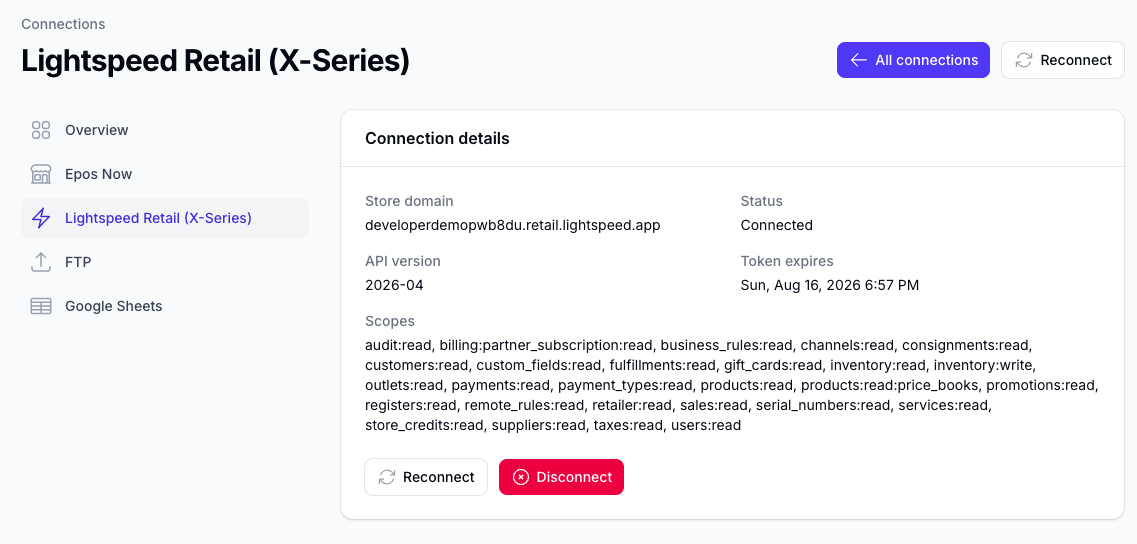
Flow refreshes the authorization automatically while the connection remains valid.
Reconnect Lightspeed
Use Reconnect if you need to approve access again. Flow also shows Re-auth required if Lightspeed authorization is revoked or Flow can no longer refresh it automatically.
Reconnect using either of these routes:
- Connections → Lightspeed Retail (X-Series) → Reconnect
- Connections → Lightspeed Retail (X-Series) → View details → Reconnect
Disconnect Lightspeed
Choose Disconnect on the connection details page when you no longer want this Flow app to use the Lightspeed retailer account.
Disconnecting prevents Flow from fetching Lightspeed data. Existing flows that depend on Lightspeed cannot run successfully until you connect again.
Troubleshooting
Lightspeed asks me to sign in
This is expected when you do not already have an active Lightspeed session. Sign in to the retailer account you want to connect, then continue to the approval page.
I entered the wrong store
Return to Flow and start the connection again. Enter the store prefix that appears before .retail.lightspeed.app.
I declined the installation
No connection is created. Return to the Lightspeed connection page in Flow and choose Connect when you are ready to review the request again.
Flow says re-authorization is required
Open the Lightspeed connection and choose Reconnect, then complete the Lightspeed approval process again.