Google Sheets Exports
Use Google Sheets Exports when you want Flow to send exported CSV data directly into a Google Sheet.
This is useful for scheduled reports, shared operations spreadsheets, lightweight dashboards, stock checks, and data sources for reporting tools such as Looker Studio.
Overview
Flow can create a CSV export and upload the rows into Google Sheets instead of emailing the file or uploading it to FTP.
Google Sheets delivery is available for export flows when the file format is CSV.
You can use it with both:
- Manual Run flows that you start yourself
- flows set to Run on a schedule
Google Sheets delivery is designed for one CSV output per run. When Upload to Google Sheets is selected, Flow hides options that split or zip export files, such as Separate file per object, Max objects per file, and Zip file(s).
Before You Start
You need:
- a Google account
- a Google Sheets connection created inside Flow
- an export flow that uses the
CSVfile format
The connected Google account must have permission to create or edit the spreadsheet, folder, or tab you choose.
Creating a Google Connection
Open Connections from the Flow left-hand navigation, then choose Manage Google Sheets on the overview (or open Google Sheets from the Connections sub-navigation).
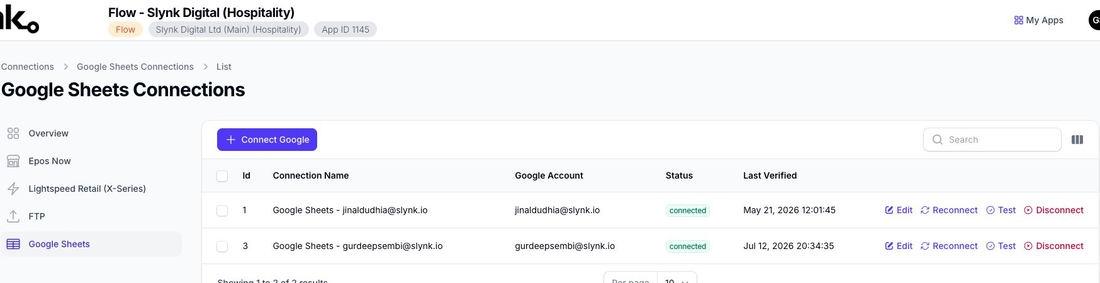
Use Connect Google to start the Google sign-in flow.
Flow sends you to Google so you can choose the Google account and approve access. The connection uses Google OAuth, so you do not enter your Google password into Flow.
Flow requests access for the Google Drive and Google Sheets permissions needed to create spreadsheets, select files or folders, and write export rows. It also uses your Google account email so the connection can be labelled clearly in Flow.
After Google approves the connection, Flow stores the authorisation so scheduled exports can keep running without you signing in each time.
If a connection expires, is revoked, or loses permission, use Reconnect from the Google Sheets connections page and approve access again.
Using Google Sheets in a Flow
Open the flow, then choose Edit delivery and file settings.
In an export flow:
- Set File Format to
CSV. - Choose a File Name.
- Turn Add header row on if you want the first row to contain column headings.
- In Delivery destination, choose Upload to Google Sheets.
- Choose the Google Sheets Connection.
- Choose the delivery Mode.
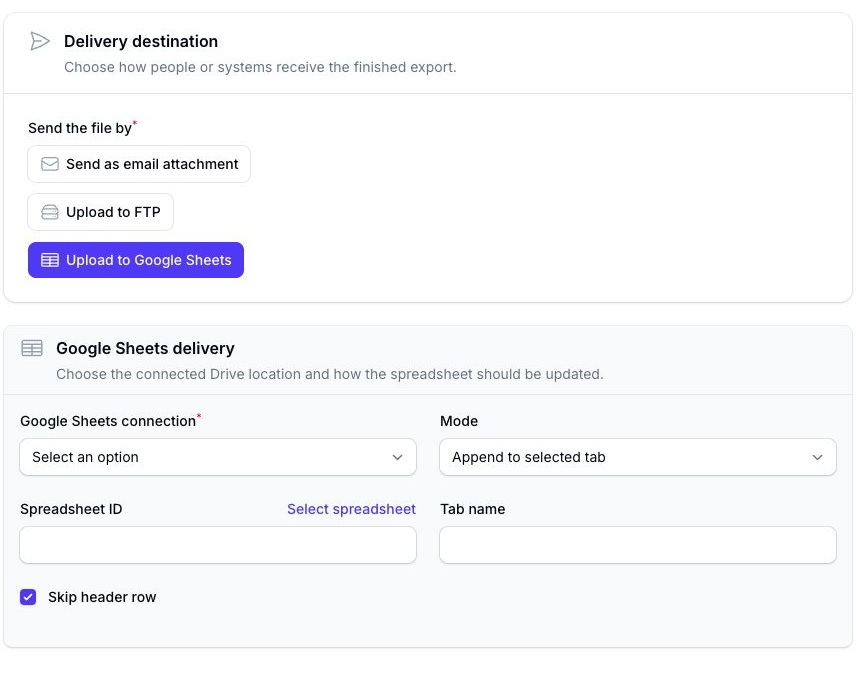
If you change the file format away from CSV, Flow changes the delivery method back to email because Google Sheets delivery currently works with CSV exports only.
Google Sheets Options
Google Sheets Connection
Choose the connected Google account Flow should use for the upload.
Only connected Google Sheets connections for the current Flow account are shown.
Mode
Choose what Flow should do with the CSV rows.
| Mode | What it does |
|---|---|
| Create new spreadsheet | Creates a new Google Sheet using the export file name, then writes the CSV rows into the default first tab. |
| Create new spreadsheet in selected folder | Creates a new Google Sheet in the selected Google Drive folder, then writes the CSV rows into Sheet1. |
| Create new tab on selected spreadsheet | Adds a new tab to the selected spreadsheet, then writes the CSV rows into that tab. |
| Replace selected tab | Clears existing values from the selected tab, then writes the CSV rows from cell A1. |
| Append to selected tab | Adds the CSV rows to the selected tab without clearing existing rows. |
Spreadsheet ID
For Create new tab on selected spreadsheet, Replace selected tab, and Append to selected tab, choose the target spreadsheet.
Use Select spreadsheet to open the Google file picker and select the spreadsheet from Google Drive.
Always use the picker instead of pasting a spreadsheet ID into the field. Selecting the spreadsheet in the picker gives Flow permission to use that file. Pasting an ID does not give Flow access, so the export may fail.
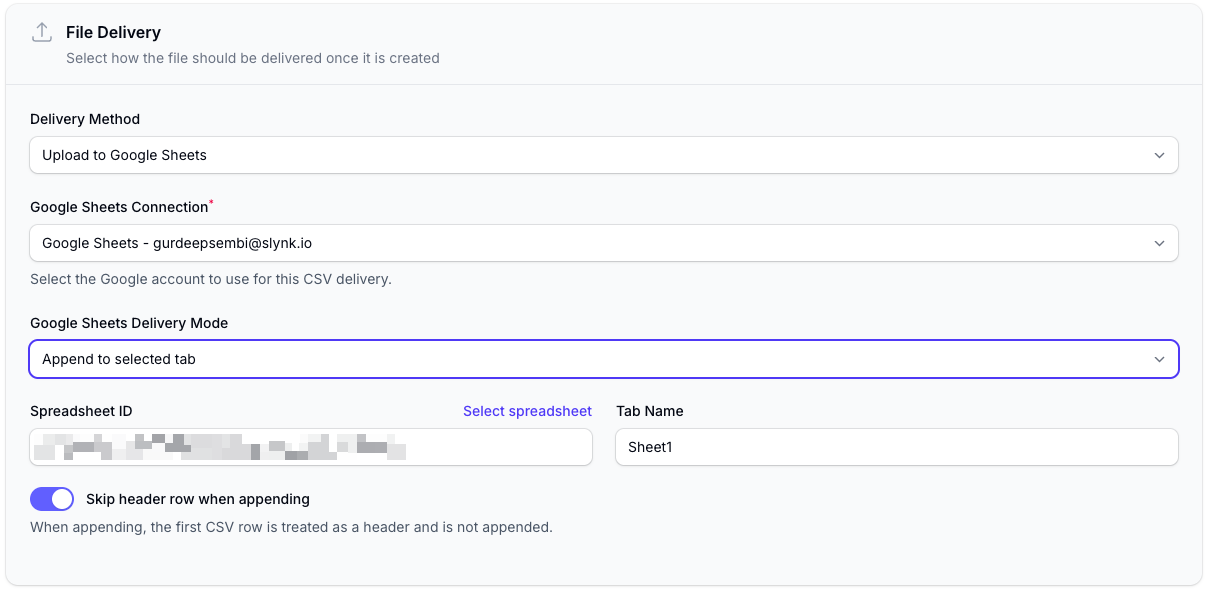
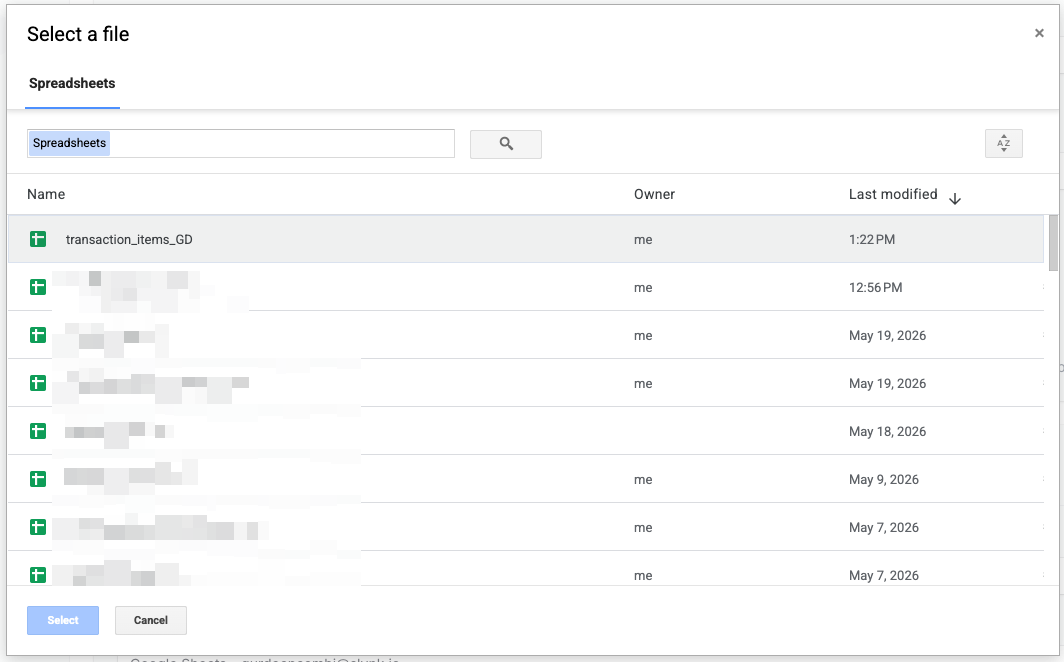
Flow stores the spreadsheet ID from the selected Google Sheet.
Tab Name
For modes that work with an existing spreadsheet, enter the tab name Flow should use.
- Create new tab on selected spreadsheet creates this tab before writing rows.
- Replace selected tab clears this tab and writes the latest rows.
- Append to selected tab appends rows to this tab.
If Create new tab on selected spreadsheet is used and a tab with the same name already exists, Flow creates a fallback tab name by adding a timestamp to the name.
Folder ID
For Create new spreadsheet in selected folder, choose the Google Drive folder.
Use Select folder to open the Google folder picker.
Always use the picker instead of pasting a folder ID into the field. Selecting the folder in the picker gives Flow permission to create the spreadsheet there. Pasting an ID does not give Flow access, so the export may fail.
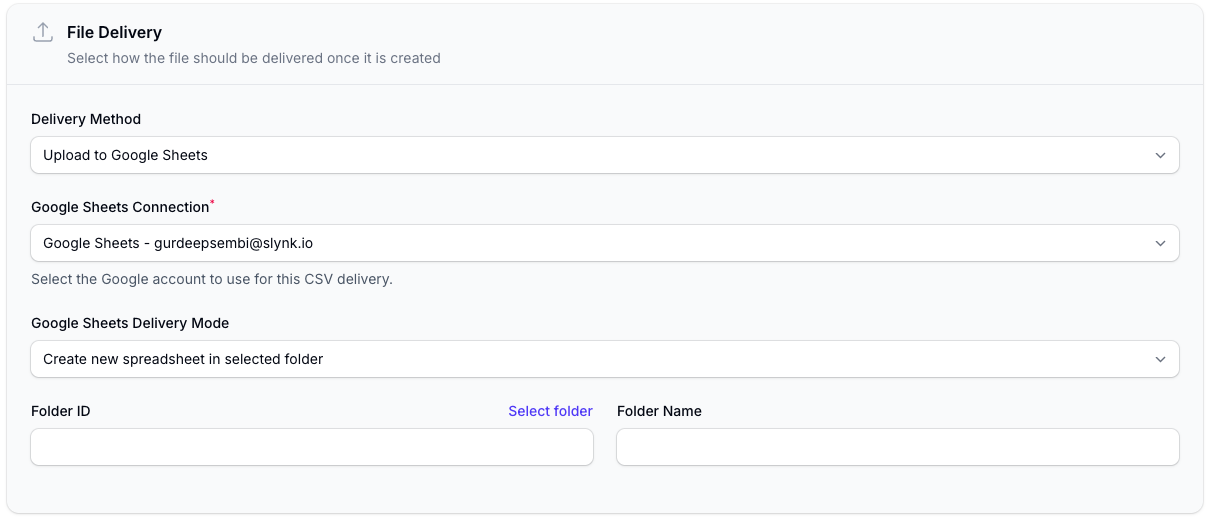
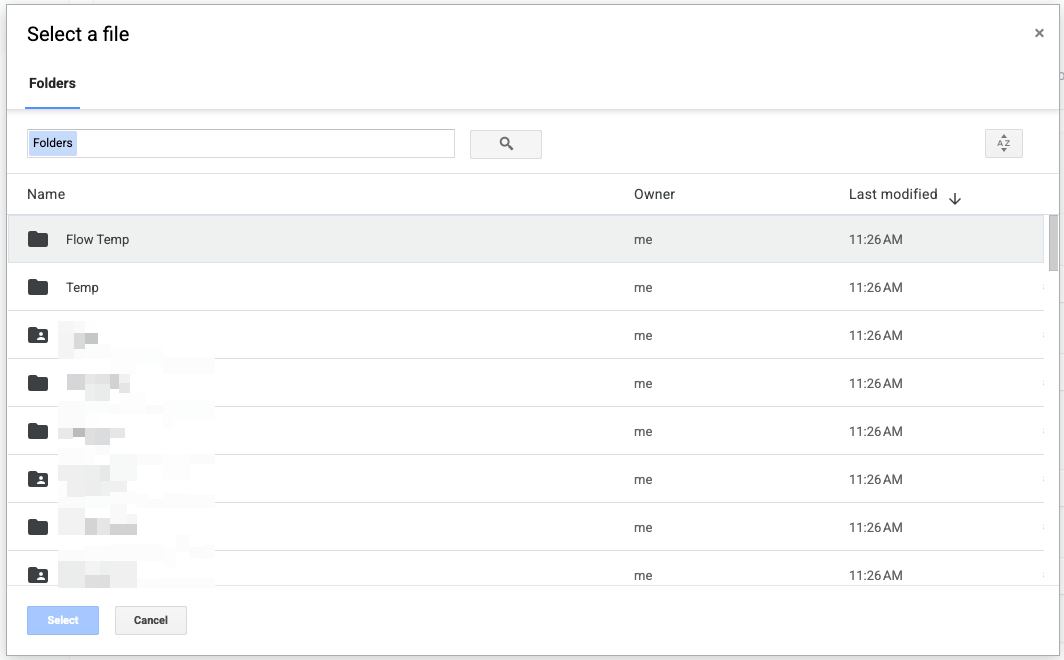
Flow stores the selected folder ID and shows the folder name in the flow settings.
Skip Header Row When Appending
This option appears for Append to selected tab.
When this is on, Flow treats the first CSV row as a header row and skips it when appending, but only if:
- Add header row is enabled for the CSV export
- the selected Google Sheets tab already contains values
If the tab is empty, Flow includes the header row so the new sheet starts with column headings.
If Add header row is off, Flow does not skip the first row.
Append Behaviour
Append mode is best for recurring reports where each run should add new rows to the same tab.
When a run completes, Flow reads the generated CSV and sends the rows to Google Sheets using the selected tab. Google Sheets inserts the new rows after the existing table area in that tab.
Flow sends values as raw cell values. It does not apply spreadsheet formatting, formulas, filters, charts, or frozen rows.
For recurring append workflows, keep the columns consistent. If you change the exported fields or their order, future appended rows will follow the new export structure, which can make the tab harder to analyse.
Replace Behaviour
Replace mode is best when the sheet should always show the latest snapshot.
Flow clears existing values from the selected tab and then writes the latest CSV rows starting at A1.
This replaces the data values in the tab, but it does not delete the spreadsheet itself.
Scheduled Reporting Workflows
Google Sheets exports work well with Flow schedules.
Common examples include:
- daily sales reports for managers
- weekly product exports for review
- stock reporting by location
- low-stock or negative-stock monitoring
- supplier, customer, or transaction extracts
- a Google Sheets data source for Looker Studio or another reporting tool
For scheduled reports, choose Edit schedule, set the flow to Run on a schedule, and use Google Sheets delivery so the same spreadsheet is updated automatically.
Tips and Best Practices
- Use a dedicated spreadsheet or tab for each recurring export.
- Keep the export columns stable for append-based reporting.
- Avoid manually editing structured export tabs that Flow appends to.
- Use Replace selected tab when you only need the latest snapshot.
- Use Append to selected tab when you need a run-by-run history.
- Share the Google Sheet from Google Drive if other team members need access.
- If a flow will feed Looker Studio or another BI tool, avoid changing column names after the report is connected.
Troubleshooting
The Google Connection Has Expired
Reconnect the Google Sheets connection from Connections → Manage Google Sheets, then run the flow again.
Flow marks connections as needing reauthorisation when Google rejects the saved authorisation token.
The Spreadsheet, Folder, or Tab Cannot Be Found
Open Edit delivery and file settings and select the spreadsheet or folder again.
Also check that the connected Google account still has access to the selected file or folder.
Google Says Permission Is Denied
The connected Google account needs edit access to the destination spreadsheet or folder.
If your business uses Google Workspace, an admin policy may also block the connection or permissions. In that case, ask your Workspace admin to allow Slynk access, then reconnect Google in Flow.
Headers Are Appearing More Than Once
For append workflows, turn on Skip header row when appending and make sure Add header row is enabled for the CSV export.
Flow skips the header row only when the destination tab already has values. This keeps the first run readable while avoiding duplicate headers on later runs.
Rows Are Appending in an Unexpected Place
Append mode lets Google Sheets decide where to insert rows in the selected tab. For the most predictable result, use a dedicated tab for Flow output and keep other notes, formulas, or manually edited tables on separate tabs.
Large Exports Take Time
Flow uploads Google Sheets rows in batches. Very large exports can take longer to complete and may be affected by Google API limits.
If Google rate limits the upload, Flow creates an automatic retry and tries again after the configured delay.