Connect Flow to Klaviyo
Flow can send Epos Now data to Klaviyo in two ways:
- Customers, transactions, and transaction items are uploaded as CSV files to Klaviyo's SFTP import tool. Klaviyo ingests customers as profiles and transactions and transaction items as events.
- Products are exported as a JSON catalog feed to a separate, publicly available HTTPS URL that Klaviyo reads on a schedule.
You need an Owner, Admin, or Manager role in Klaviyo to configure SFTP data transfer.
Before you start
Make sure you have:
- access to your Klaviyo account
- permission to create Flow connections and flows
- a secure computer on which to generate and store an SSH key pair
- for product sync, an SFTP server where Flow can upload the JSON file and an HTTPS URL that makes that file publicly readable
Only add the public key to Klaviyo. Upload the matching private key to Flow and do not send or share it by email.
1. Create an SSH key for Klaviyo
Generate a dedicated public/private SSH key pair. Do not reuse a key that provides access to another system.
On macOS or Linux, you can run:
ssh-keygen -t ed25519 -f klaviyo_flow
This creates two files:
klaviyo_flow.pub— the public key to add to Klaviyoklaviyo_flow— the private key to upload to Flow
You can protect the private key with a passphrase. If you do, you must also enter that passphrase when you create the SFTP connection in Flow.
On Windows, you can generate the pair with PuTTYgen. Klaviyo also supports keys generated by 1Password. See Set up SFTP data transfer with Klaviyo for Klaviyo's current supported key formats.
2. Add the public key to Klaviyo
You can open the Klaviyo SFTP setup page directly. Alternatively, in Klaviyo:
- Open Integrations (bottom of the left menu).
- Select Manage data.
- Select SFTP data transfer.
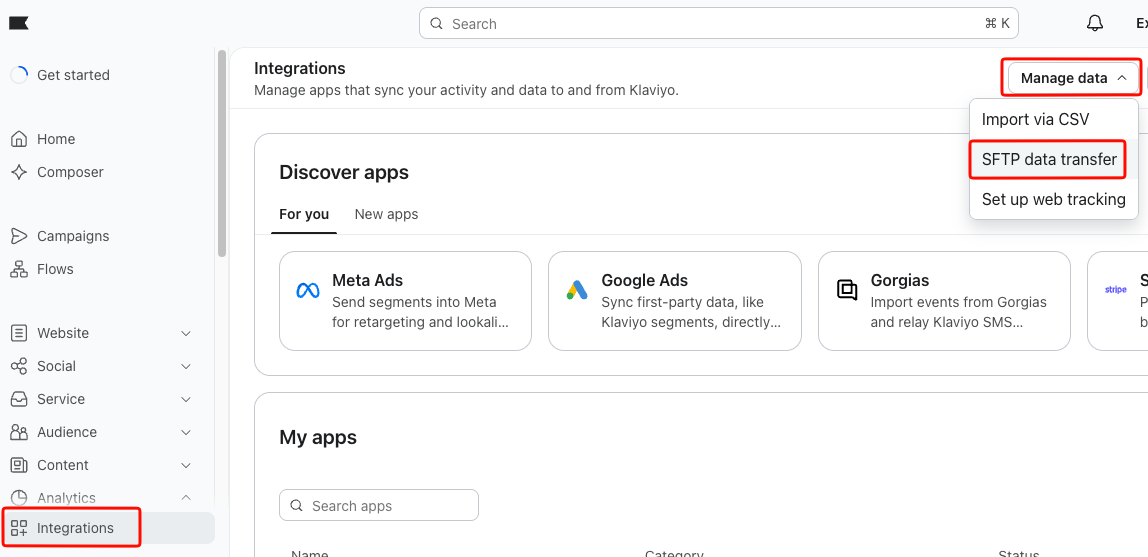
On the SFTP setup tab:
- Choose Add SSH Key.
- Open
klaviyo_flow.pub, copy the complete public key, and paste it into the SSH Key field. - Select Add key.
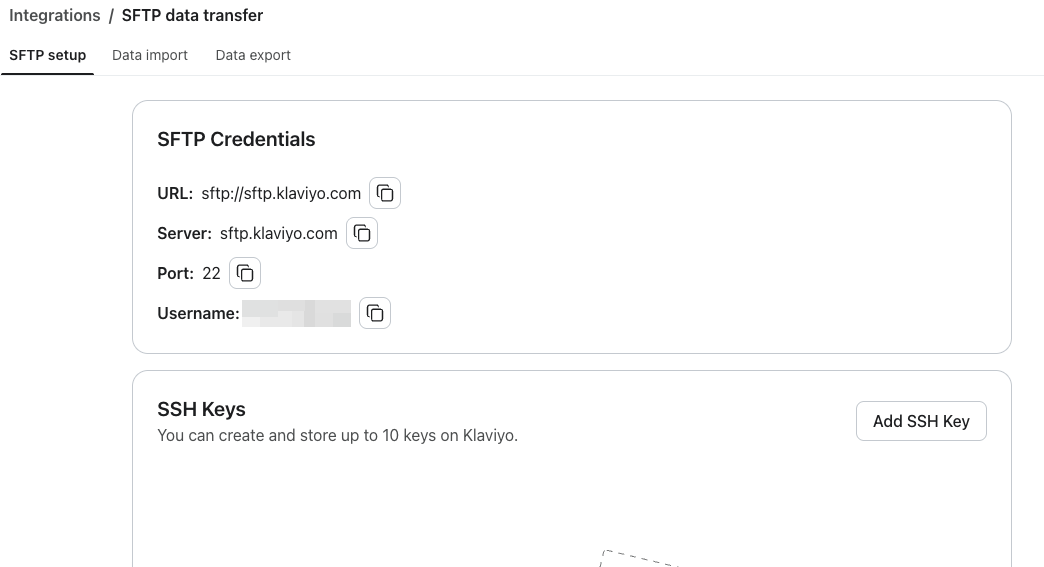
Do not paste the private klaviyo_flow file into Klaviyo.
3. Copy the Klaviyo SFTP details
Open the SFTP setup tab within Klaviyo's SFTP Data Transfer area and copy the username assigned to your account.
Klaviyo sends SFTP sync updates to the Klaviyo user who sets up the SFTP connection. Flow cannot choose or change who receives these notifications, so use the appropriate Klaviyo user when completing this setup.
The connection details are:
| Setting | Value |
|---|---|
| Type | SFTP |
| Host | sftp.klaviyo.com |
| Port | 22 |
| Root path | / |
| Username | The SFTP username shown in Klaviyo |
| Password | Leave blank |
| Private key | The klaviyo_flow private key |
| Passphrase | The key passphrase, if you set one |
4. Create the SFTP connection in Flow
In Flow, open Connections, select Manage FTP, and create a connection using the Klaviyo details above.
Select SFTP as the connection type, set Root Path to /, and upload the private key created in step 1. Save the connection, then use Test Connection to confirm that Flow can connect and upload a file.
For a full explanation of the form and delivery options, see FTP Connections.
The SFTP test on the connections page on Flow will fail, you can ignore that. This is because the test tries to create a folder but Klaviyo does not allow that.
5. Create the Klaviyo flows
Open My Flows, choose Create Flow, and search the template list for Klaviyo. The search shows all four ready-to-use Klaviyo templates:
- Sync customers into Klaviyo — sends Epos Now customers to Klaviyo's
profilesdirectory. - Sync transactions into Klaviyo — sends Epos Now transactions to Klaviyo's
eventsdirectory. - Sync transaction items into Klaviyo — sends the line items belonging to those transactions to Klaviyo's
eventsdirectory. - Product feed for Klaviyo — creates the JSON product catalog feed described in step 7.
The customer, transaction, and transaction item templates use the Klaviyo SFTP connection. The product template uses the separate web-facing SFTP destination described below.
For each flow:
- Review the template settings and choose how often it should run.
- In the delivery and file settings, select the Klaviyo SFTP connection.
- Keep the template's Klaviyo file format and destination folder unchanged.
- Simulate or review the flow before activating it.
The templates format the CSV headers and values for Klaviyo's profile and event ingestion. For more about installing and reviewing templates, see Templates and Solutions.
You do not normally need to create the transaction metrics in Klaviyo first. The event CSV includes a metric name, and Klaviyo may create that metric when it creates the event. A Klaviyo account can have up to 200 metrics.
6. Check the SFTP imports in Klaviyo
After a flow has uploaded a file, open the Data import tab in Klaviyo and check Recent Imports.
Klaviyo reports whether each import completed or failed. A completed job can appear before its profiles and metrics are available elsewhere in the account, so allow several minutes for them to populate. Klaviyo recommends contacting its support team if data has not started to appear within 20 minutes.
Start with a small test run. Confirm that:
- customer rows create or update the expected profiles
- transaction events are attached to the correct profiles
- transaction item events contain the expected product identifiers
- the metric names and event properties are suitable for the Klaviyo automations you plan to build
Klaviyo deduplicates matching events and profiles, but Flow should still create timestamped filenames so each upload has a distinct filename. See Import profile and event data with SFTP for Klaviyo's ingestion rules and troubleshooting guidance.
7. Set up the product catalog feed
Products do not go into Klaviyo's profiles or events SFTP directories. Klaviyo imports them from a custom catalog feed available at a public HTTPS URL.
Your hosting setup must:
- accept SFTP uploads from Flow
- expose the uploaded JSON file at a stable, public HTTPS URL
- serve the file without authentication
- avoid serving a stale cached copy after Flow updates the file
This is a separate destination from sftp.klaviyo.com. Ask your website host or technical team for the SFTP host, port, username, credentials, upload path, and the corresponding public HTTPS URL.
Then:
- Add that server as another FTP/SFTP connection in Flow.
- Create the Product feed for Klaviyo template.
- Configure it to upload the generated JSON file to the web-facing server.
- Run it once and confirm that the JSON file opens at its public HTTPS URL.
- In Klaviyo, add a custom catalog source using that HTTPS URL and map the feed fields.
The product ID emitted by transaction item events must match the item ID in the catalog feed. This allows Klaviyo to associate purchase events with the correct catalog products.
Klaviyo currently reads custom catalog feeds every six hours. A feed file must not exceed 100 MB, and Klaviyo recommends keeping each file below 50 MB. See Sync a custom catalog feed to Klaviyo for the current feed, field-mapping, and size requirements.