FTP Connections
Use FTP Connections when you want an export flow to upload files outside the dashboard.
Flow supports both FTP and SFTP connections.
Add a Connection
Open Connections from the Flow left-hand navigation, then choose Manage FTP on the overview (or open FTP from the Connections sub-navigation) and create a new connection.
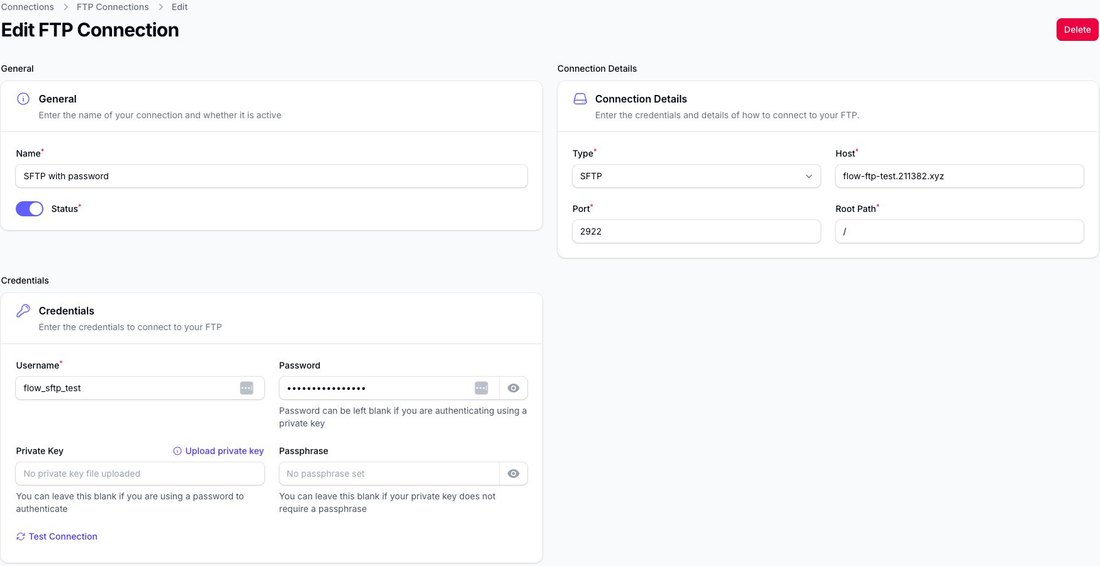
For each connection, you can set:
- the connection name
- whether the connection is active
- the connection type: FTP or SFTP
- the host
- the port
- the root path
Credentials
The credentials section supports:
- username
- password
- private key for SFTP
- passphrase for the private key if needed
For SFTP, you can upload a private key file through the form.
You can authenticate using either a password or an SSH key, depending on what the destination server requires.
Test the Connection
After saving the connection, use Test Connection to verify it.
The test connects to the server, creates a test folder and file, and then removes them as part of the check.
Multiple Connections
You can create multiple FTP or SFTP connections in the same Flow account.
This is useful if you deliver files to different clients, systems, or destinations.
Use the Connection in an Export Flow
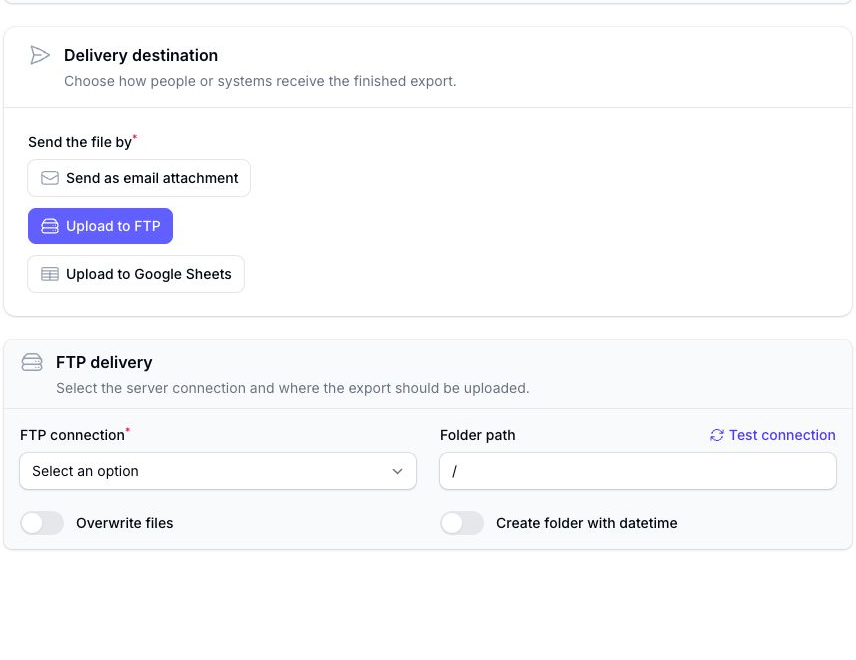
Once the connection exists, open the flow and choose Edit delivery and file settings.
In Delivery destination, choose Upload to FTP.
You can then set:
- the upload folder path
- whether existing files should be overwritten
- whether a datetime-based folder should be created before upload
If you choose a datetime-based folder, the folder name uses the timezone set on the flow.
If overwrite is turned off and the file already exists, Flow skips that upload rather than replacing the existing file.
This setup is useful for:
- reseller or marketplace feeds
- sending files to external platforms such as Linnworks or Klaviyo
- scheduled reporting pipelines
- automated data drops for downstream systems
For the export side of that setup, see Delivery and File Settings.