Settings & Block Content
When you open a template, the Template studio has three tabs:
- Settings controls the document and its shared styles.
- Layout arranges rows, columns, and content blocks. Selecting a block opens its editor in a panel on the right.
- Preview renders the generated CSS and JavaScript in an isolated preview using example data or read-only data from your Epos Now account.

Changes are kept in the editor until you select Save & build. The button rebuilds the template JavaScript and CSS. If you leave the page with unsaved changes, the studio warns you first. Text inputs and selectors in a block are sent to the editor when they lose focus, so the block label updates without needing to close and reopen it.
Content & Settings
Document-wide options are grouped under the Settings tab.
Use the menu on the left to switch between Document settings, Fonts & colours, Table styling, Custom labels, Epos Now fields, and Footer. Content blocks such as text, images, Epos Now fields, tables, summaries, and spacers are created and edited from Layout. Their editors are described below for reference.
Document Settings
Template details
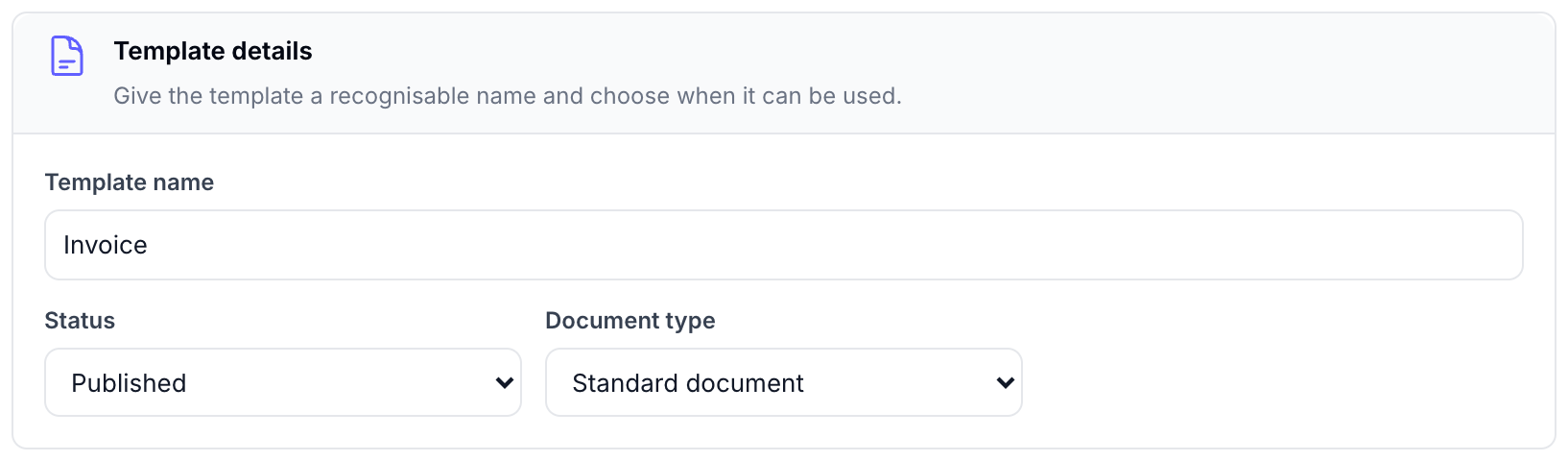
- Template name is the name shown in the template list and in Epos Now.
- Status is either Draft / inactive or Published. Draft templates are saved but are not available for printing.
- Document type is Standard document or One item per page. The latter creates a separate page for each order item.
Paper size
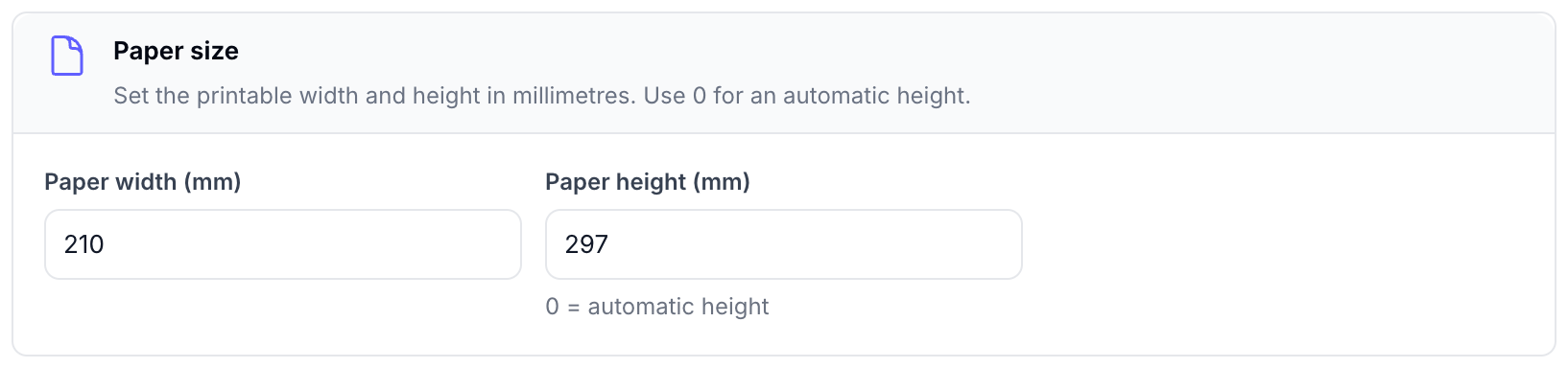
Set the printable Paper width (mm) and Paper height (mm). A height of 0 uses automatic height. Enter the size of the paper or label loaded in the printer. The generated document uses these dimensions when it is printed; configure the printer with zero margins so these settings are not overridden.
Page margins and element spacing
Page margins are measured in millimetres:
- Top margin, Bottom margin, and Horizontal margin control the space between the paper edge and the layout.
- Vertical element spacing and Horizontal element spacing control the gap between layout elements.
- Item padding (px) controls the padding inside order-item content.
Fonts & Colours
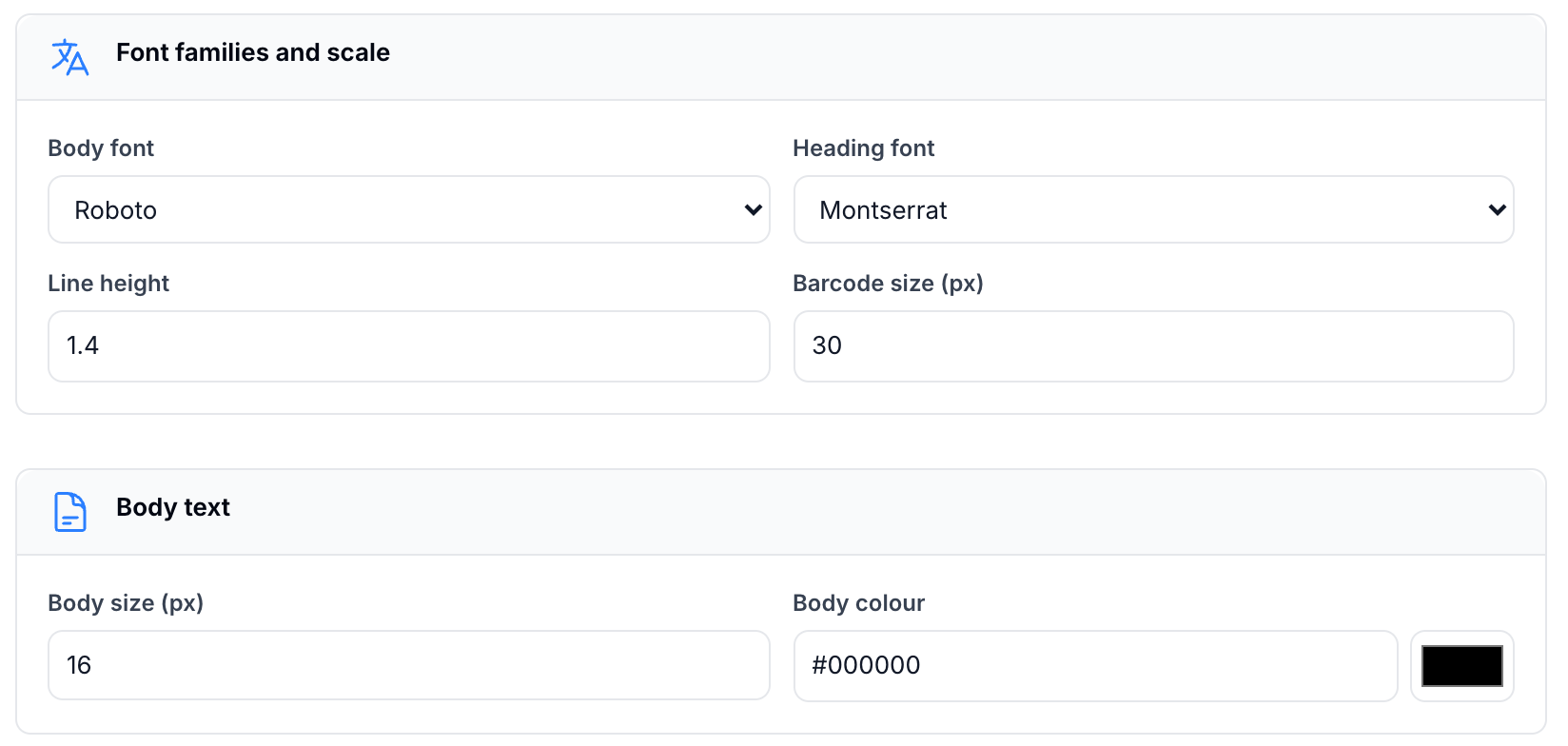
Choose the Body font and Heading font from the available font list. You can also set line height and barcode size. The remaining groups set a size and colour for body text, each heading level (H1 to H6), and footer text. Font sizes and barcode size use pixels (px).
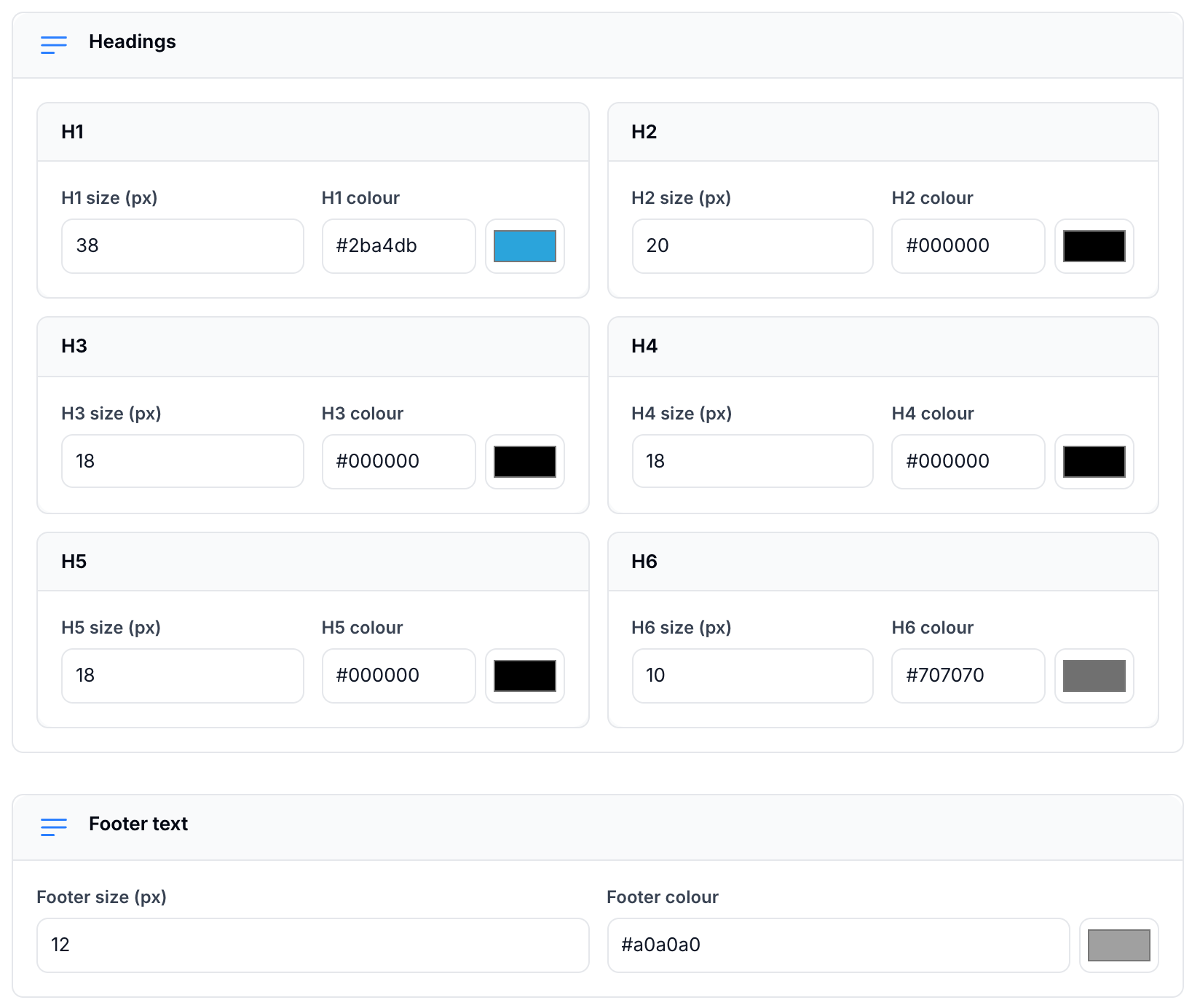
The dashboard preview blocks external font requests, so a preview may use the generated fallback font. The saved template still contains the selected font settings for the Epos Now runtime.
Table Styling
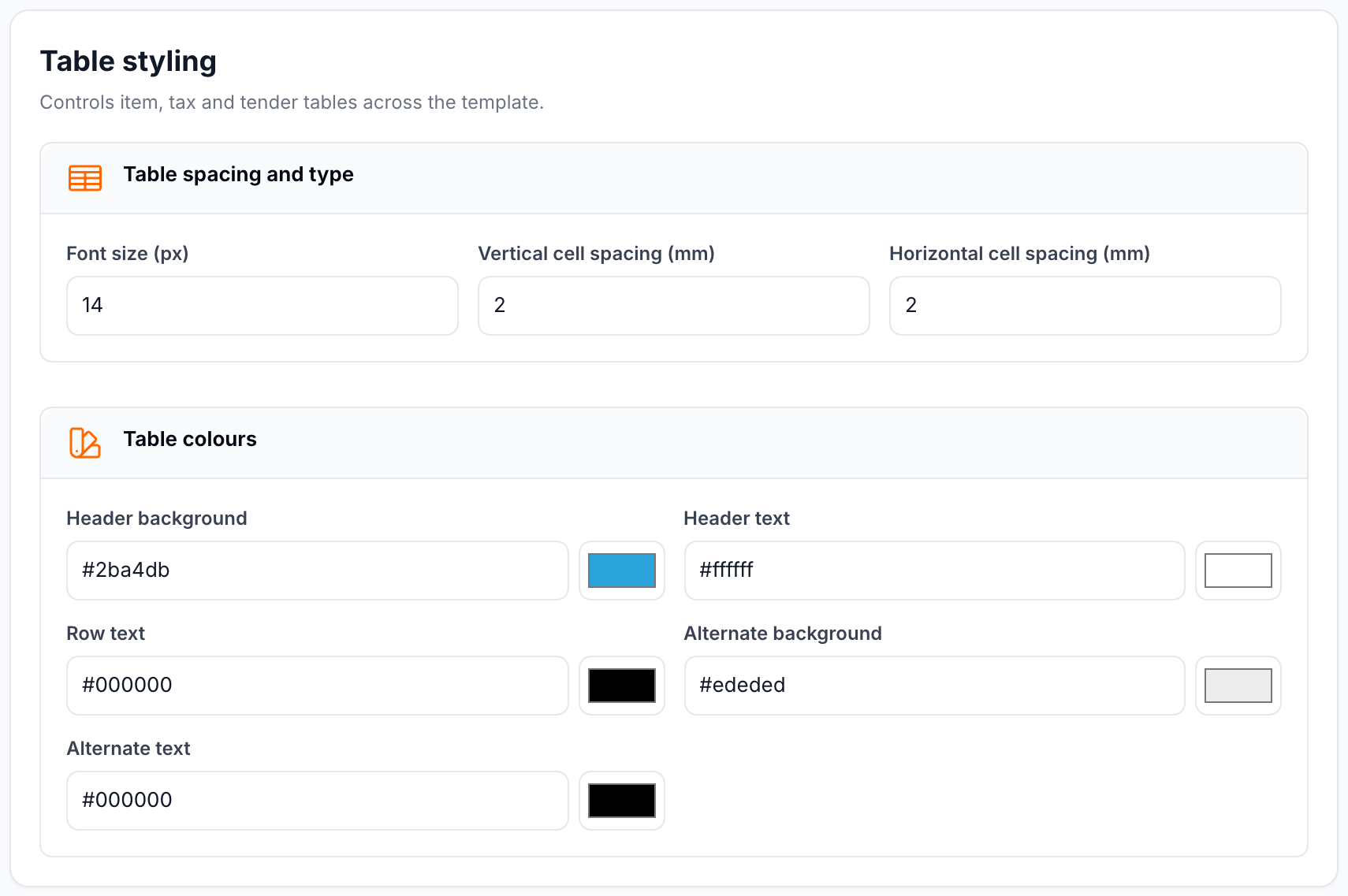
These options apply to item, tax, and tender tables:
- Font size (px) sets the table text size.
- Vertical cell spacing (mm) and Horizontal cell spacing (mm) set the space inside each cell.
- Header background, Header text, and Row text set the standard colours.
- Alternate background and Alternate text set the colours used on alternating rows.
Custom Labels
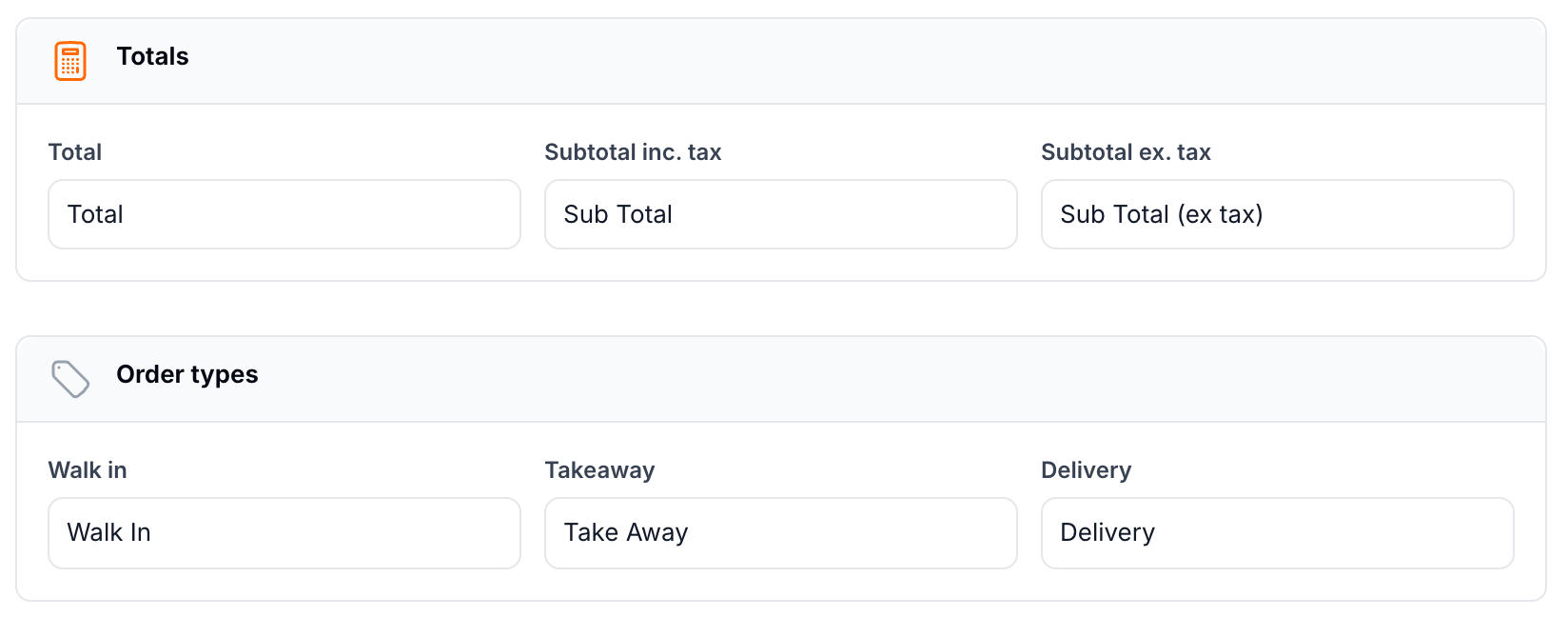
Custom labels let you change the wording printed on the document without changing the Epos Now field values. The fields are grouped as:
- Discounts and charges: basket discount, customer discount, and service charge.
- Account adjustments: customer credit item, payout/deposit, tender customer credit, and tender customer points.
- Totals: total, subtotal including tax, and subtotal excluding tax.
- Order types: walk in, takeaway, and delivery.
Epos Now Field Settings
Use Epos Now fields under Settings to control how dates, times, prices, and ticket items appear in the generated document.
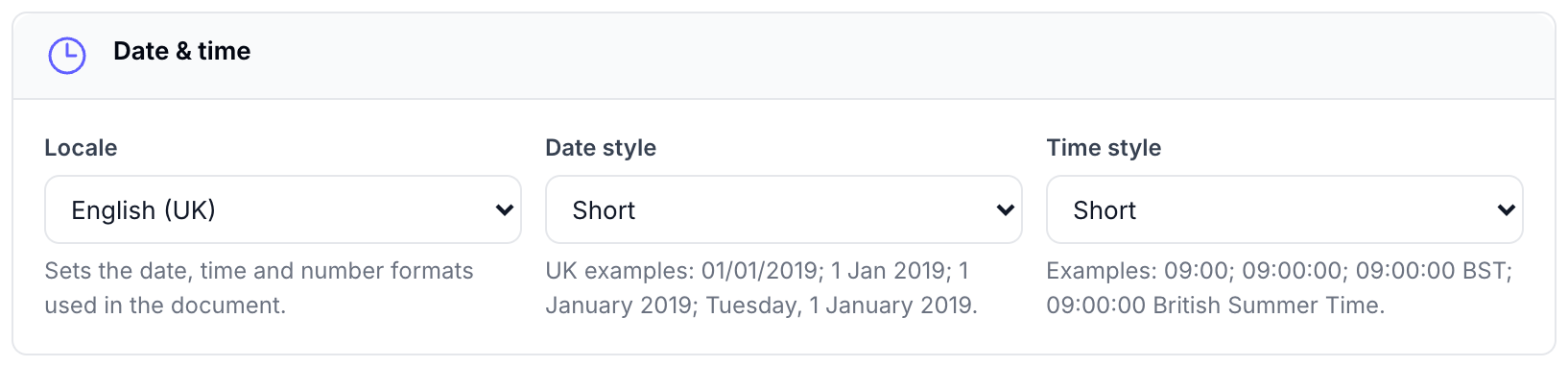
- Locale sets the date, time, and number formats used in the document.
- Date style controls whether dates use the short, medium, long, or full format.
- Time style controls whether times use the short, medium, long, or full format.
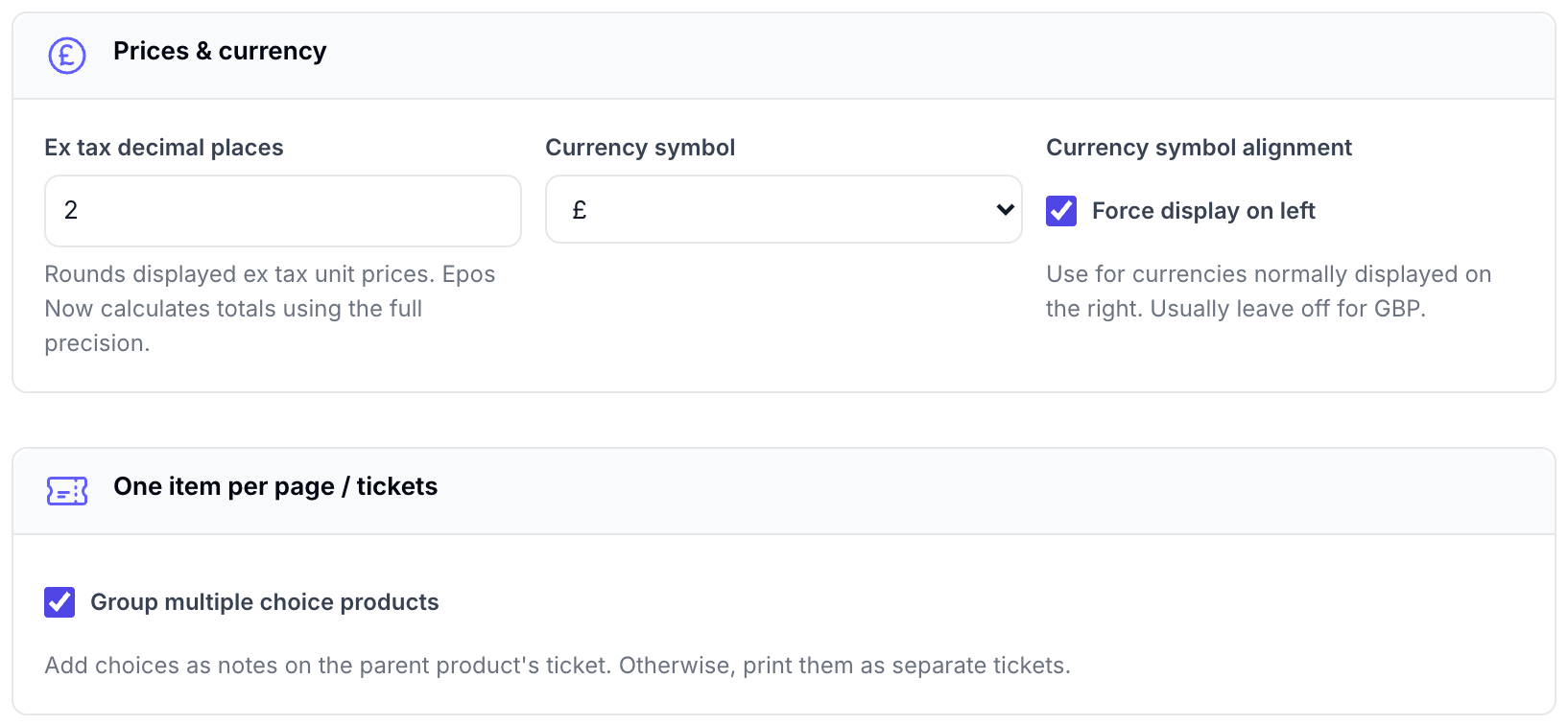
- Ex tax decimal places controls displayed ex-tax unit-price rounding. Epos Now still calculates totals using full precision.
- Currency symbol selects the symbol used in the document.
- Currency symbol alignment can force the symbol to display on the left.
- Group multiple choice products adds choices as notes on the parent product's ticket. Otherwise, they print as separate tickets.
Text Fields
Text blocks are added from Layout > Add elements. Select a text block to open the right hand editor. Give it a Block name so it is easy to identify on the layout, then enter content in the rich text editor. The editor supports bold, italic, bulleted lists, headings, and paragraphs. The block name is only an editor label; it is not printed.
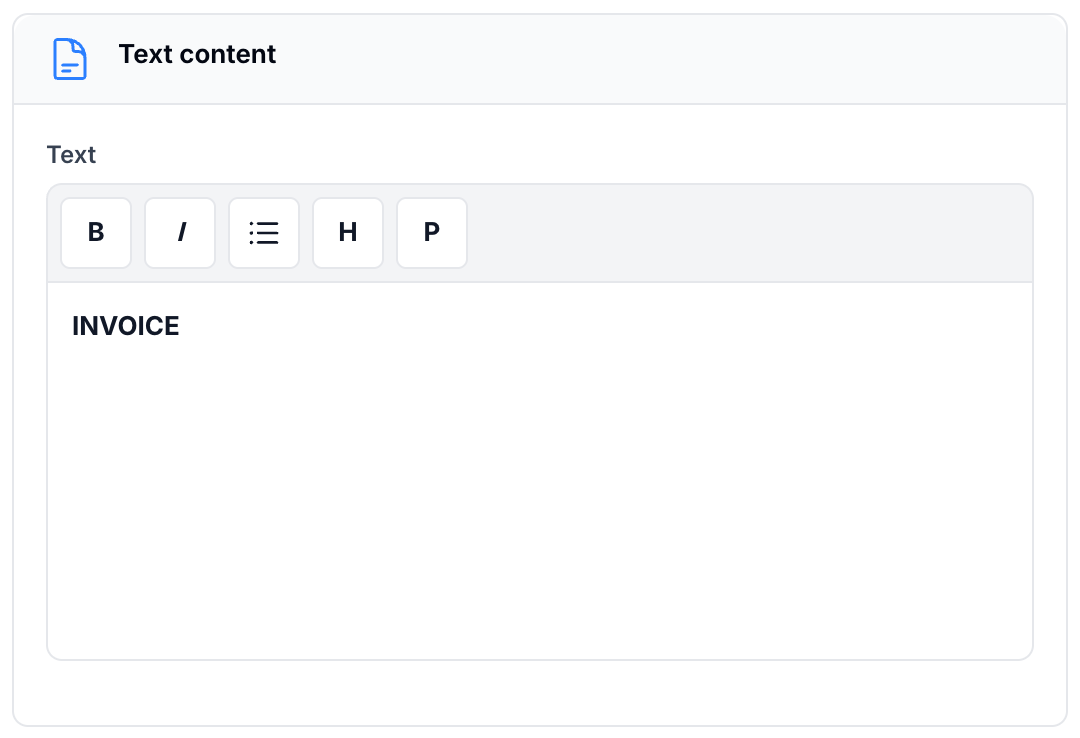
Image Fields
Image blocks are also added from Layout > Add elements. Select an image block to choose its alignment, upload an image, or select an image already uploaded to this app.
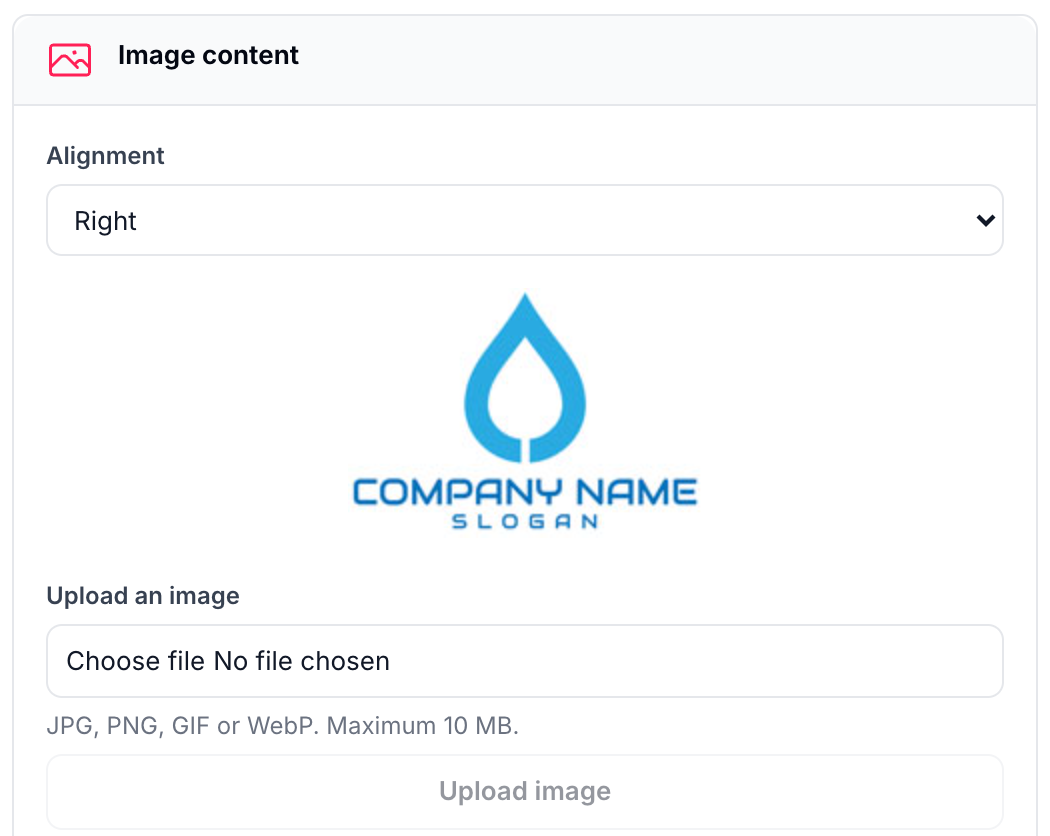
Uploads accept JPG, PNG, GIF, and WebP files up to 10 MB. The image library is scoped to the current app, so users only see images belonging to their account. Images are stored and served by the dashboard so the generated template can load them when Epos Now renders the document.
Epos Now Fields
Select Epos field from Add elements and choose a field from the labelled list. The editor displays a friendly field label while preserving the Epos Now field identifier in the generated template.
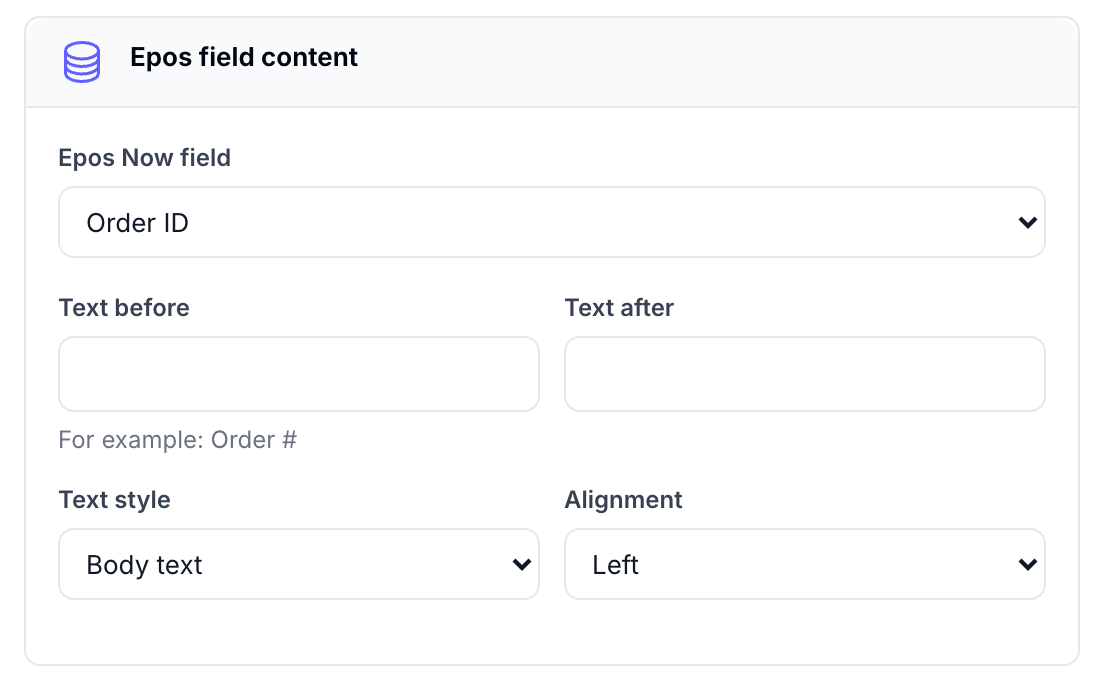
- Text before adds a prefix, such as
Order #. - Text after adds a suffix after the field value.
- Text style chooses body text, a heading level, a barcode, or a barcode with text.
- Alignment sets the field alignment.
Prefixes and suffixes use the same style and alignment as the field.
Order Items Table
Add an Items table block to show one row for each item in the order. The block editor can group matching products, sort by an item field in ascending or descending order, and control the totals summary.
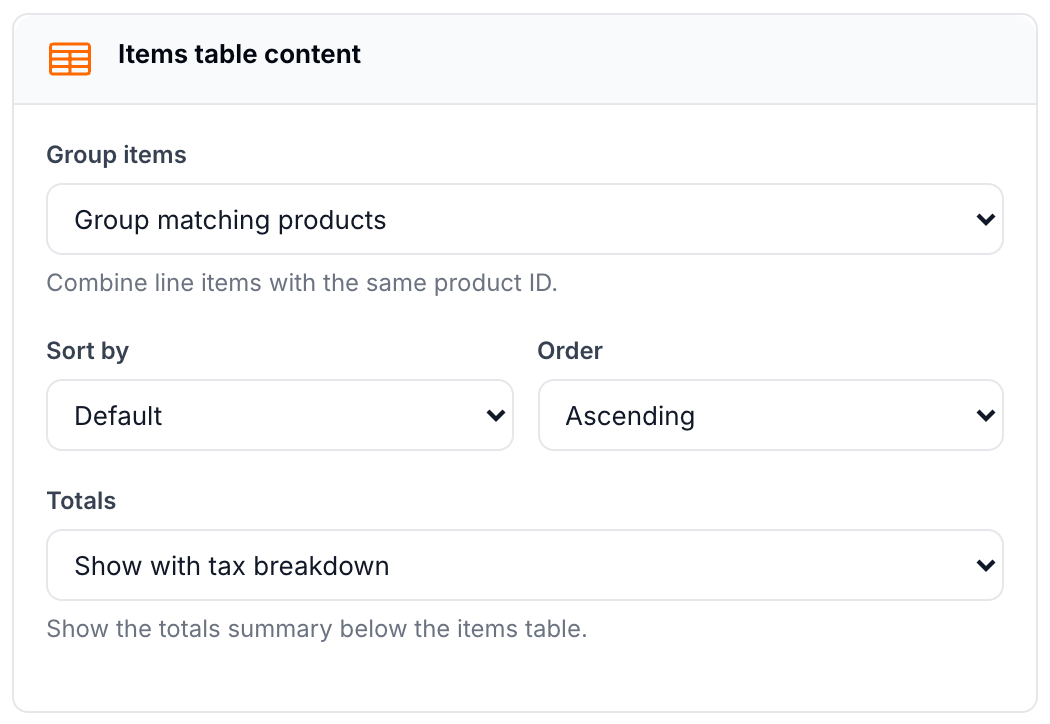
The Totals options are Hide, Show, Show with ex tax, Show with tax breakdown, and Show with tax breakdown (discounts before tax).
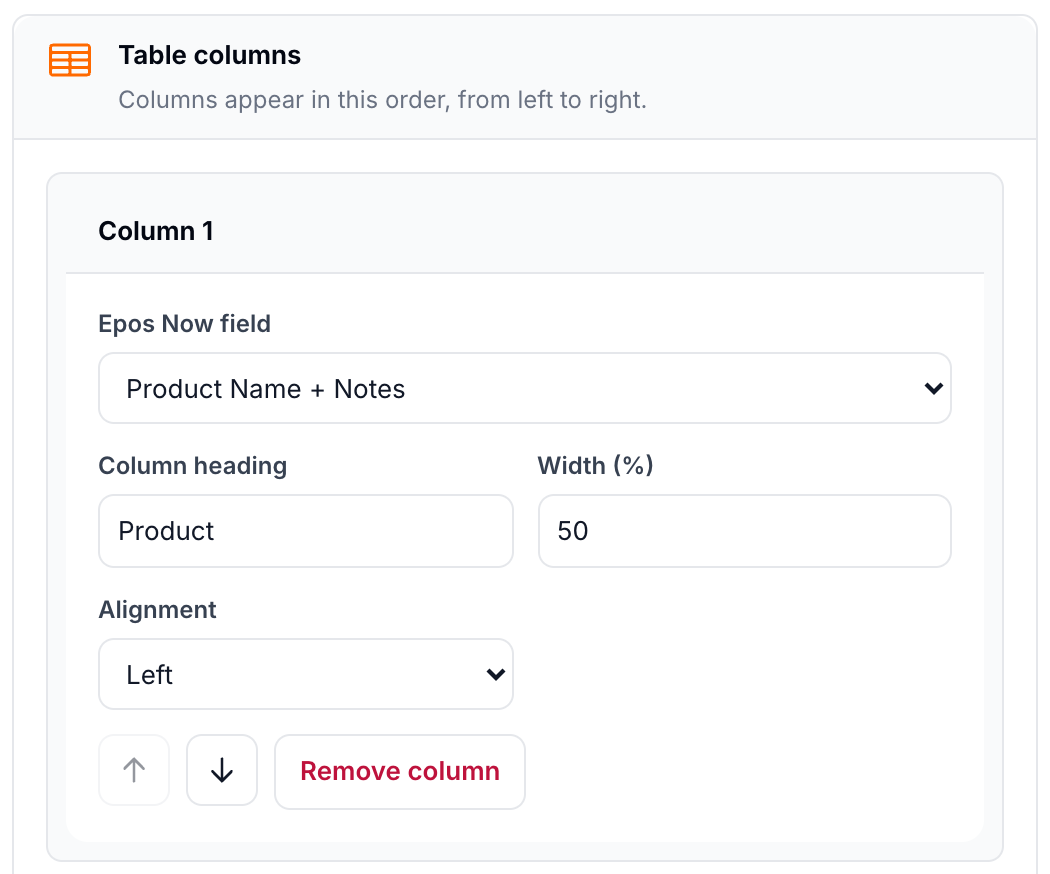
Use Table columns to configure each column:
- Select the Epos Now field to display.
- Enter the Column heading shown in the table header.
- Set the Width (%). Column widths should add up to no more than 100%.
- Set the alignment to left, centre, or right.
- Use the up and down controls to change the column order, or remove a column. Select Add column to add another one.
Order Summary Table
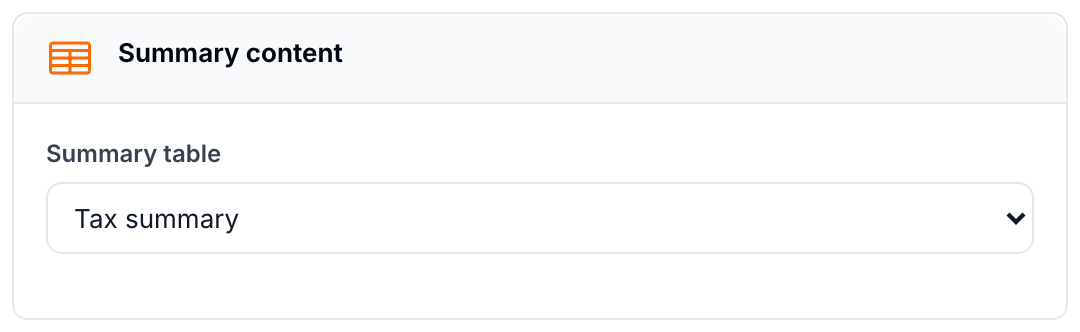
Add a Summary block to show either the Tax summary or Transaction tenders table.
Spacers
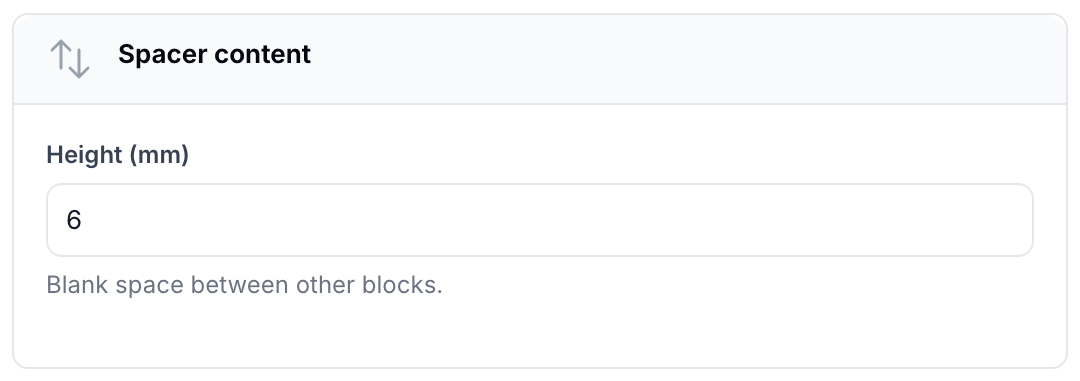
Add a Spacer block when you need a controlled vertical gap between other blocks. Set its Height (mm) in the block editor.
Footer
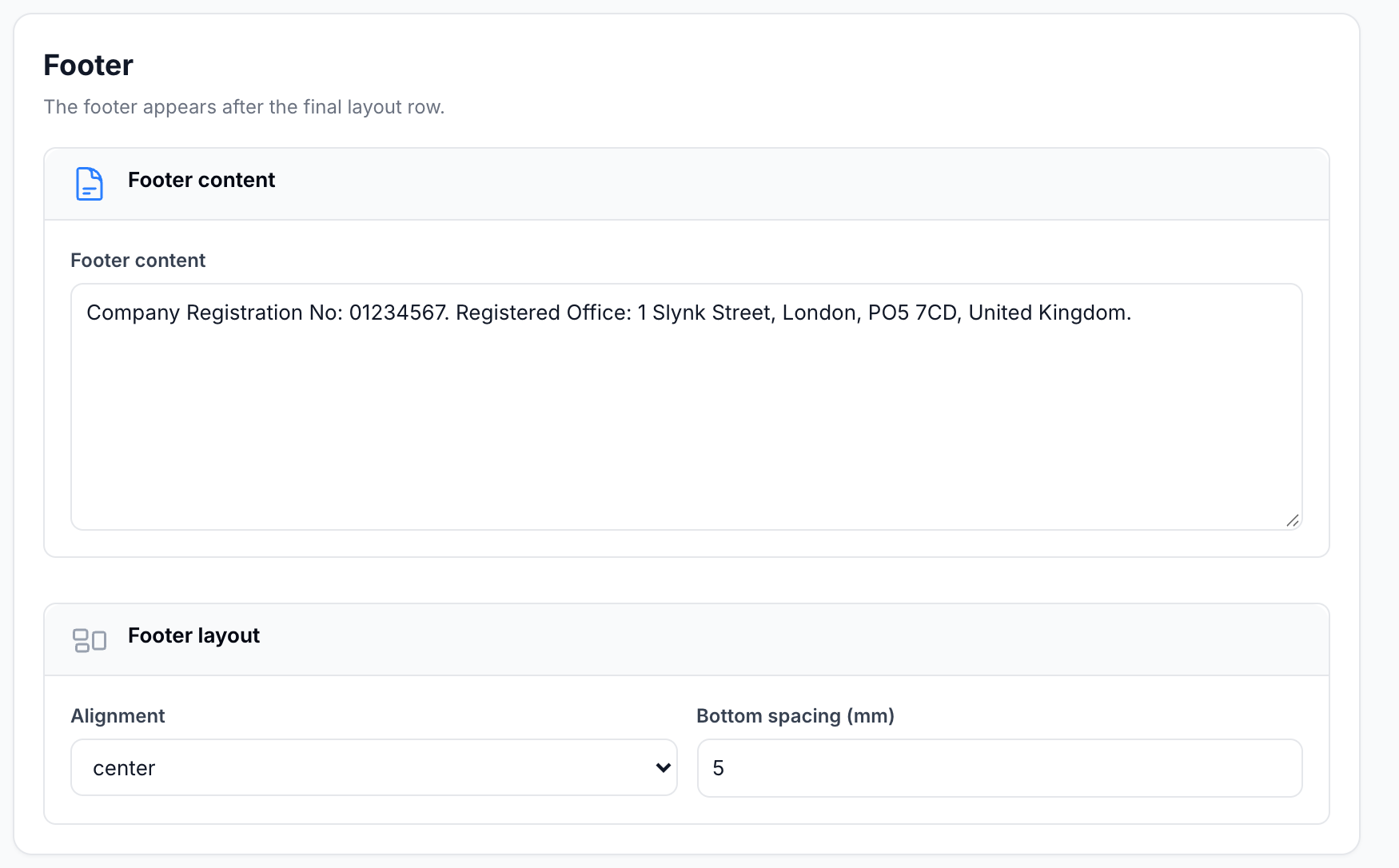
The Footer settings section contains:
- Footer content, entered as text or HTML supported by the template renderer.
- Alignment, set to left, centre, or right.
- Bottom spacing (mm), which controls the space below the footer.
The footer is rendered after the final layout row. Use Preview to check how it sits on the selected paper size, then verify it on your printing device.
Saving and previewing
Switch to Preview to check your changes before saving. It includes unsaved edits. The account preview is read-only and does not print, send webhooks, or write to Epos Now. You can also use the offline example orders when you do not want to load account data. Select Save & build when you want to save the settings, content and layout and rebuild the saved output.
Continue with Layout & Preview to arrange rows and columns, or return to Manage Templates.