Layout & Preview
After defining your content, use the Layout and Preview tabs to position each element and check how the final document will look before publishing the template.
Layout
The drag and drop layout builder is used to position all the elements and fields that you have added to your template. Each element is identified by the unique identifier that you set in the Content & Settings tab.
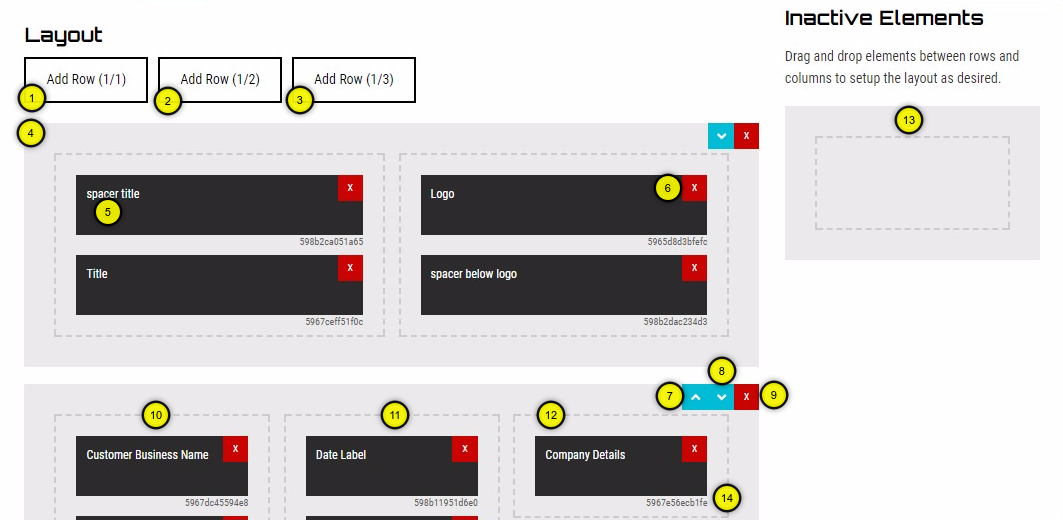
1. Add Row - 1 Column
Add a row to the layout. Single column, 100% width of the paper.
2. Add Row - 2 Columns
Add a row to the layout. Two columns, each column is 50% width of the paper.
3. Add Row - 3 Columns
Add a row to the layout. Three columns, each column is 33.33% width of the paper.
More row layouts will be added over time.
4. Row Container
The light grey background shows the row and all the elements within it.
5. Element Identifier
This shows the identifier that you set for your fields or elements in the Content & Settings tab.
6. Delete Element
Click on the x to remove the selected element from the layout. It will be moved to the Inactive Elements section. You can also drag and drop an element into the Inactive Elements section.
7. Move Row Up
Click on this to move the selected row up one level.
8. Move Row Down
Click on this to move the selected row down one level.
9. Delete Row
Click on the x to remove the selected row from the layout. All elements within the row will be moved to the Inactive Elements section.
10. Column 1 Container
The dotted line shows the column and all the elements within it.
11. Column 2 Container
The dotted line shows the column and all the elements within it.
12. Column 3 Container
The dotted line shows the column and all the elements within it.
13. Inactive Widgets
This section holds all the elements that have been defined for the template in the Content & Settings tab but have not yet been positioned. Any elements that are left in this section are not printed on the template. This is useful for elements that have been defined, but have been removed from the layout temporarily.
Preview Template
Once you have saved your template, you can preview how it will look with live data from Epos Now using sample orders.
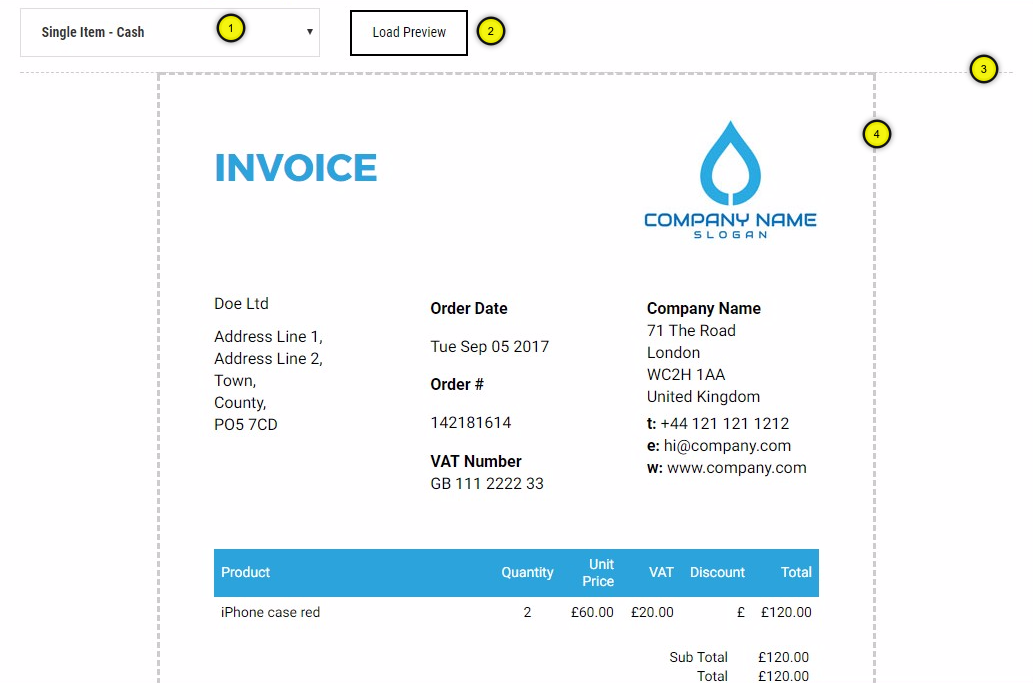
1. Select Order
Select the order to use to generate the preview of the template.
2. Load Preview
Once you have selected the order, click on this button to generate the preview. It may take a few moments to generate the preview.
3. Page Indicator
The thin dotted line shows the page breaks.
4. Paper Boundary
The thick dotted line shows the edges of the paper for the paper size defined for this template.
Next Step
Once the template looks right and its status is set to Published, you can use it in Epos Now via back office, the till, or from the Slynk dashboard.