Manage Templates
Log in to the Slynk dashboard, open your Order Templates app, then choose Templates from the menu.
Templates and settings on this page belong to the app you have opened. Check that you are in the right app before making changes.
Manage Templates
The counters show your active template allowance, total templates, and drafts/inactive templates. Only published templates are available in Epos Now; the number you can publish depends on your subscription.
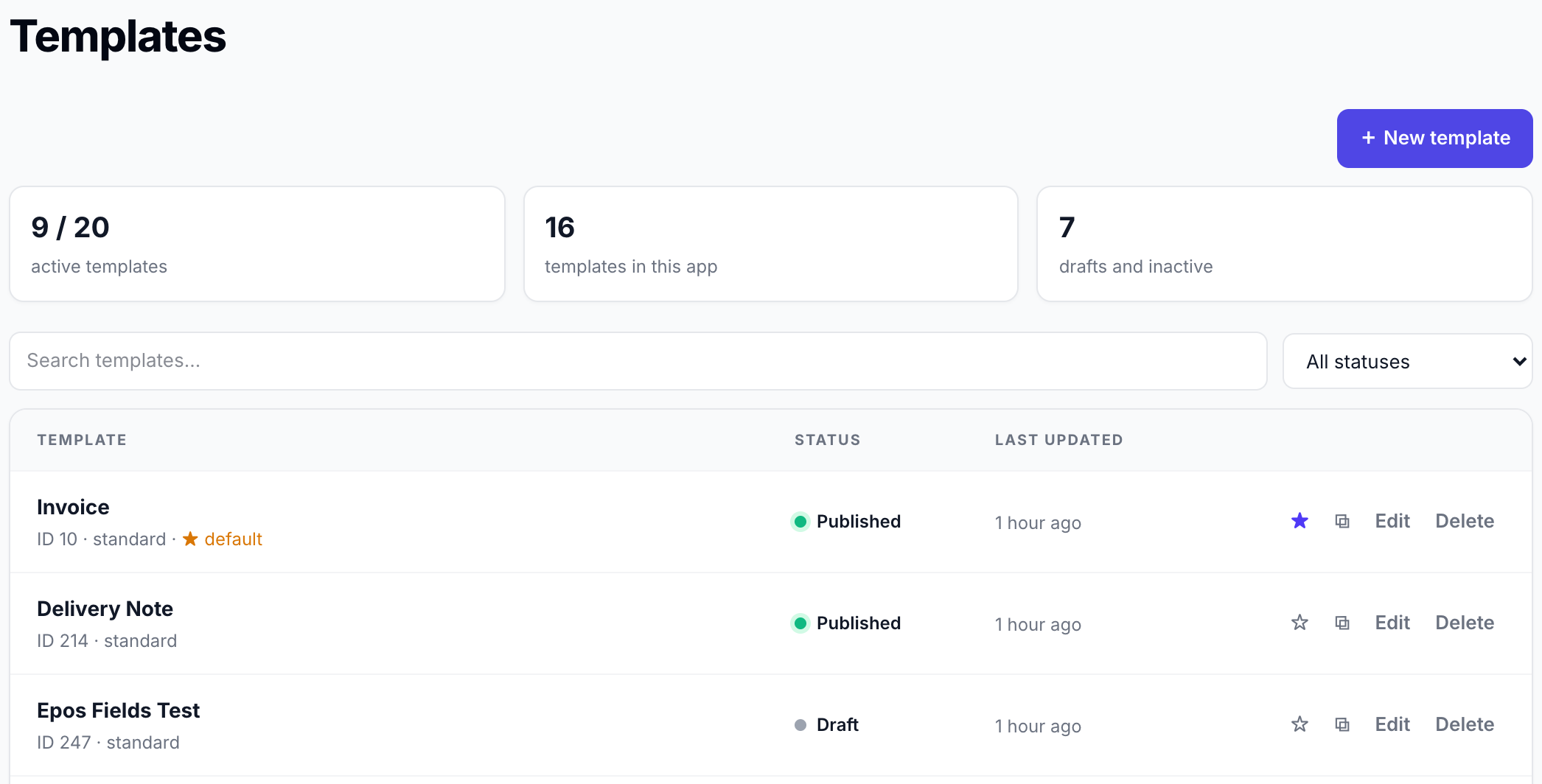
- Search templates finds templates by name or description. Use the status filter to show published templates or drafts.
- Select a template name or Edit to open Template studio.
- The star makes a template the default for this app. It is then labelled default. Publish that template before using it for till printing.
- Duplicate creates a separate draft copy. Edit and publish the copy when it is ready.
- Delete removes a template from the list and available output after confirmation. Choose another default first if you want to delete the current default. There is no restore control on this page; duplicate a template before making changes you may want to keep separately.
Add a Template
- Select New template at the top of the page.
- Choose Blank canvas or one of the available starting templates.
- The new template opens in Template studio as a draft.
- Give it a recognisable name in Settings → Document settings. This is the name staff see when choosing a template in Epos Now.
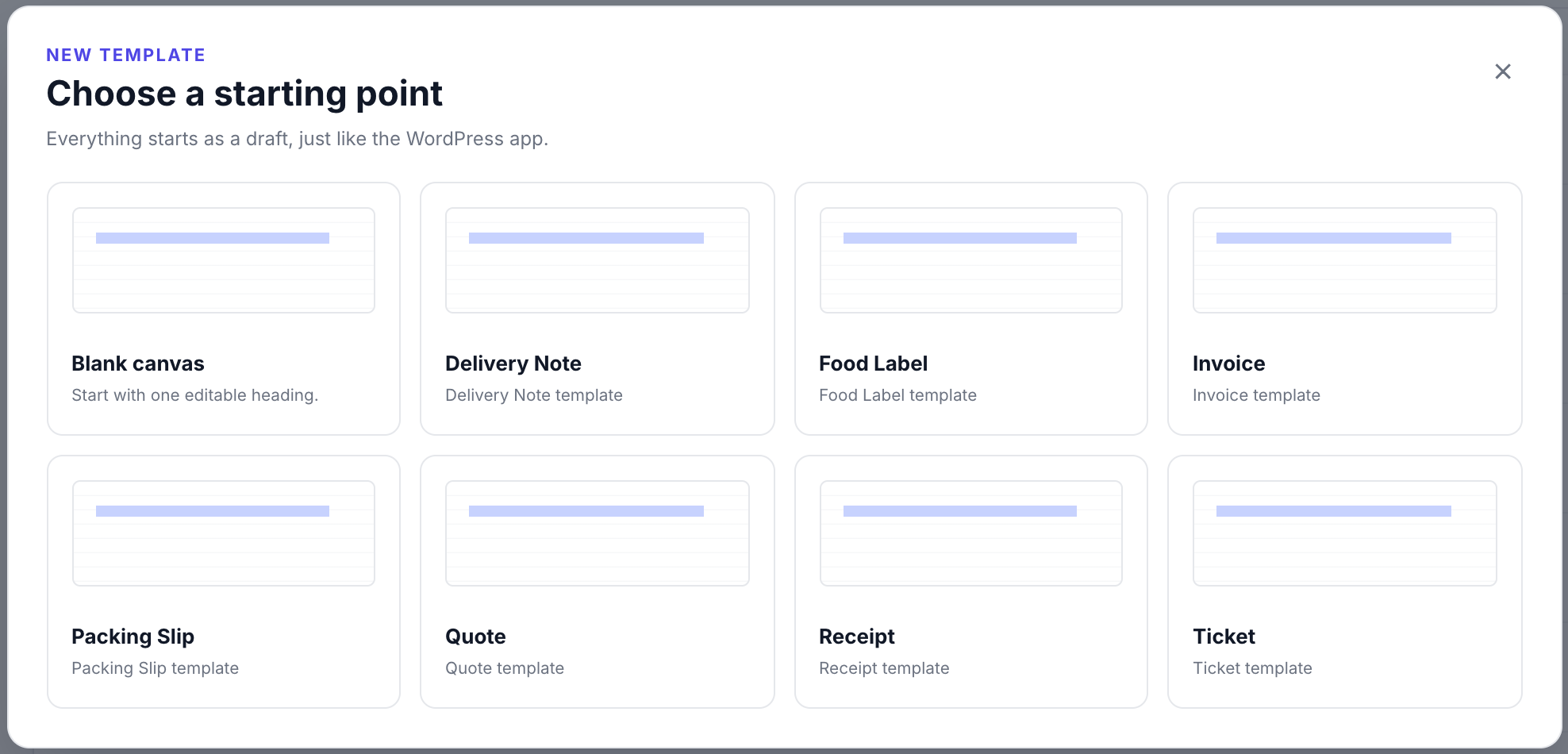
Choosing a starting template creates your own editable copy. It does not change the original starting template.
Open App Action
Choose Settings from the menu to control what staff see when they open Order Templates in Epos Now. Under Open App action, select an option from When the app opens, then choose Save action.
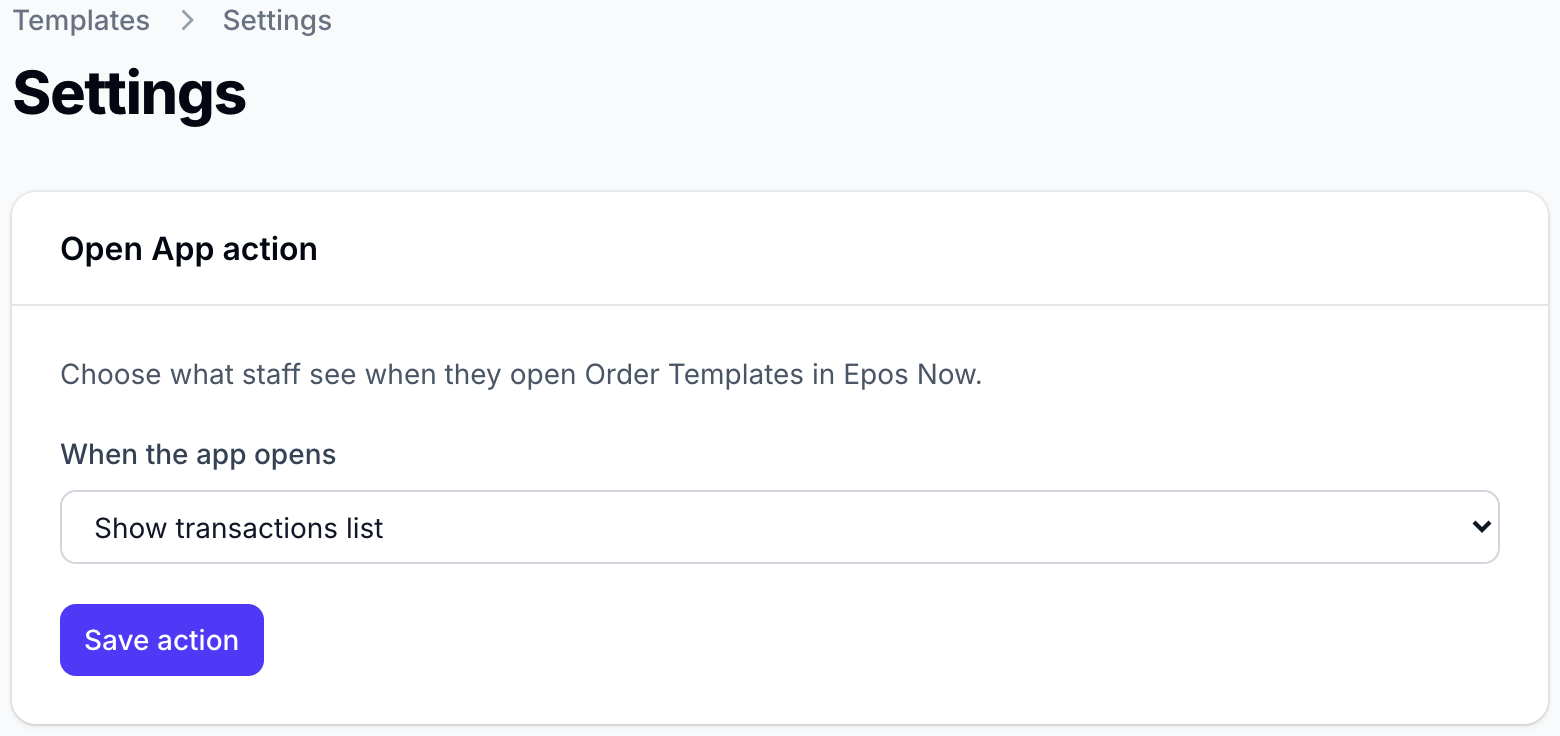
| Option | Till behaviour |
|---|---|
| Show transactions list | Choose an order, then a published template. |
| Open last transaction and choose template | Use the last order on this till and choose a published template. |
| Open last transaction with default | Use the last order and default template for the direct-print workflow. |
For the direct-print workflow, set a published default template as well as the behaviour option. Your device and printing setup still determine how printing is handled.
Back office mode, including Open App in the Slynk dashboard, shows the transaction list first. This selector is for the till action button, not the editor's Preview tab.
Epos Now connection key
Choose API key from the menu to open the Epos Now connection key page. The key is used by the Order Templates app to identify your template account. This is not your Epos Now API token.
Connection settings are normally configured during setup. You do not need to copy this key when editing templates. If support asks you to check it, open the API key page; do not include the value in public screenshots.
Publishing Templates
- Open the template and go to Settings → Document settings.
- Set Status to Published.
- Select Save & build.
If your active template allowance is full, set another template to Draft / inactive and save it before publishing this one.
Save & build updates the saved template and its generated output. To experiment without changing the version staff use, duplicate it and work on the draft copy. Previewing alone does not publish your changes.