Field Selector
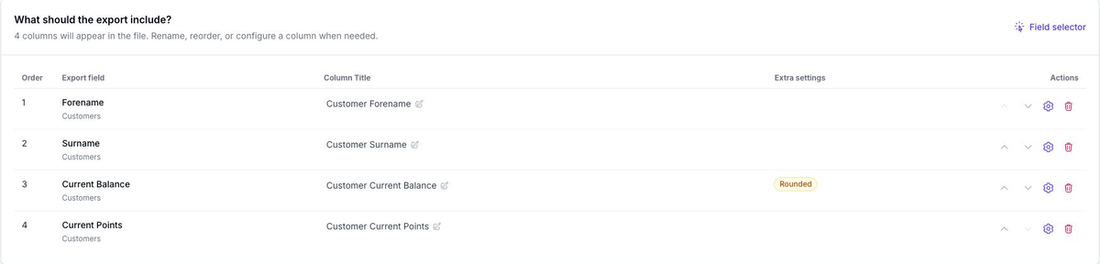
Use the Field selector when you want a guided way to choose fields for filters or export columns.
The searchable field lists inside the side panels are still available. The Field selector gives you another way to browse the connected data structure with descriptions, example values, and a selected-fields list.
Where It Is Available
Use Field selector in What should the export include? to choose export columns.
Use Filter field selector in Which records should be included? to choose filter fields.
Browse Fields
Flow understands how the available data types are related. The Field selector uses that structure so you can browse from the primary data type into related data.
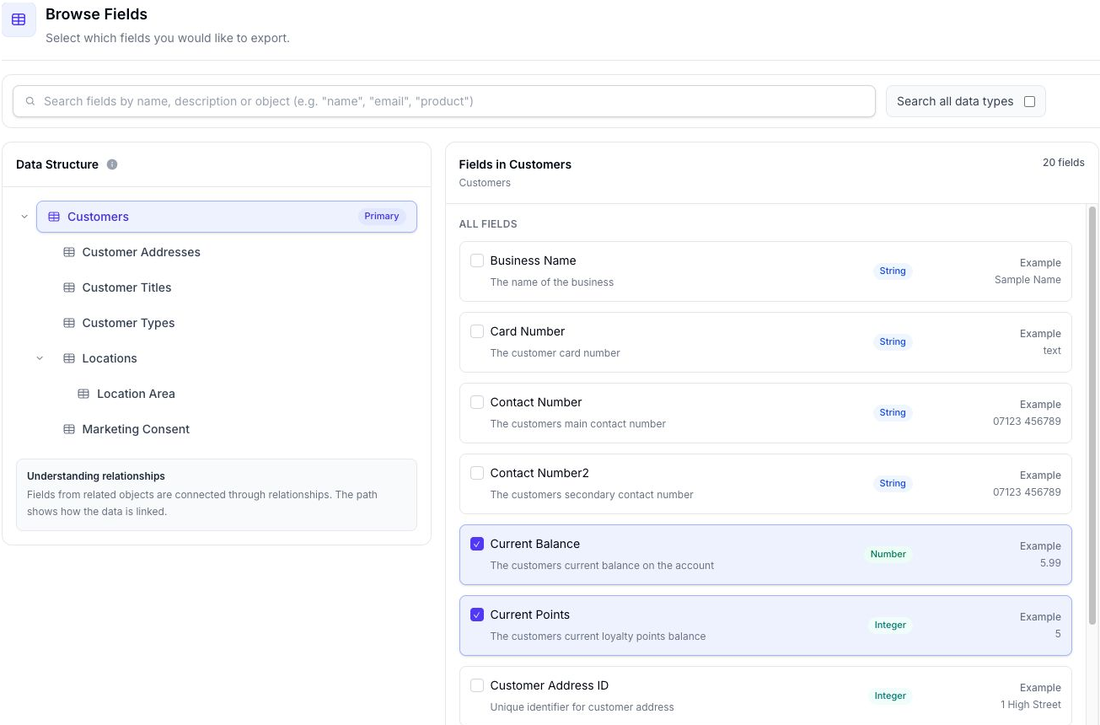
The browser has three main areas:
- Data Structure: choose the data type you want to browse
- Fields: review the fields for the selected data type
- Selected Fields: review what will be applied to the flow
Each field can show:
- the field name
- a short description
- the field type, such as
String,Integer,Number,Boolean, orDate-time - an example value
The Primary badge identifies the main data type for the flow. Related objects show how other available fields are connected.
Search Fields
Use Search fields to find fields by name, description, or object.
By default, search looks within the selected data type. Enable Search all data types to search across every available data type in the flow.
Select and Reorder Fields
Choose a field to add it to Selected Fields.
Choose it again, or use the remove control in Selected Fields, to remove it.
In Selected Fields, you can:
- drag fields into a new order
- use the move controls
- edit an export column title
- remove a field
When you are finished, choose Apply fields. Flow updates the builder but does not save the flow until you choose Save changes.
Export Options
Export field selection includes a few additional tools.
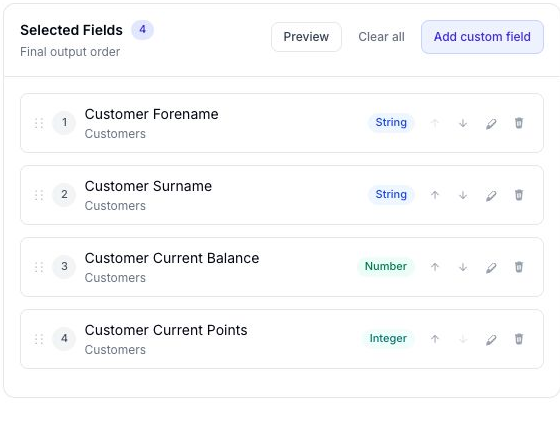
For exports, you can:
- use Preview to see sample output for the selected fields
- use Edit column title to change the heading used in the file
- use Add custom field to add fixed text as an export column
- use Clear all to empty the selection
The preview uses sample data to show how the selected columns may look in the exported file.
Preview and custom fields are only available when choosing export columns.