Create Your First Flow
Every flow starts by selecting a template.
You do not create a completely blank flow first. Instead, you choose a starting point and then adjust the flow in the builder before you activate it.
Start from the Flow Dashboard
Open Flow in the Slynk dashboard.
From here, you can create a new flow.
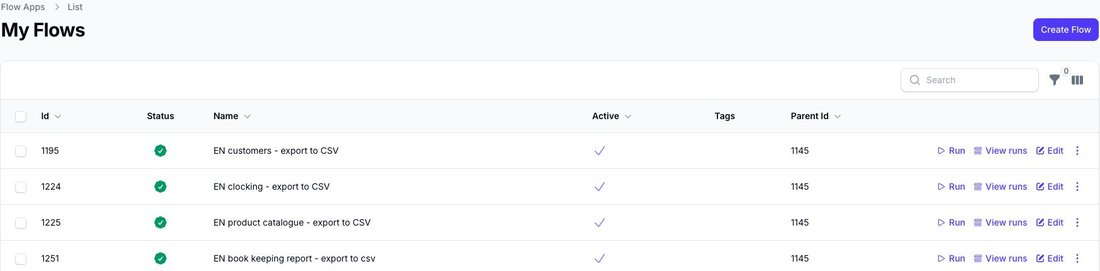
Choose a Template
When you click Create Flow, Flow shows the available templates that you can use as a starting point.
There are filters and search tools to help you find the right template.
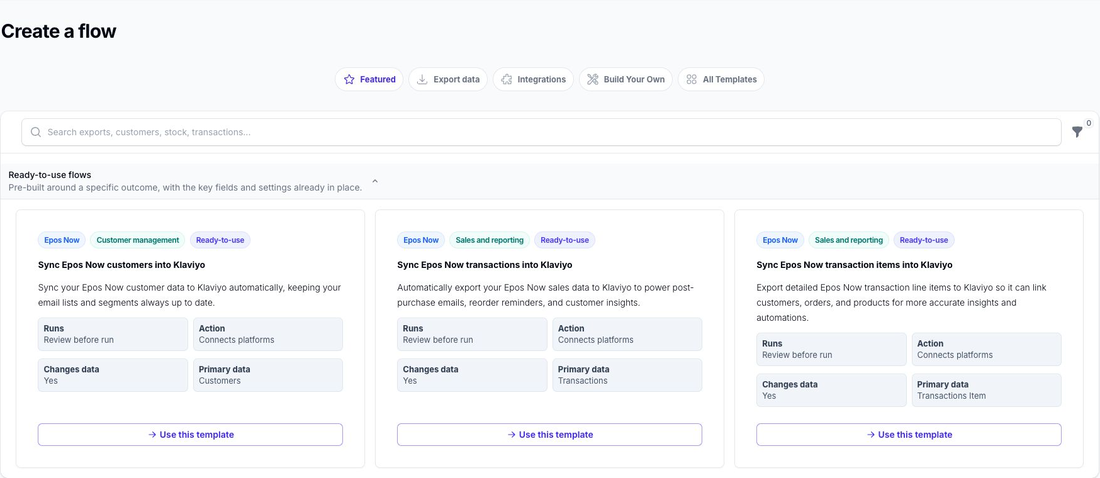
Choose a ready-to-use flow when you want a faster starting point that is already configured for a common outcome.
Choose Build Your Own when you want a simpler starting point for a particular data type and more control over the filters and export fields.
The separate Solutions page contains broader workflows made up of several coordinated flows.
To understand the available starting points in more detail, see Templates and Solutions.
Review and Customise the Flow
After selecting a template, Flow creates your flow and opens the builder so you can review it and customise it.
The top of the builder explains the important settings in plain English. Below that, each section has the action you need to make changes.
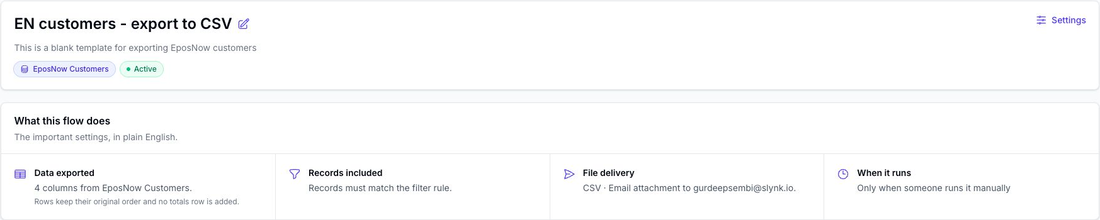
We recommend working through:
- Flow Details and Settings
- Schedule
- Filters
- Export Fields and Delivery
- Review, Simulate, and Activate
How Flow Works
Each flow has three core stages:
- Fetch Flow fetches the data type defined by the template, for example products, transactions, or customers.
- Filter You define which records should pass through.
- Export You define the export output for matching records, such as CSV columns, file delivery, or delivery to Google Sheets or FTP.
When a flow runs, successfully exported rows and successful app runs count toward your plan allowance. You can read more about how usage is calculated in Rows and Usage.
Simulate Before You Activate
Before activating a flow, we recommend that you run a simulation first.
A simulation runs against your live data but does not create a live export. It is a good way to:
- confirm that the right records pass the filters
- review the export output that would have been generated
- estimate row usage before the flow runs live
Activate the Flow
Before activation, review the summary and confirm that it matches what you want the flow to do.

If you want us to review a Flow, open More actions and choose Request review. This creates a support ticket for one of our team to review the flow and get back to you.
Next Step
Continue with the Edit Flow section for the detailed setup pages.