Install and Access
This page explains what how to install Flow and how to access it in the Slynk dashboard.
Install Flow
To use Flow, you need an active Flow plan through the Epos Now App Store.
All subscriptions and billing are handled through Epos Now. If you have not installed the app yet, you can choose a plan on the Flow pricing page and then click on the Sign Up button which will take you to the Epos Now App Store to complete the sign up.
What Happens After Sign Up
- Install Flow via the Epos Now App Store.
- You receive a welcome email from Slynk with your dashboard access details, or password reset guidance if you already have an account. This is sent to the main email address registered on your Epos Now account.
- Log in to the Slynk dashboard.
- Open Flow from your list of apps.
There is no separate manual connection step to complete before you start building flows, your Epos Now account is automatically connected when you install the App from the Epos Now App Store.
Access Flow in the Dashboard
Once you are logged in to the dashboard, you will see your apps.
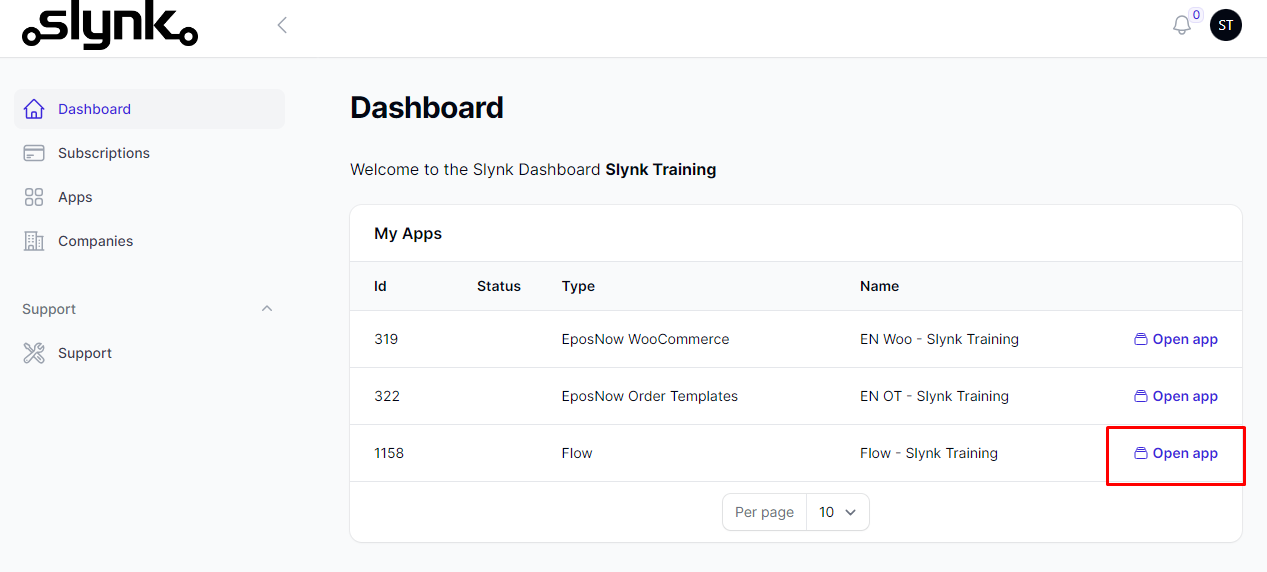
Open the Flow app to access the Flow dashboard. This is where you can:
- create flows
- view existing flows
- check task usage
- review runs and logs
Optional Onboarding Session
We also offer a free onboarding session where we walk through Flow with you on a screenshare and help set up your first flows.
If you want that help, use the booking link in your welcome email to book in a session with our team.
What to Do Next
After installation and access are confirmed, continue with these pages: