Runs
Whenever your flow is started, Flow creates a run.
Open Runs from the left-hand navigation to review how each run behaved.
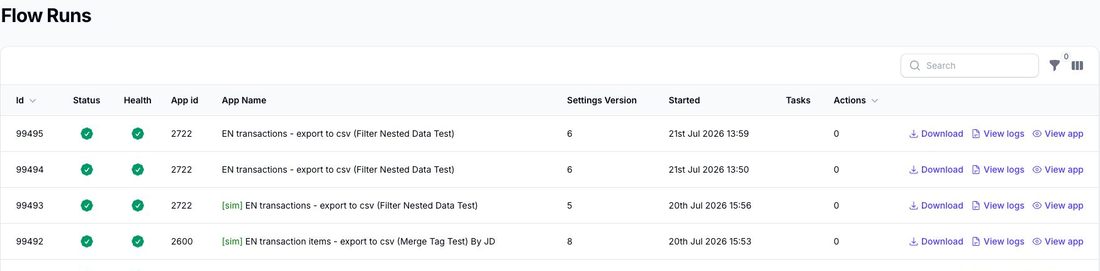
The Runs view helps you review:
- the run status
- the run health
- the flow name and settings version used for the run
- when the run started
- how many pages were fetched
- how many rows were exported
- whether the run was a simulation
- downloads for export runs when files were created
- notes recorded against the run
You can also filter the list by status, flow app ID, and date range.
From each run, you can:
- download generated export files when the flow created them
- open the detailed logs to inspect what happened record by record
- open the flow itself
Warnings, Retries, and Notes
The run notes are especially useful when Flow did not simply finish in a normal completed state.
For example, the run can show notes when:
- your POS platform's API limits or quota limits were reached and Flow scheduled an automatic retry
- a request timed out and Flow scheduled another attempt
- your row or run limit was reached and the run stopped
- the flow completed without any export fields being defined
If the run is waiting to retry automatically, the status information shows the next retry time.
For common status-info messages and what they mean, see Status Info Reference.
View Logs from a Run
For each flow run, use View Logs to open the matching log entries.
You can also open the separate Logs page from the left-hand navigation.