Order & Stock Sync
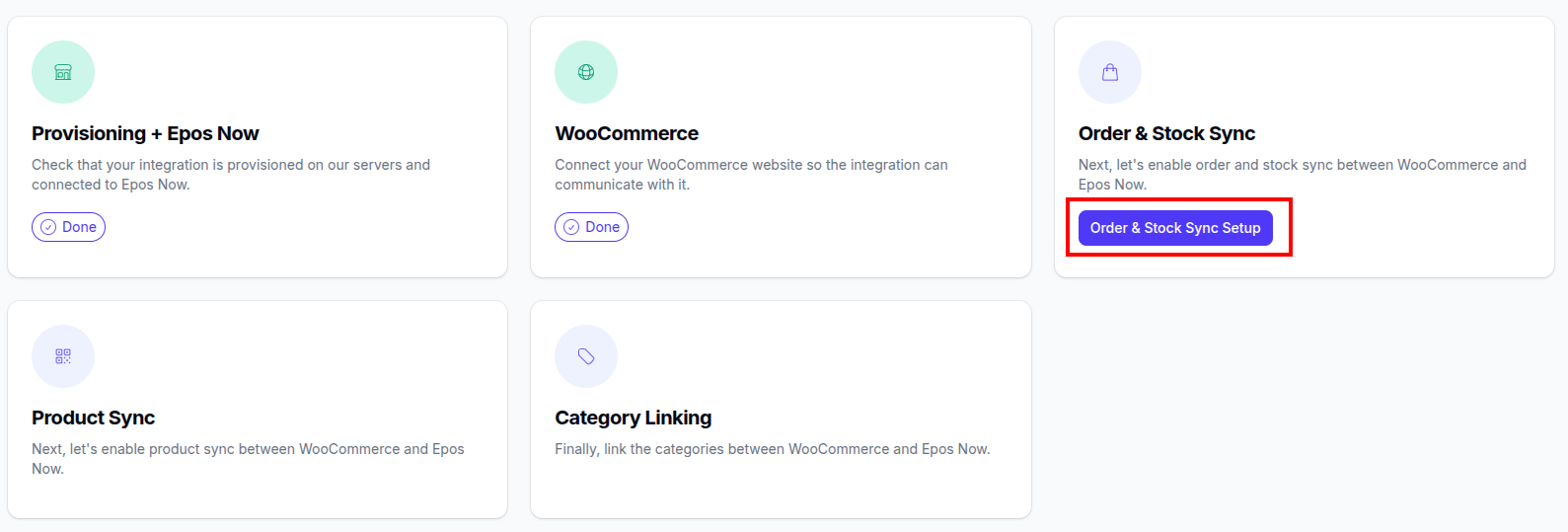
What this step does
This step sets the sync direction for orders/refunds and stock between Epos Now and WooCommerce.
You choose which platform is the stock master, whether stock sync is enabled, and which locations are used for stock and order sync.
This matters because these choices control how inventory moves, where orders are created, and whether customer records are synced.
What you'll need
- Our WooCommerce app should be installed on the locations for order sync.
- A decision on which platform should be your source of truth for stock.
How to decide the master platform for stock
Around 95% of our customers choose Epos Now as stock master. It is the simplest setup for most retailers and gives a more flexible sync flow. It also allows you to have all your sales data on Epos Now which makes unified reporting easier.
Choose WooCommerce as stock master only when there is a specific need for it. An example is when WooCommerce is already being controlled by another inventory platform (for example a multi-channel stock tool such as Linnworks / Veeqo / Channel Grabber). This sync direction is primarily to ensure stock stays in sync.
Have a look at: How to choose the master platform for stock.
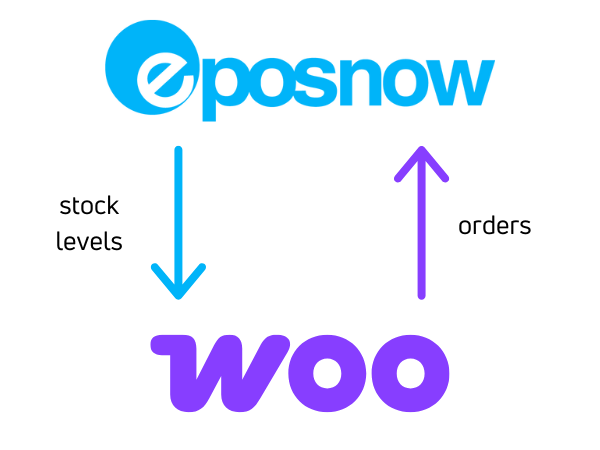
Option 1 (Recommended): Epos Now is stock master
We recommend this sync direction for most customers.
Orders sync from WooCommerce to Epos Now
Stock syncs from Epos Now to WooCommerce
- Stock can be aggregated from multiple Epos Now locations if needed
Customer sync can be enabled in this direction
Option 2: WooCommerce is stock master
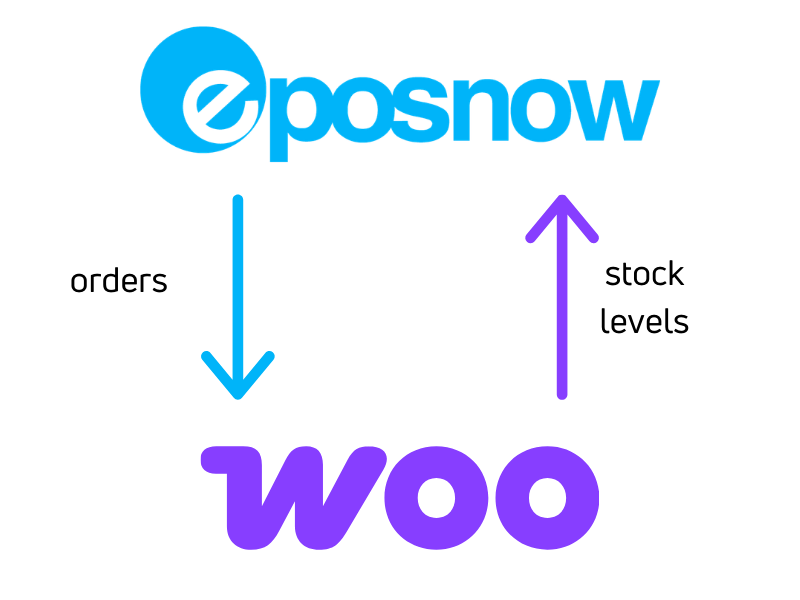
Orders sync from Epos Now to WooCommerce
Stock syncs from WooCommerce to Epos Now (single location only)
This direction has important caveats:
- Orders from Epos Now sync to WooCommerce with zero value (no price)
- The quantity of the line items is correct so that stock levels track correctly
- Orders are linked to the default Epos Now customer in WooCommerce
- Customer sync is not available in this direction
Order & Stock Sync (steps)
-
Choose the stock master direction.
-
Choose whether to sync stock levels between platforms.
-
Select stock and order locations based on your chosen direction.
- For Epos Now master, select the Epos Now location(s) used for stock and the fulfillment location used for Woo order sync into Epos Now.
- For WooCommerce master, select the Epos Now location used for Woo stock sync and the location from which Epos Now orders should sync into WooCommerce.
-
Set customer sync preference
- Enable if you want synced orders recorded against matching customers in Epos Now.
- Disable if orders should use the default WooCommerce customer in Epos Now.
-
Complete product and stock checks when products exist on both platforms.
- Review product counts on Epos Now and WooCommerce.
- Confirm which side currently has correct stock levels.
- If required, start and complete the initial stock sync before final enablement.
-
Link products if needed, then enable order and stock sync.
- This is only needed if you have products on both platforms
- Link overlapping products so both systems can map the same items correctly.
- Enable syncs once checks and any required initial stock sync are complete.
What happens next
- Your selected stock direction and location settings are saved.
- Customer sync setting is saved (or fixed to disabled for Woo master direction).
- Product/stock checks determine whether an initial stock sync is required.
- If required, initial stock sync runs before full sync enablement.
- Order sync and stock sync are enabled.
Common issues
-
Customer sync option is missing
- Likely cause: WooCommerce is set as stock master, so customer sync is not available in that path.
- Fix: this is expected behaviour for Woo master direction.
-
Cannot enable syncs yet
- Likely cause: initial stock sync is still required or still processing.
- Fix: complete the initial stock sync and refresh status before enabling syncs.
-
Some orders fail to sync
- Likely cause: products are not linked across platforms.
- Fix: link applicable products in Product Linker, and the order should sync through when it automatically retries.
-
Stock not updated on WooCommerce
- Likely cause: Product is not linked or
manage stockis not ticked in WooCommerce. - Fix: Check that the product is linked. Tick
manage stockon the woo product (at variation level if it is a variable product) and then update the stock level on Epos Now, or request a full stock sync .
- Likely cause: Product is not linked or