Connect WooCommerce
What this step does
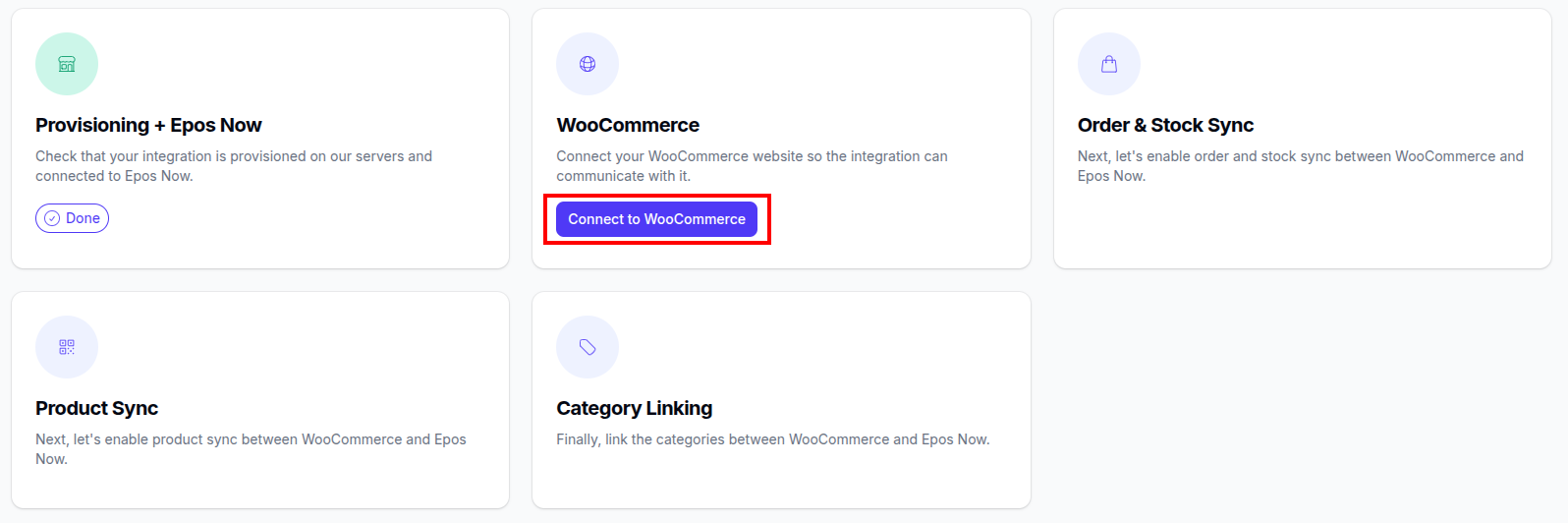
This step connects your WooCommerce store to Slynk so we can securely access WooCommerce data and keep sync running (products, stock, orders, customers). You’ll authorise access in WooCommerce and install the Slynk plugin so Slynk can verify setup and receive events reliably.
What you’ll need
- Admin access to your WordPress / WooCommerce site
- A WooCommerce user with at least Shop Manager permissions (for authorisation)
- Your store URL in
https://example.comformat (SSL is required)
info
WooCommerce requires SSL (https) to allow API access.
Connect WooCommerce (steps)
-
Add notification emails
- Add one or more email addresses for integration alerts.
- Use a shared inbox (e.g. ops/support) so alerts aren’t missed.
-
Enter your WooCommerce URL
- Must start with
https:// - No trailing slash
- Example:
https://example.com
- Must start with
-
Authorise access in WooCommerce
- When redirected to WooCommerce, approve the access request.
- Make sure you’re signed in with a user that has at least Shop Manager permissions.
- If you close the window or deny access, return to onboarding and run authorisation again.
-
Confirm authorisation in Slynk
- Back in Slynk, click Check again until the status confirms credentials were received.
- If nothing arrives after a few minutes, go Back, repeat the authorisation step, then Check again.
-
Install and activate the Slynk plugin
- Install: Integration for Epos Now and WooCommerce
- Activate the plugin
- Return to Slynk and click Check again to confirm:
- Plugin installed
- Plugin activated
What happens next
Once connected and verified:
- Slynk can communicate with WooCommerce using the authorised credentials.
- The plugin check confirms your Woo site is ready for syncing.
- You can continue onboarding to choose your sync settings and enable the syncs you want.
Common issues
-
Woo authorisation screen won’t load / redirects repeatedly
- Likely cause: URL entered incorrectly (http vs https, trailing slash), or not logged into the right WP/Woo site.
- Fix: Re-enter the URL exactly as
https://example.com(no trailing slash) and retry.
-
Authorisation approved, but Slynk never receives credentials
- Likely cause: the authorisation flow was closed early, blocked by a firewall/WAF, or the user permissions were insufficient.
- Fix: repeat authorisation using a user with at least Shop Manager, then click Check again.
-
Plugin check fails (installed but not detected)
- Likely cause: plugin not activated, caching/WAF blocking requests, or server rules blocking outbound/inbound calls.
- Fix: confirm activation in WordPress, then click Check again.
-
You’re using Cloudflare (or another WAF)
- Likely cause: security rules challenge/block the requests needed for verification and ongoing sync.
- Fix: review and apply the recommended settings.
- See: Cloudflare Settings
- For other providers: WAF and Security Plugin Settings