Lightspeed Retail (R-Series) Connection
Use the Lightspeed Retail (R-Series) connection to authorize Flow to read the POS data needed by your flows.
R-Series and X-Series have separate connections. Choose the series used by your Lightspeed Retail account. These connections do not support Lightspeed Restaurant or eCom.
When you connect Lightspeed
Sign up through the Flow pricing page with Lightspeed selected. Both Retail series use the same Lightspeed connection fee at checkout.
After checkout, Flow opens Connections with the Lightspeed connectors filtered and a welcome banner. Choose Lightspeed Retail (R-Series), then Connect.
You can also connect later:
- Open Flow in the Slynk dashboard.
- Choose Connections from the left-hand navigation.
- Enter
lightspeedin Search connections. - Find Lightspeed Retail (R-Series) and choose Connect.
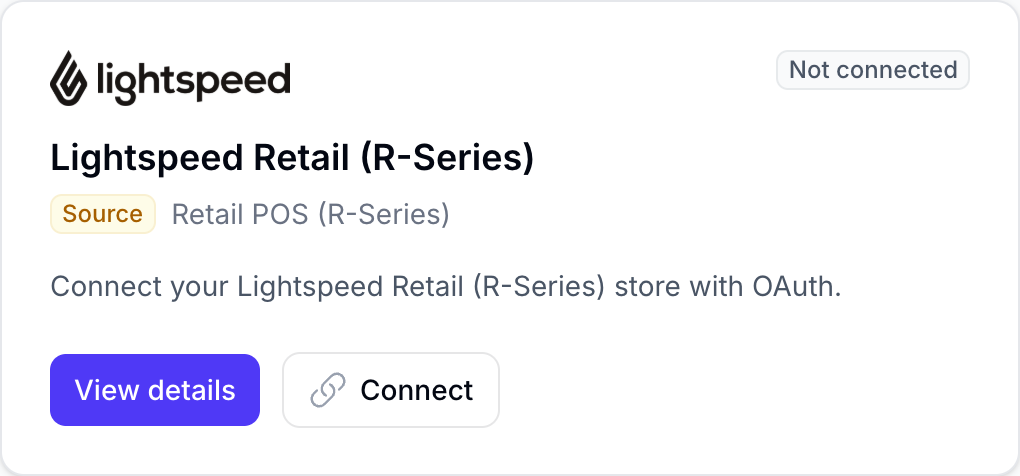
You can also choose View details, followed by Connect Lightspeed Retail (R-Series) in the page header.
Authorize Flow in Lightspeed
1. Sign in to R-Series
The connection opens Lightspeed in a new tab. Sign in to the R-Series account you want to connect if asked. If you already have a Lightspeed session, you may go straight to the approval page.
You do not need to enter a store URL or prefix. Flow connects to the R-Series account you authorize.
2. Review and approve access
Lightspeed shows Slynk Flow and the requested Access rights. Review the list and choose Authorize Application to continue. Choose No thanks if you do not want to grant access.
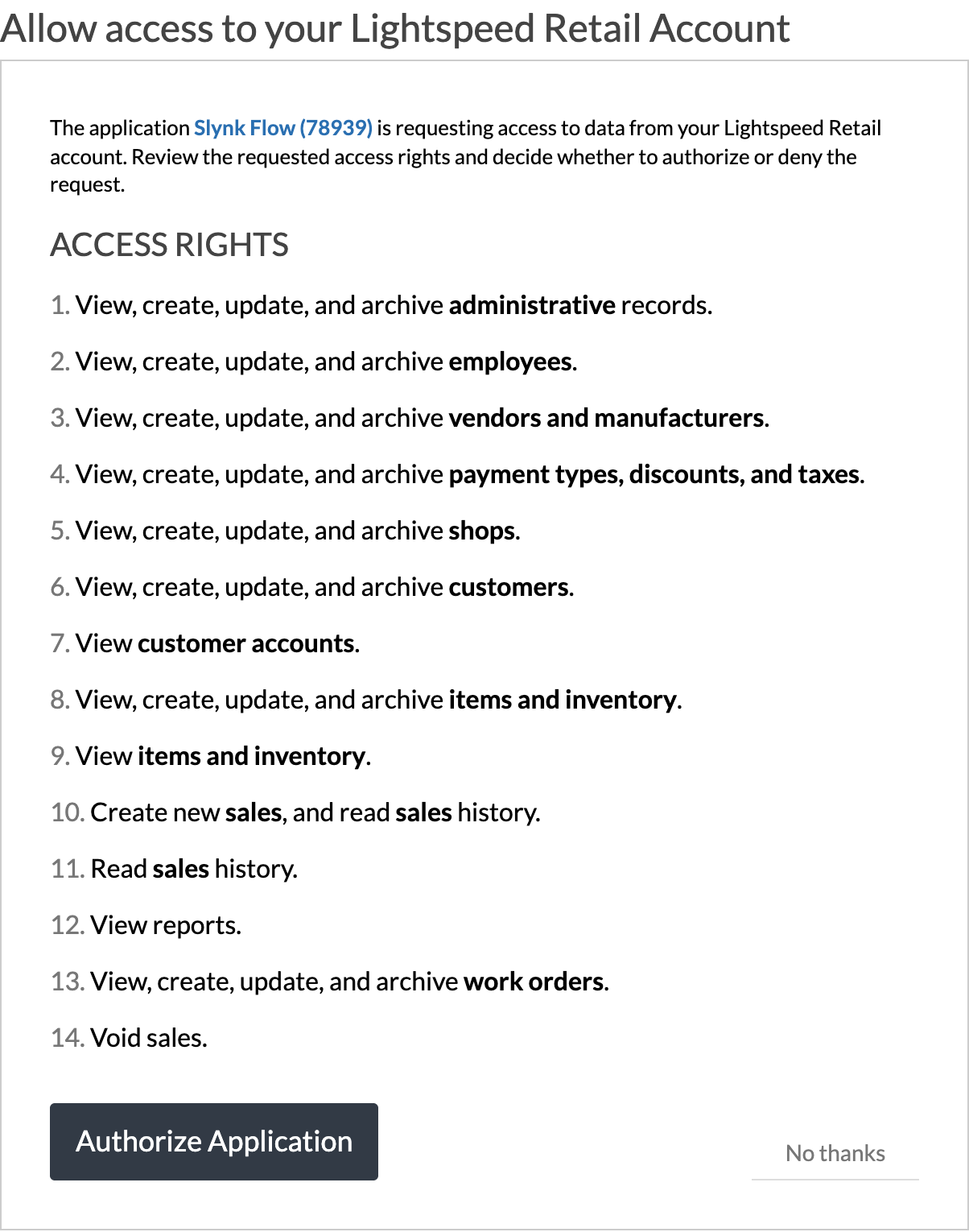
Lightspeed R-Series requires read and write permissions to be requested together. This is why the approval screen lists permissions to change records. Flow only reads your Lightspeed data for exports and reports. It does not create, update, delete, or void records.
You sign in and approve access on Lightspeed. Slynk does not receive your Lightspeed password.
3. Confirm the connection
After approval, Lightspeed returns you to Flow. The connection page should show Connected and display:
- Account ID: the R-Series account connected to this Flow app
- API version:
V3 - Token expires: when the current access token expires
- Scopes: the permissions granted by Lightspeed
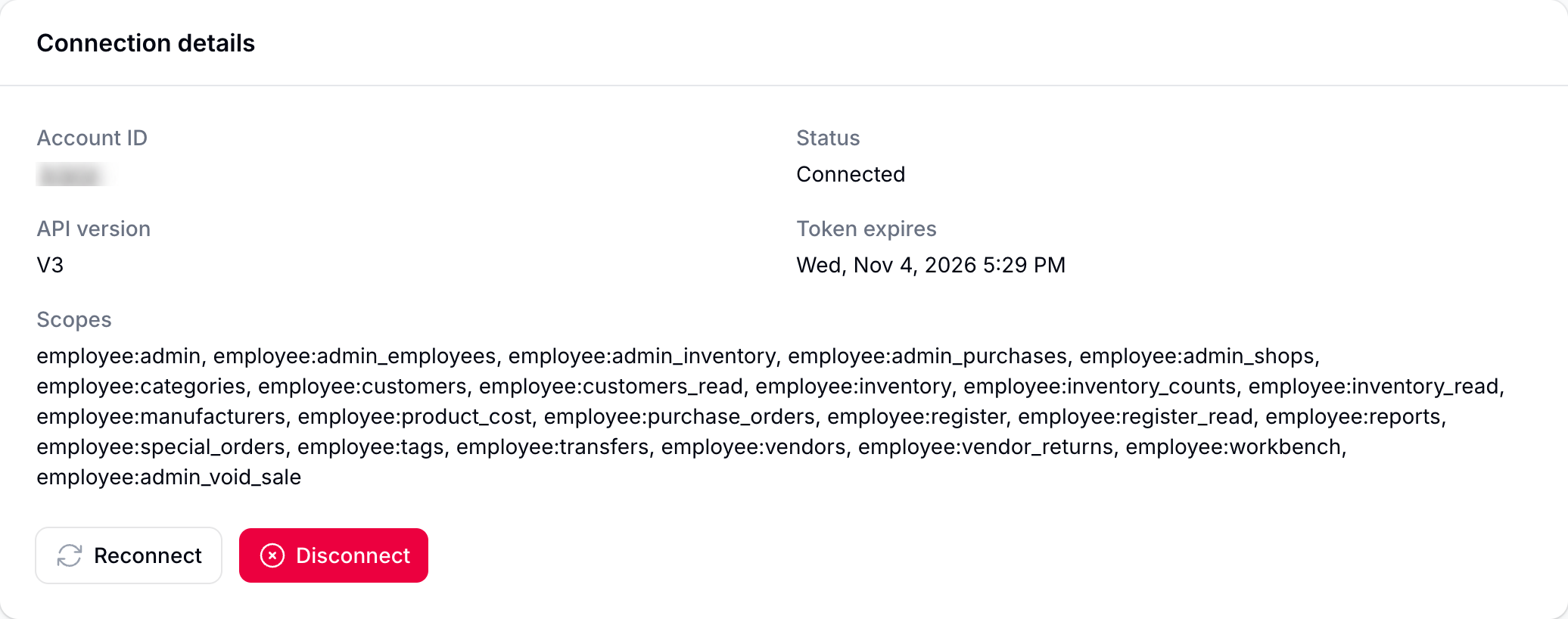
Flow refreshes the authorization automatically while the connection remains valid. You can then choose an R-Series template and create your first flow.
Reconnect Lightspeed
Use Reconnect on the R-Series card or connection detail page when you need to approve access again. If authorization is revoked or Flow can no longer refresh it, the card shows Re-auth required and the detail page explains that re-authorization is required.
Choose Reconnect Lightspeed Retail (R-Series) when that action is shown, then complete the Lightspeed approval process again.
Disconnect Lightspeed
Choose Disconnect on the connection detail page and confirm when asked.
Disconnecting prevents Flow from fetching data from that R-Series account. Existing flows that depend on it cannot run successfully until you connect again. Disconnecting does not cancel your subscription. To stop future charges, follow the Flow cancellation steps.
Troubleshooting
I use a different Lightspeed series
Return to Connections and choose the matching series. X-Series accounts use the separate Lightspeed Retail (X-Series) connection.
I declined access or closed the Lightspeed tab
No new connection is created. Return to the R-Series connection in Flow and choose Connect when you are ready.
Flow reports more than one account
Check that you are signed in to the R-Series account you want to connect, then try again. If Flow still reports more than one account, contact Slynk support.
Flow says re-authorization is required
Choose Reconnect Lightspeed Retail (R-Series) and approve access again. If the problem continues, contact Slynk support with the error shown on the connection page.