Trigger Epos Now Order Print
Epos Now have an Order Printing feature which automatically prints out order prints at relevant stations such as the bar and kitchen. When an order is created on EposNow, it automatically triggers the order print.
Some clients wanted to be able to only print the orders when needed and also wanted to be able to select the number of copies to print per order.
With Order Templates, you can now send the order print commands on demand and also select the number of prints. To use this feature:
1. Enable in settings
Open the Order Templates app in Epos Now or through Open App in the Slynk dashboard. Inside that app, select the menu icon, choose settings, and configure the order print service settings. These are separate from Settings in Template studio, which controls document design.
Send Print triggers the real Epos Now order print service. It is not a document preview. Template studio's Preview tab is read-only and does not offer this action.
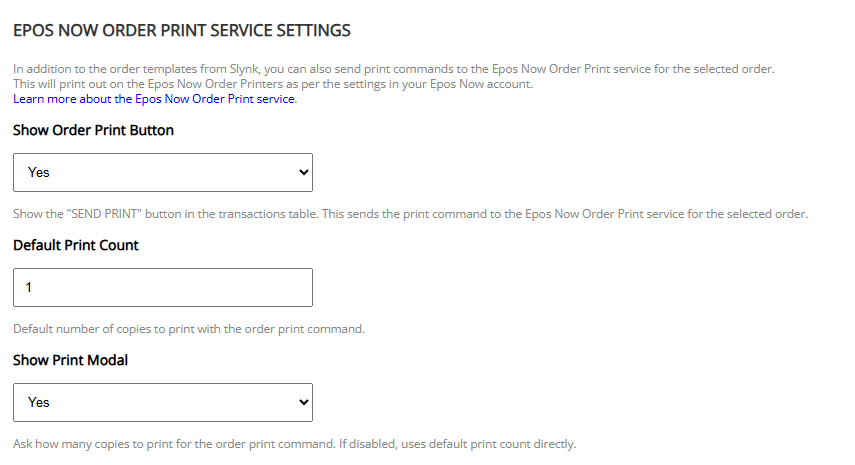
2. Orders List
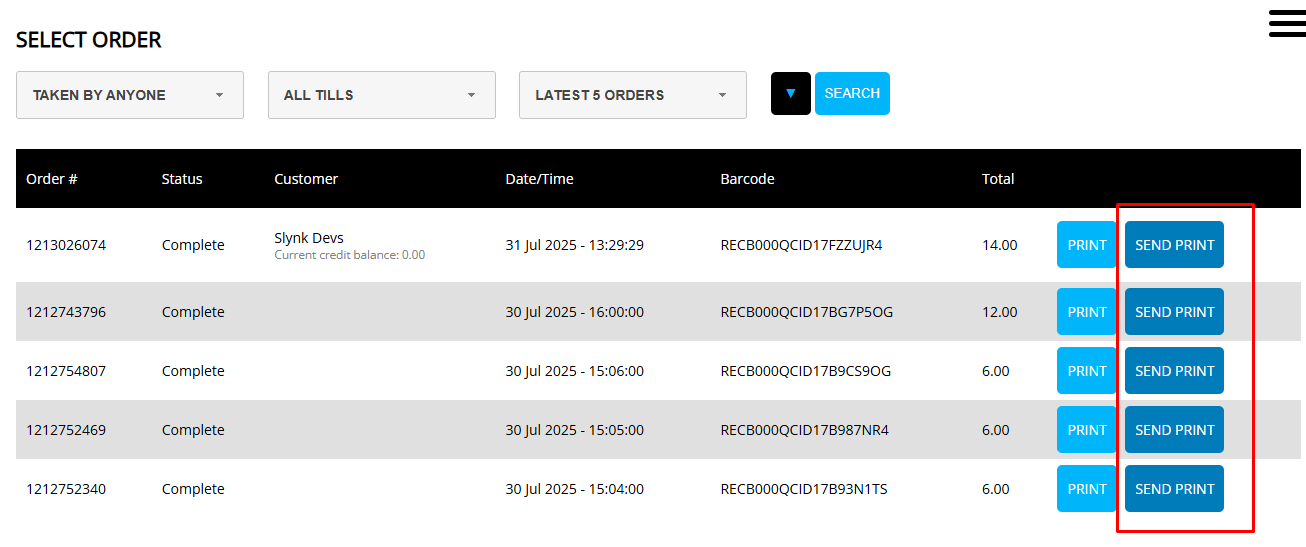
On the orders list, you will now see a Send Print button. Click this to send the order print command to Epos Now.
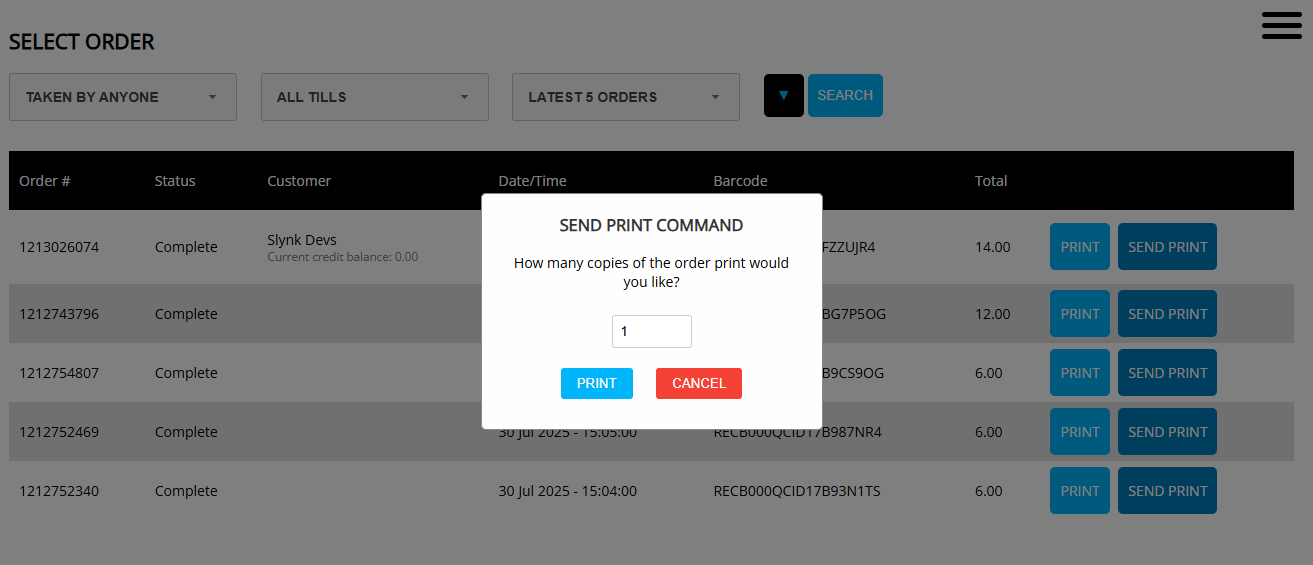
3. Select Number of Copies (optional)
Depending on your settings, a modal will be shown to ask how many copies you want to print. This will be set to the default value you set in the settings.
4. Epos Now prints the order print
Epos Now will then print the order print as per your order print settings in Epos Now. See this article from Epos Now on setting up their order print feature (Order Printing section):
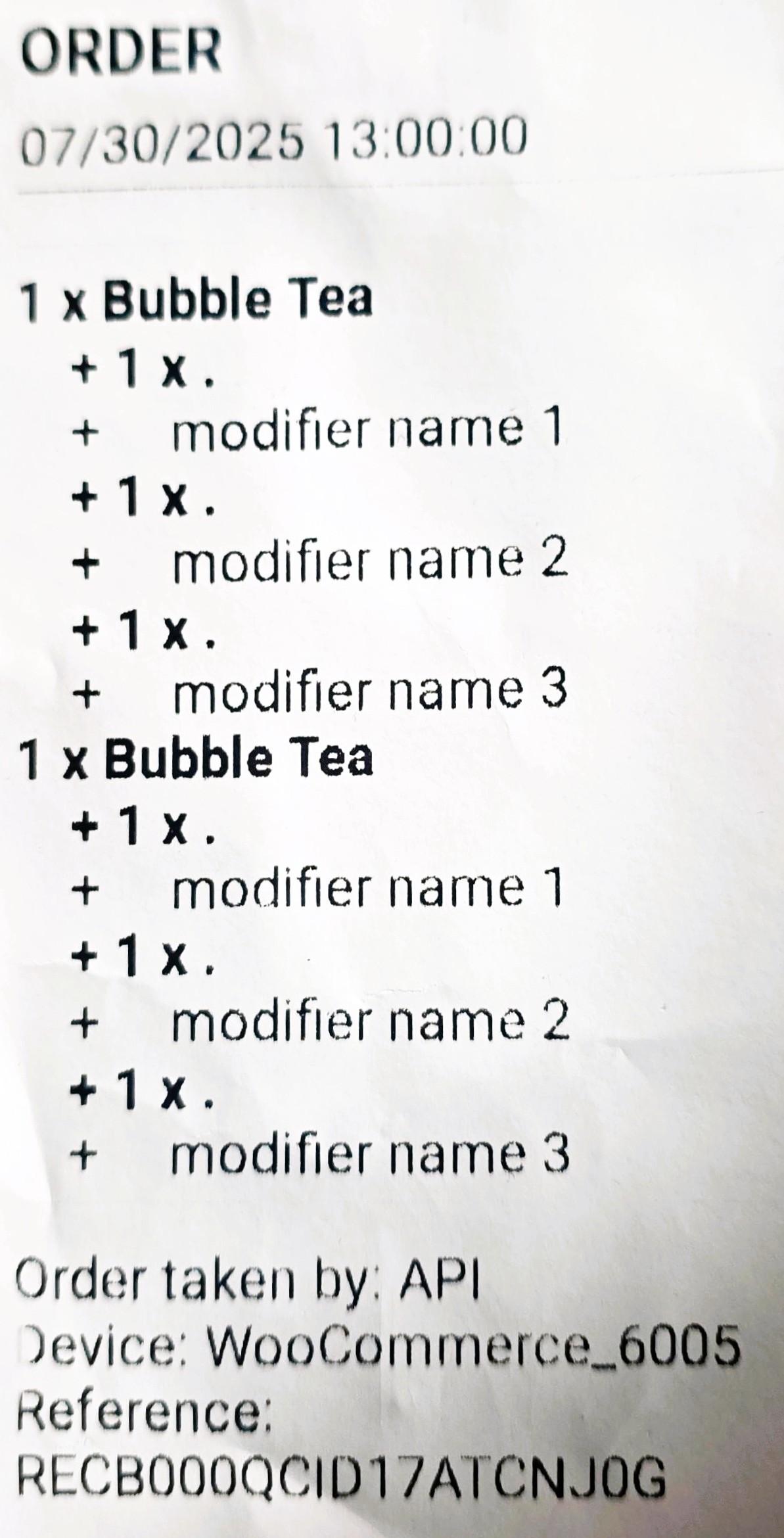
Please note that this will print the order as per the Epos Now order print settings. This is not customisable by order templates, this feature just adds a trigger for the standard Epos Now order print