Install and Access
This page explains how to install Morph and access it in the Slynk dashboard.
Install Morph
To use Morph, you need an active Morph plan through the Epos Now App Store.
All subscriptions and billing are handled through Epos Now. If you have not installed the app yet, you can choose a plan on the Morph pricing page and then click on the Sign Up button which will take you to the Epos Now App Store to complete the sign up.
What Happens After Sign Up
- Install Morph via the Epos Now App Store.
- You receive a welcome email from Slynk with your dashboard access details, or password reset guidance if you already have an account. This is sent to the main email address registered on your Epos Now account.
- Log in to the Slynk dashboard.
- Open Morph from your list of apps.
There is no separate manual connection step to complete before you start building morphs, your Epos Now account is automatically connected when you install the App from the Epos Now App Store.
Access Morph in the Dashboard
Once you are logged in to the dashboard, you will see your apps.
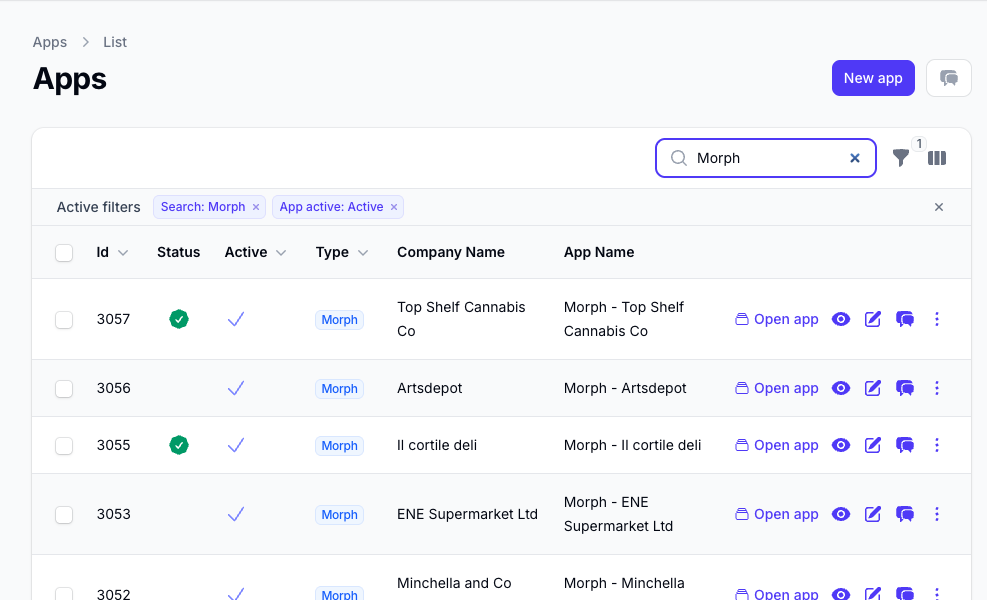
Open the Morph app to access the Morph dashboard. This is where you can:
- create morphs
- view existing morphs
- check usage
- review runs and logs
Optional Onboarding Session
We also offer a free onboarding session where we walk through Morph with you on a screenshare and help set up your first morphs.
If you want that help, use the booking link in your welcome email to book in a session with our team.
What to Do Next
After installation and access are confirmed, continue with these pages: